
Get 50% OFF QuickBooks for 3 months*

Buy now
Switch to QuickBooks and 70% off for 3 Months
April 29, 2020
Solved

How do I share custom reports with other users on my account?

  • April 29, 2020
  • 3 replies
  • 56 views
I am specifically NOT asking about sharing with my Accountant. I need to share these reports with the other employees defined as users in the QBO file.

Best answer by jamespaul

I hope you're doing fine today, ambbwc.


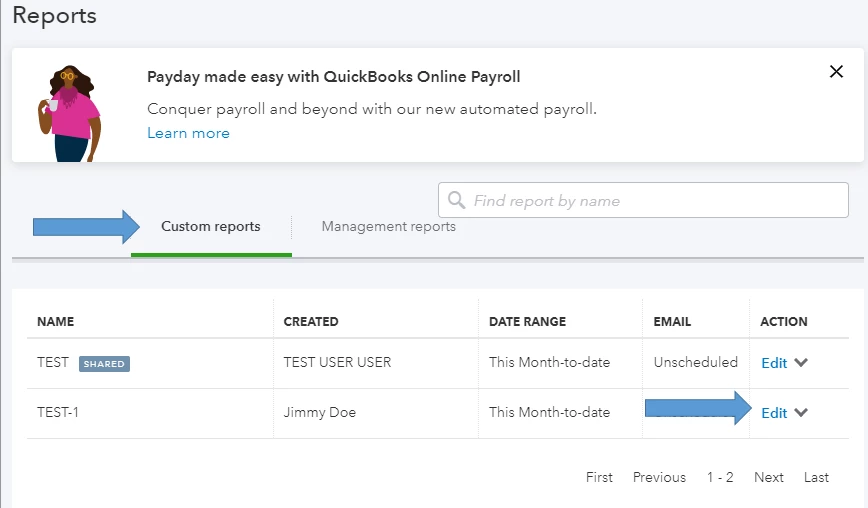
There are two ways to do this. If you've saved your customized report, you'll want to go to the Custom reports tab. Here's how:


  1. Go to the Reports tab.
  2. Click the Custom reports tab.
  3. Hi the Edit link for the custom report you want to share.
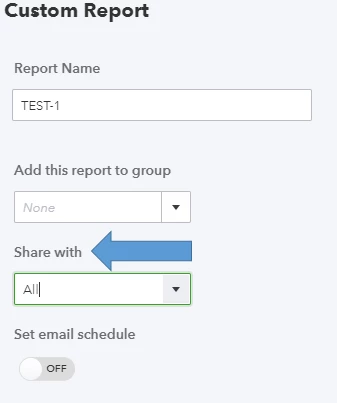
  4. Choose All under Share with
  5. Click Save and close.

Other users will be able to see the shared reports when they go to their Custom reports tab. 


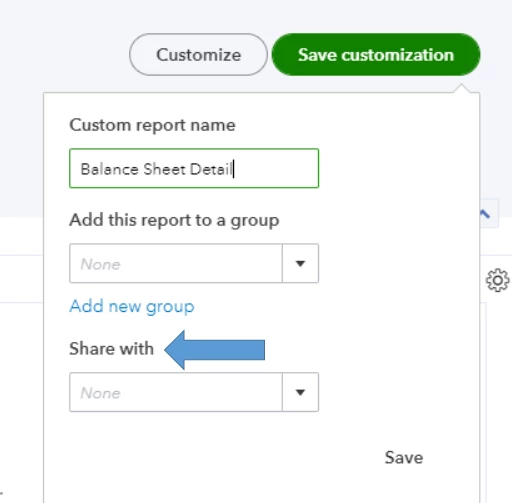
Another way is to use the Save customization button. Simply open a specific report, then click on the Save customization button. You'll see the Share with drop-down menu again. 


You also have the option to send a scheduled customized report. If you want to give it a try, you can visit this article: Set schedule and email information for a memorized report.


I'd also suggest reading our Report articles for data reporting and such.


I personally like this feature in QuickBooks Online. I can share important reports with the team easily. If you have other questions, the Community Team is always here to help. 

3 replies

jamespaulAnswer
Level 8
April 29, 2020

I hope you're doing fine today, ambbwc.


There are two ways to do this. If you've saved your customized report, you'll want to go to the Custom reports tab. Here's how:


  1. Go to the Reports tab.
  2. Click the Custom reports tab.
  3. Hi the Edit link for the custom report you want to share.
  4. Choose All under Share with
  5. Click Save and close.

Other users will be able to see the shared reports when they go to their Custom reports tab. 


Another way is to use the Save customization button. Simply open a specific report, then click on the Save customization button. You'll see the Share with drop-down menu again. 


You also have the option to send a scheduled customized report. If you want to give it a try, you can visit this article: Set schedule and email information for a memorized report.


I'd also suggest reading our Report articles for data reporting and such.


I personally like this feature in QuickBooks Online. I can share important reports with the team easily. If you have other questions, the Community Team is always here to help. 

ambbwcAuthor
April 29, 2020

Thank you, that is very helpful.


I continue to be mystified why Intuit's "Help" menu doesn't describe all of the available features such as this. 

May 23, 2023

I am not able to remove the view from another user from my custom reports, how I can do that????

Level 9
May 23, 2023

Hi there, Oxana2.


Thank you for visiting the QuickBooks Community. 


You can manage always their roles and limit their access to specific tasks. You can also select what users can see and do within different areas of QuickBooks, like customers and sales, or vendors and purchases. However, removing the view from another user from your custom reports is currently unavailable. 


For now, I recommend going to the Gear icon and selecting Feedback. You can then submit a request to have the option to remove your user to view your custom reports. Any suggestions are forwarded to our engineers for consideration in future upgrades.


Lastly, I'm adding this article to see steps on how you can print, email, and export reports in QBO so you have a copy of your data: Run reports in QuickBooks Online.


Please feel free to leave a comment below if you have other concerns about managing reports in QBO. I'm always ready to help. Take care, and have a great day, Oxana2.

June 30, 2025

How do we share these with QB Desktop?

QuickBooks Team
July 1, 2025

You can customize then memorize your report to share it with other users in QuickBooks Desktop. 
 

Here's how:
 

  1. Go to Reports, then choose any reports you want to share.
  2. Customize your report.
  3. Once done, head to the Memorize option.
    Edit your preferred name, then check the box labeled Share this report template with others. When you select this checkbox, your report template will be accessible to other QuickBooks users when they go to the Contributed tab in the Report Center.
  4. Select Ok.
     

To check the shared report in your QuickBooks. Here's how:
 

  1. Go to the Report Center.
  2. In the Search bar, type the report shared previously.
  3. Check it in the Contributed tab.
     

You can also refer to this material for more information and guided steps on how to create, access, edit, or delete a memorized report: Create, access, and modify memorized reports.
 

Next, you'll want to print reports with gridline in QuickBooks Desktop to oversee different aspects of your business.
 

If you have any other questions about reports in QuickBooks, let us know in the thread below.