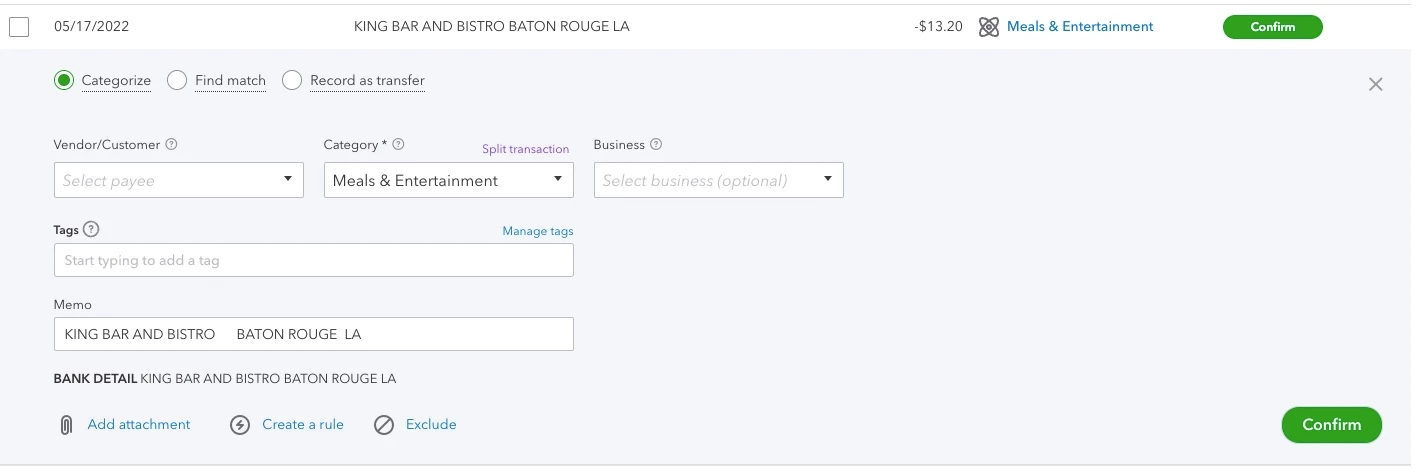
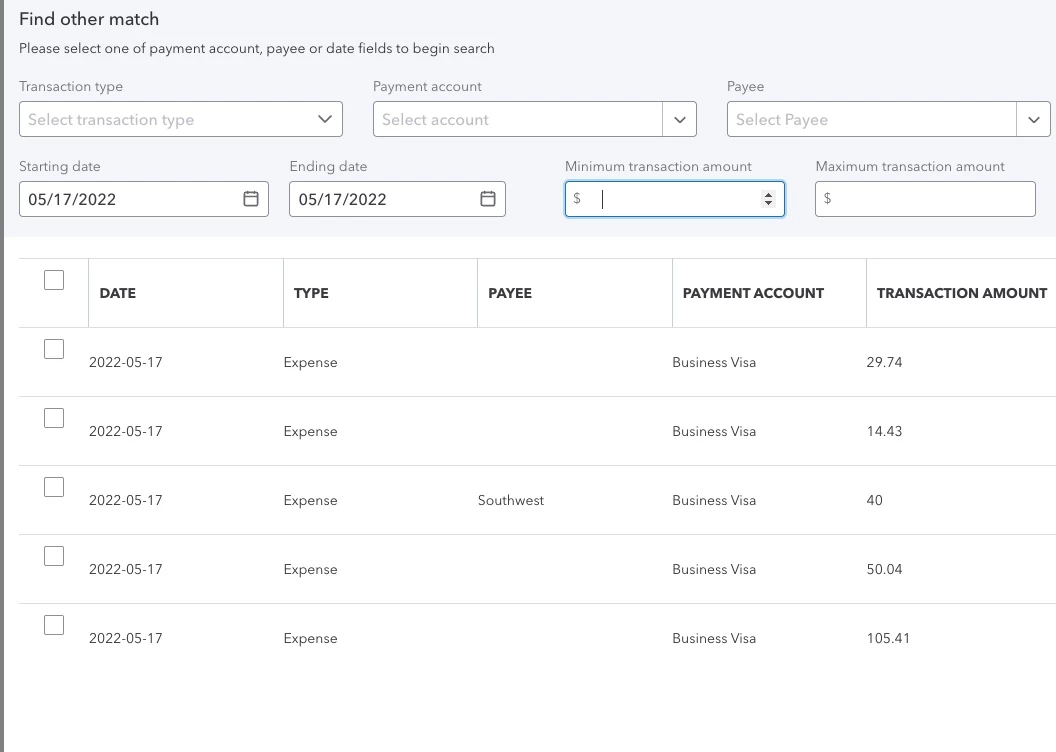
QuickBooks Online checks several matching criteria behind the scenes, so manual search might miss a transaction even if it looks fine in your account.
What blocks a transaction from showing up as a match
QuickBooks Online won't surface a transaction as a match if any of the following apply:
- The amount doesn't line up exactly. Bank fees or a discount taken out before the deposit hit your account can shift the total just enough that it no longer matches.
- Multiple payments got bundled into one deposit. If your bank grouped several payments together, QuickBooks is looking for a single transaction that matches the combined total, not each individual one.
- The dates fall outside the matching window. QuickBooks looks for records dated up to 90 days before or 20 days after the bank transaction. Anything older or newer than that won't turn up.
- The record's already been reconciled. Once a transaction is reconciled, it's left out of matching so you don't end up with a duplicate.
Run through this list against the specific transaction you're trying to attach a receipt to. Even one mismatched detail, like a date a few days outside the window or an amount that's off by a bank fee, is enough to keep it hidden from search.
What to do once you've confirmed the transaction exists
If you've checked the list above and you're confident the transaction is there, don't create a new one instead. That leads to a duplicate in your books. Here's how to find and match the original:
- Go to All apps, then Accounting, then Bank transactions.
- Find the transaction and select the suggested match icon in the Categorize or Match column to pull up match suggestions.
- If the record you're looking for shows up, select it, choose the correct category, then select Post.
- If the amounts are close but not exact because of a fee, add a processing fee line item to the original record so the totals line up.
Note: if your screen still shows a For review tab instead of Categorize or Match columns, you're on an earlier version of the bank transactions page. The matching criteria above still apply either way.
Attaching the receipt itself
From the receipts side, if QuickBooks Online can't find a match automatically, select Search manually from the receipt review screen to look for the transaction yourself. If it still doesn't turn up there, work through the criteria above before uploading the receipt as a new transaction.
Learn more:
Got another question about receipts or bank matching in QuickBooks Online? Just ask below and we'll help you sort it out.