
Get 50% OFF QuickBooks for 3 months*

Buy now
Switch to QuickBooks and 70% off for 3 Months
December 14, 2019
Solved

Is there a report that shows hours worked by an employee by the weeks for a specified term? This is for a TDI claim?

  • December 14, 2019
  • 2 replies
  • 70 views
No text available
Best answer by ShallyMarR

Hello, Wailele.


Welcome to the Community.


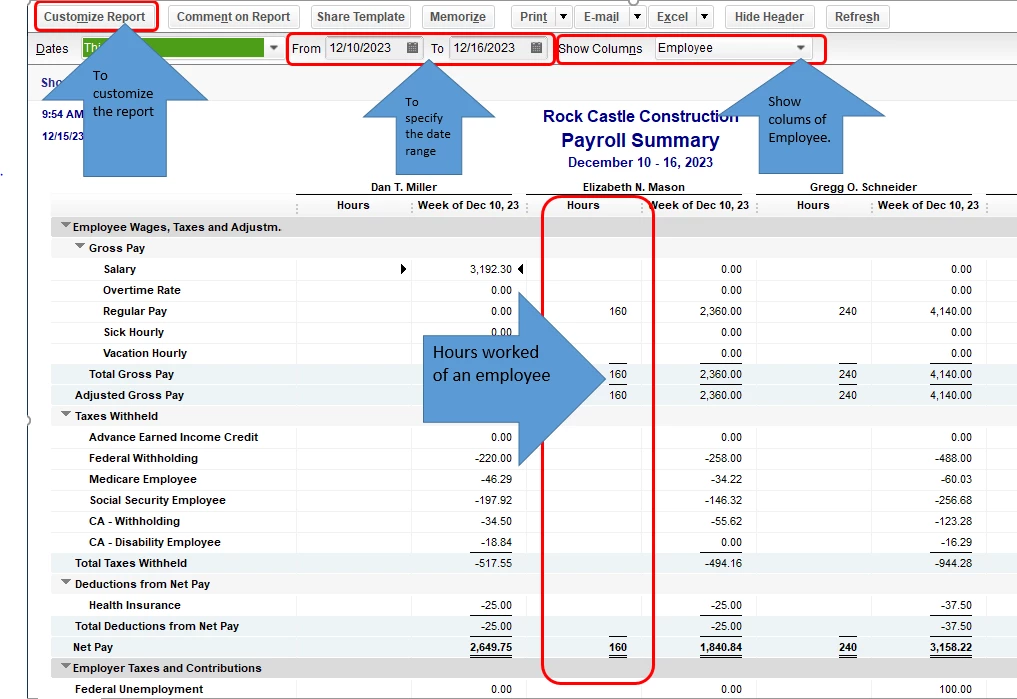
Yes, you can pull up the Payroll Summary report that shows the employees' worked hours and weeks' term. To check the specific worked weeks, you'll need to customize the date. Let me guide you how:


1. In the QuickBooks homepage, click on Reports at the top menu bar.

2. Select Employees and Payroll.
3. Click on Payroll Summary.
4. Make the necessary customization by clicking on Customize Report.
5. Under Show Columns, select Employee. Make sure to customize the dates correctly from the start date of the employee.

6. Refresh the report.


For additional reference, check out this article about adding total hours worked by employee report in QuickBooks Desktop.


You can check this resource page for future reference in case you want to learn more about the recording of timesheets by an employee in QuickBooks Desktop: Create and print timesheets.


Please let me know if there's anything I can do to help. I'm always around to assist you. Have a good day!

2 replies

ShallyMarR
December 14, 2019

Hello, Wailele.


Welcome to the Community.


Yes, you can pull up the Payroll Summary report that shows the employees' worked hours and weeks' term. To check the specific worked weeks, you'll need to customize the date. Let me guide you how:


1. In the QuickBooks homepage, click on Reports at the top menu bar.

2. Select Employees and Payroll.
3. Click on Payroll Summary.
4. Make the necessary customization by clicking on Customize Report.
5. Under Show Columns, select Employee. Make sure to customize the dates correctly from the start date of the employee.

6. Refresh the report.


For additional reference, check out this article about adding total hours worked by employee report in QuickBooks Desktop.


You can check this resource page for future reference in case you want to learn more about the recording of timesheets by an employee in QuickBooks Desktop: Create and print timesheets.


Please let me know if there's anything I can do to help. I'm always around to assist you. Have a good day!

January 10, 2021

this is great - but I need a report that shows me the number of pay periods an employee worked

When we were with Sage 50- the payroll reports would show me a report by employee, that had the pay period date in column 1 with the breakdown of their pay along the columns.  I could quickly reconcile their CPP that way.  

Why? They get a CPP Exemption of $134.61 per pay - but they don't work all year.  I have to make sure that they paid enough CPP for the year.  


They also get sporadic bonus, and the CPP deduction needs to be manually adjusted so that they DON'T get the CPP deduction on those cheques.


I'm looking for a report that will allow me to quickly see if I deducted enough CPP bi-weekly


any hopes of that?

Heather

January 10, 2021

OMG! I found one!!! I've asked this question over the years and could never get a straight answer!

Transactions by Payroll item - change Total by 2 week.

It's not a simple as I would like - but I'm working on it - hopefully I can perfect it and save as a memorized report.  Not really sure why this isn't a default report.  It's great info


If you know of a better way - please share!

June 24, 2025

I didn't see your question answered specifically enough for what it sounds like you're asking, so I'm jumping in as I am working on an insurance audit today and they are pretty much asking the exact question (employee's gross pay and how many weeks worked is what my insurance auditor wants, you can just ignore the gross pay portion and focus on the hours worked by an employee by the week for a specific term).  Here's what I did:


-Open up the Payroll Summary Report and fill in the From/To Dates for the report.

-Customize the Payroll Summary Report - Click on the Filter Tab to filter it to the specific employee you are working on.

-When the Payroll Summary Report shows the one employee you are working on, double-click on the employees gross wages amount (you'll see black arrows surround the amount when you click on it - you'll need to double-click to blow open a report called "Transactions by Payroll Item".

-When the Transactions by Payroll Item report has been opened in the previous step, choose Customize Report and in the customize report screen, for the columns displayed, scroll down the list where you would put a checkmark next to each item you want displayed and choose "Qty" - this stands for Quantity, and on this particular report, it'll give you the hours worked as the Quantity.

-Of note, if an employee has several different payroll items on one paycheck date, it'll show the hours for each of the payroll items as separate line items - so for instance you may see 2 lines with the same paycheck date, where they were paid two different payroll items (such as regular pay on one line, sick pay or overtime on a different line), but the dates are all clumped together in date order, so it's pretty easy to see if they've worked that week for what I'm doing.


Hope this helps!
