


Bank of America Feed Not Connecting After the Migration? Here's How to Reconnect in QuickBooks Online
Bank of America Feed Not Connecting After the Migration? Here's How to Reconnect in QuickBooks Online
Your Bank of America feed suddenly stopped pulling in transactions? You're not alone, and you didn't do anything wrong.
Quick answer: Bank of America updated its login security, which disconnected older QuickBooks connections during its recent migration. To reconnect in QuickBooks Online: go to Bank transactions and follow any reconnect prompt you see, then select Link account and choose Bank of America for any account still missing, and match it to your existing account so your transaction history stays intact.
Why did this happen?
Bank of America recently updated its login security, and that update changes how personal, business, Merrill, and Benefits Online accounts connect to QuickBooks. Because of that, your old connection can't just be refreshed. It needs to be replaced with a new one.
How to reconnect your Bank of America feed
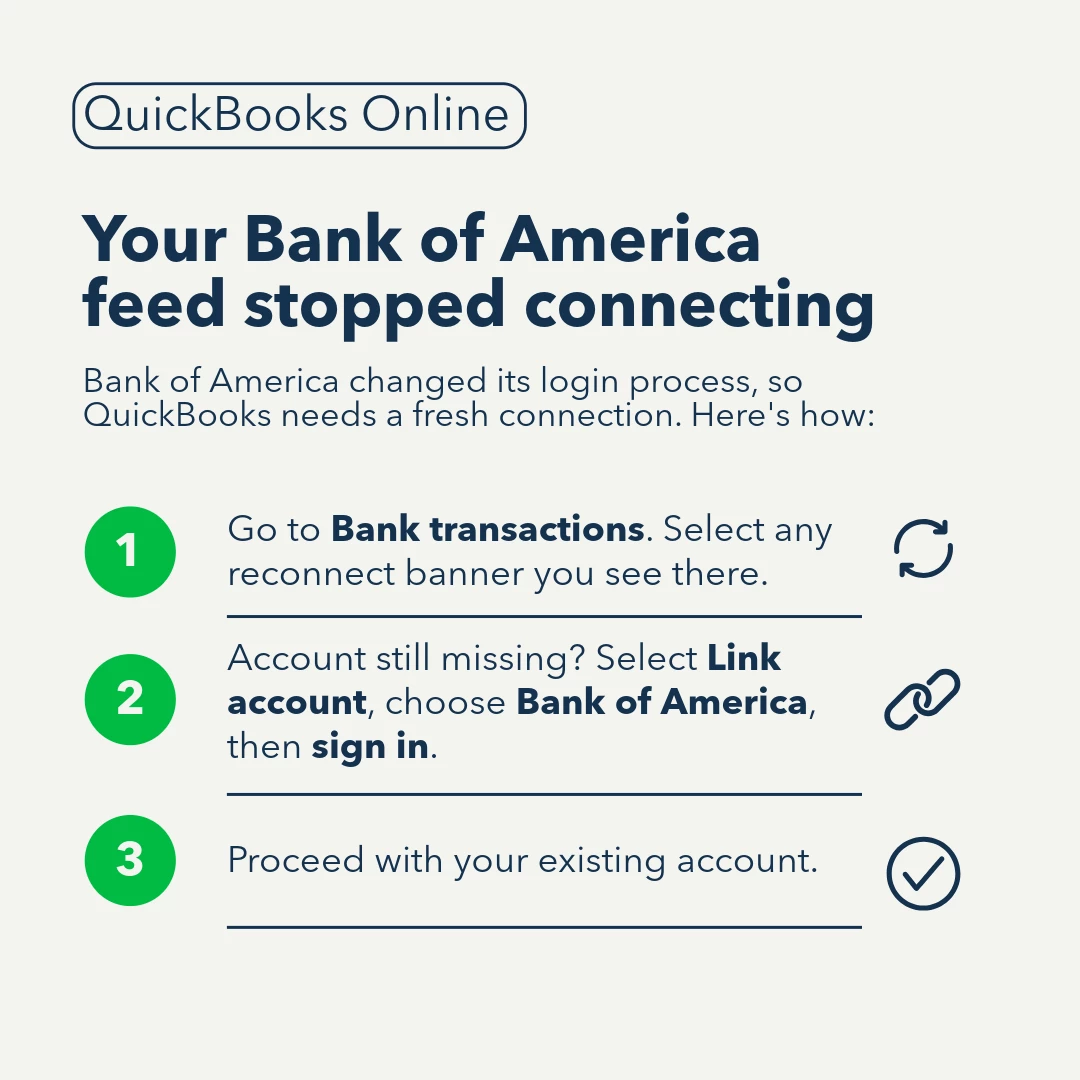
1. Head over to Bank transactions. This is where QuickBooks manages all your bank connections. You'll usually see a message near the top offering to update or reconnect the Bank of America account. Select it, and follow the steps on screen. That's often enough on its own.
2. Still missing an account? Link it again. An account that doesn't come back after that first step just needs to be connected manually. From the Bank transactions page, select Link account, then choose Bank of America. You'll be asked for the login details for that specific account. Not sure what those are anymore? Bank of America's own support team can help you track them down.
3. Match it to the account you already have. When QuickBooks asks which account this is, choose the one you've used before instead of creating a new one. It usually has the same name already, so it's easy to spot. This keeps all your past transactions and reports exactly where they are, so nothing gets lost or duplicated.
A quick note for multiple cards: Some businesses use several cards that all roll up under one main Bank of America account. In that case, connect the main account rather than the individual cards, since those individual sub-accounts can no longer be connected on their own.
Still stuck?
Every setup is a little different, and these steps won't cover every situation. Still not connecting after all that? Drop a comment below with what you're seeing. We're glad to help you work through it.
For more troubleshooting steps on this topic , check out this article here:Troubleshoot Bank of America account connections.