


Quick Answers: A Mini Guide to your Profit and Loss Report
Understanding Your Profit and Loss Report
Hello QuickBooks users, and thanks for joining us. These mini guides are designed to instill confidence while navigating your QuickBooks account so you can focus on running your business. This month’s guide covers your Profit and Loss (P&L) report. What it is, why it matters, what to do when transactions seem to be missing, and how to use the P&L Comparison Report to track your business’s progress over time. Let’s dive in!
What Is a Profit and Loss Report?
A Profit and Loss report, also called an income statement, shows your business’s revenue, expenses, and resulting net income or loss over a specific period of time. Think of it as your business’s financial report card. It answers the question: Are we making money?
The basic formula is simple:
| Revenue − Expenses = Profit or Loss |
Regularly reviewing your P&L helps you spot trends, cut unnecessary costs, and make informed decisions for your business. In QuickBooks Online, your P&L is automatically generated from the transactions you’ve entered, which is why keeping your books up to date matters so much.
Tips and Where to Find Common Items
Here’s a quick rundown of the main things you need to know to get the most out of your P&L report in QuickBooks Online.
Run your Profit and Loss report
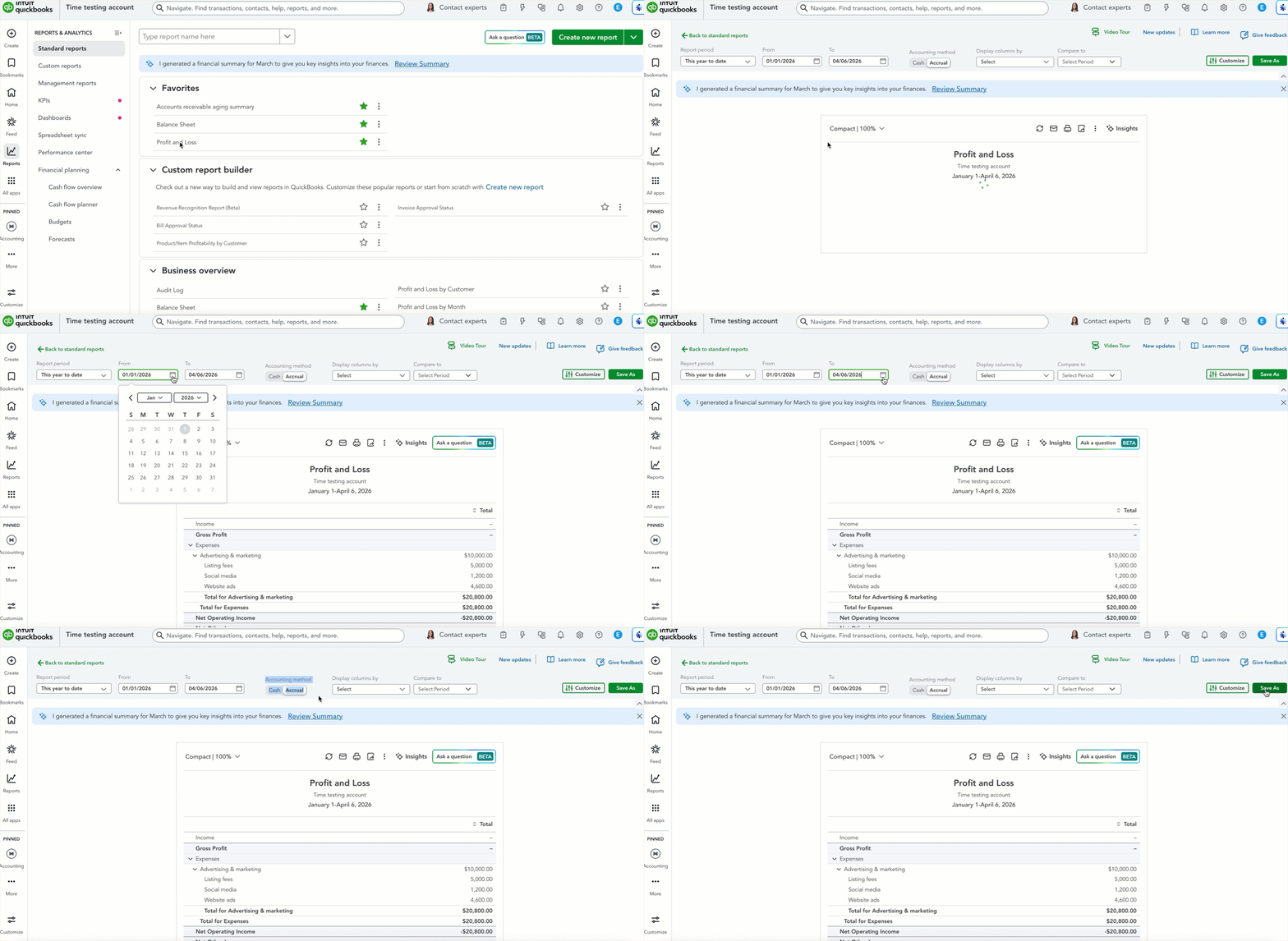
1. Go to Reports, then Standard reports.
2. On the Favorites dropdown, select Profit and Loss.
3. Set your date range and accounting method.
4. Select Save as to save your preferred settings for next time.
Customize your report view
Use the Report period dropdown to adjust the date range. You can filter by this month, this quarter, this year, or set a custom range. Accounting method lets you toggle between Cash and Accrual (more on this below).
Why Are Transactions Missing From My P&L?
If your income or expenses aren’t showing up in your P&L report, don’t panic. There are a few common reasons this happens and most are easy to fix.
Check your accounting basis
The most common culprit is your accounting method. QuickBooks Online supports two methods:
- Cash basis: Records income and expenses when money actually changes hands.
- Accrual basis: Records income and expenses when they are earned or incurred, even if payment hasn’t been received or made yet.
A transaction that appears on an accrual report may not show up on a cash report, and vice versa. To check or change this, select General options in your P&L report and adjust the Accounting method setting.
Understand what actually shows up on the P&L
Not every transaction in QuickBooks Online will appear on your P&L, and that’s by design. Here’s what to keep in mind:
- When you receive a payment from a customer, it only affects Accounts Receivable and your bank account. For the revenue to show on your P&L, you need to create an invoice for that customer.
- When you pay a bill, it only affects Accounts Payable and your bank account. The expense shows up when the bill is created, not when it’s paid.
- Deposits will appear on your P&L if they’re linked to an income account.
- Checks and expenses will show as expenses only if they’re assigned to an account. Make sure every transaction has an account listed.
- Balance sheet transactions (like transfers between accounts) won’t appear on your P&L. These live on your Balance Sheet instead.
Go Further: Run a P&L Comparison Report
Once your P&L is accurate, it becomes a powerful tool for tracking your business’s progress over time. The Profit and Loss Comparison Report lets you compare your income and expenses across different time periods, like this year vs. last year, or this quarter vs. last quarter.
How to run a P&L Comparison Report
1. Go to Reports, then Standard reports.
2. Use the Find report by name dropdown and select Profit and Loss Comparison.
3. Select your Report period and Accounting method.
4. Select Compare To and choose your comparison period:
- Previous year (PY) — the same period last year.
- Previous period (PP) — the period right before your selected date range.
- Use the Calculations dropdown to see the $ change or % change between periods.
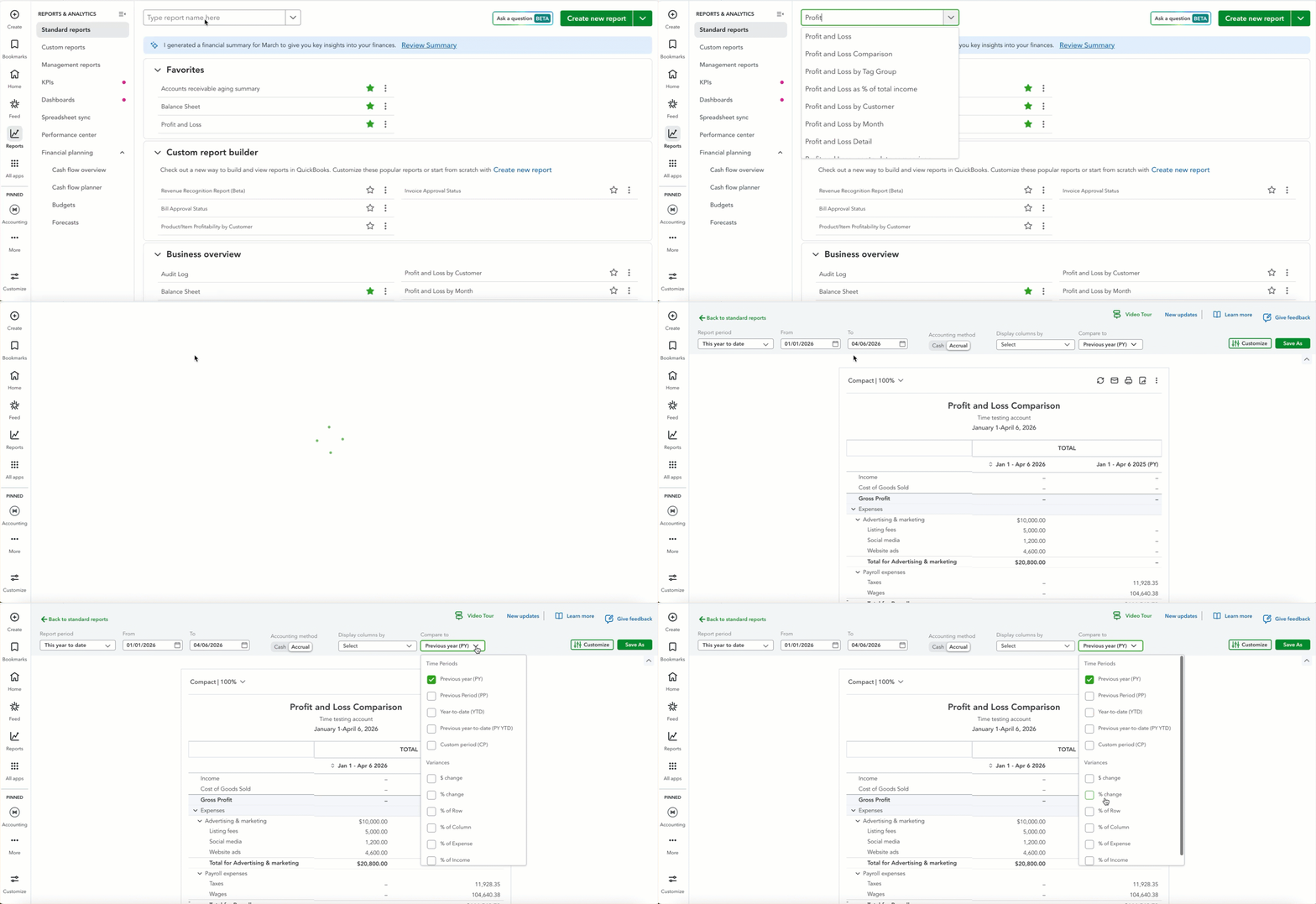
| 💡 Pro tip: By default, the comparison report shows the current year-to-date alongside the same period last year. |
You’ve got this!
Your Profit and Loss report is one of the most valuable tools in your QuickBooks account. When it’s accurate and up to date, it gives you a real-time picture of your business’s financial health, so you can make confident decisions and keep moving forward. As always, we’re here to help you stay on track.