


Your Top 5 QuickBooks Questions Answered - March 2026

Whether you're just getting started or running a growing business, it’s important that you know how to navigate any roadblocks you may hit. We've rounded up the five most common questions from this past month and provided clear, actionable answers to help you get back on track fast.
1. How do I fix my bank account when it stops syncing or connecting to QuickBooks?
Here's how to troubleshoot it step by step:
Step 1: Run a manual update
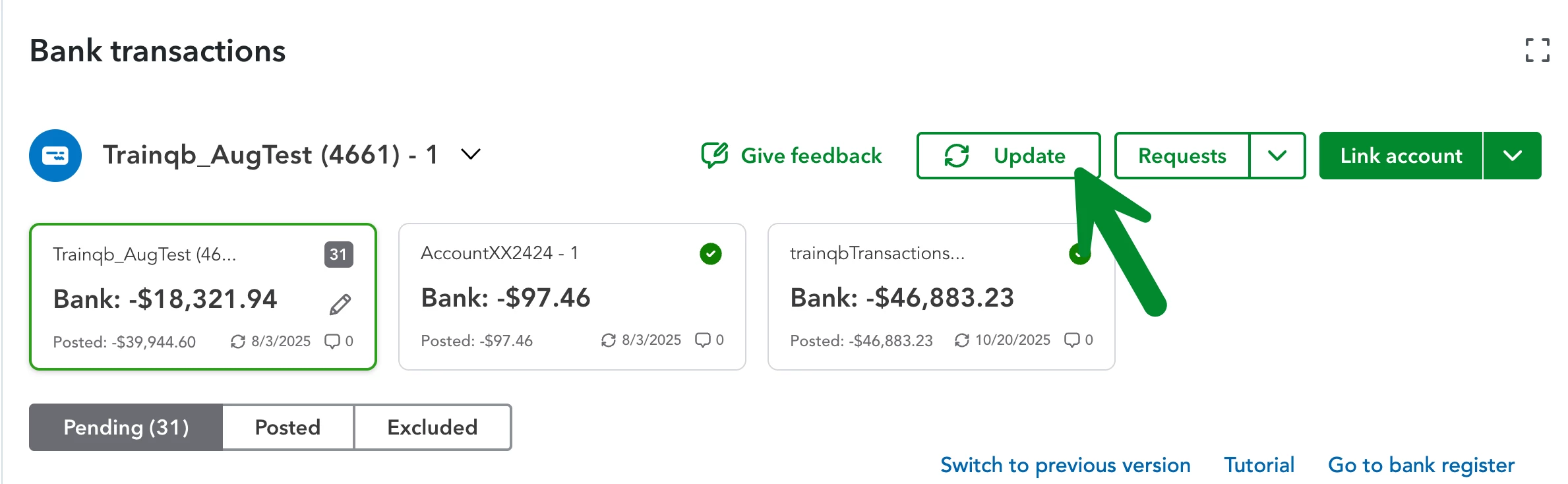
Banks typically sync every 24 hours, but you can trigger an update manually. Go to All apps, Accounting, Bank transactions, then select Update. If you receive a verification prompt, follow the on-screen steps to complete it.
Step 2: Check your bank's website
If the issue persists, log in directly to your bank's website. Look for any alerts, security notices, or display errors that could be blocking the connection to QuickBooks. If everything looks fine there, return to QuickBooks and run Update again.
Step 3: Update your bank credentials in QuickBooks
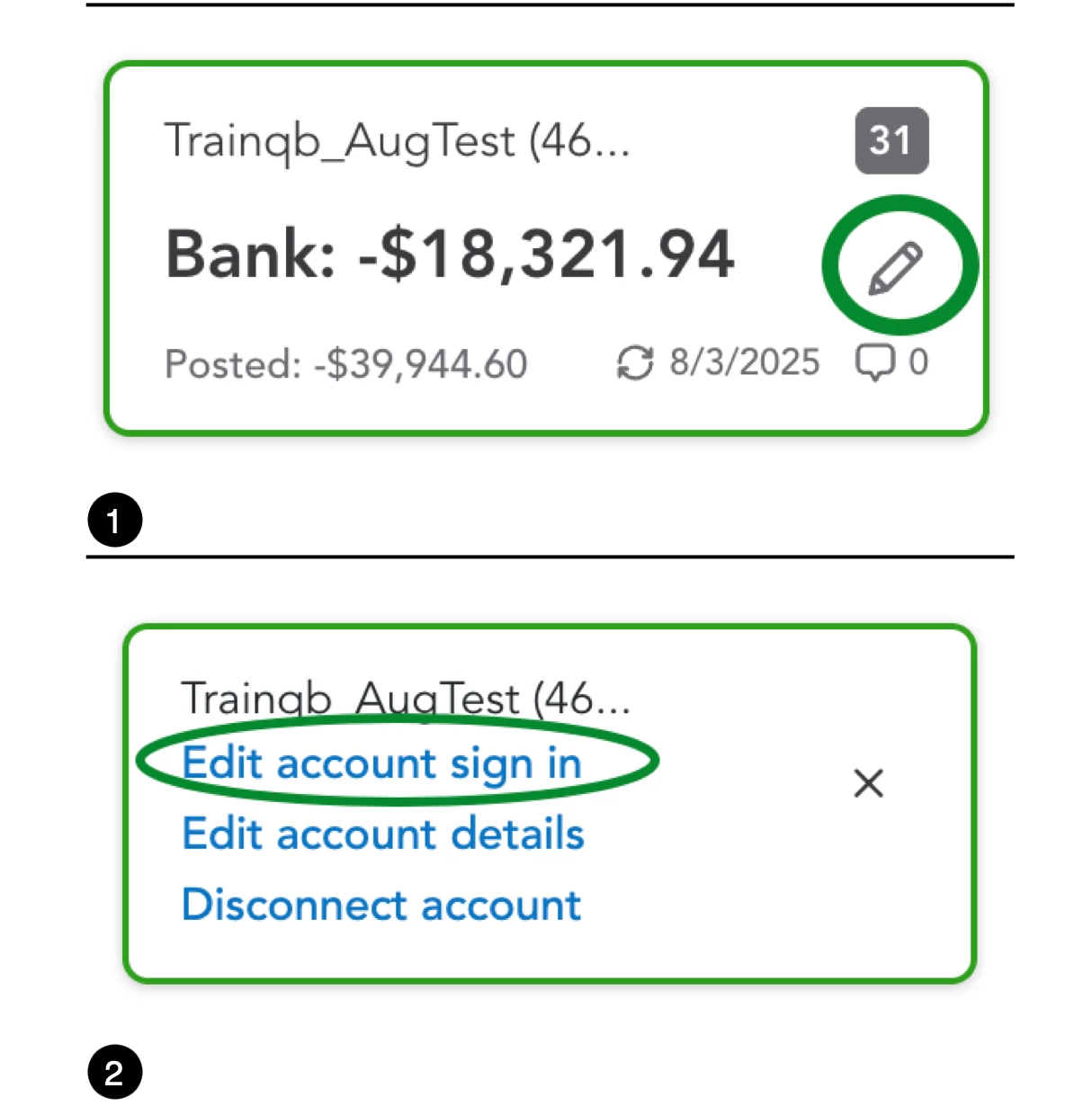
If you've recently changed your bank username or password, QuickBooks won't be able to sync until you update that information. Go to Bank transactions, select your account card, click the Edit (pencil) icon, then choose Edit sign-in info to enter your updated credentials.
Tip: Transactions older than 90 days cannot be automatically downloaded. You'll need to add those manually.
Learn more: Update your bank feeds and bank info
2. How do I create, send, and manage invoices or sales receipts in QuickBooks?
Invoices are how you charge customers for your products or services. QuickBooks Online makes it easy to create, customize, and send them in just a few steps.
Creating an invoice
Select + Create, then Invoice. Choose a customer from the dropdown (or add a new one), review the invoice date and due date, then add your products or services in the line items section. When finished, you can:
- Review and Send to email the invoice directly to your customer
- Share Link for a shareable invoice URL
- Save and Close to finish and come back later
- Print or download for a physical copy
- Make recurring for repeat invoices
Sending and managing invoices
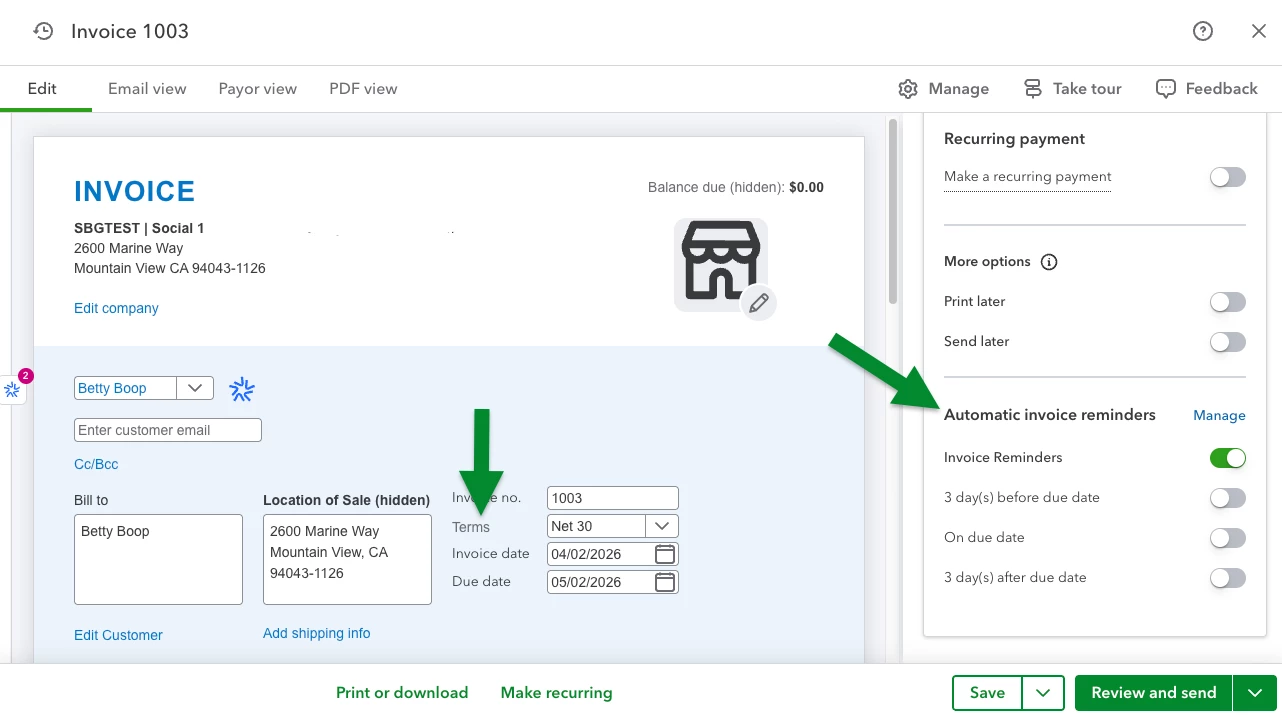
QuickBooks lets you add a 'Pay Now' button to invoices so customers can pay online by credit card or bank transfer. You can also set payment terms (Net 30, Net 15, etc.) and configure automatic reminders so you don't have to chase payments manually.
Customizing sales forms
You can easily customize your sales forms as you create them.
- Create a new sales form, such as an invoice, estimate, or sales receipt. You can also open an existing sales form.
- To update your company info, select Edit company on the form. Make changes as needed, and then select Save.
- To edit your company logo, select the logo on the form. Then select an image from your computer, and select Open to update the logo.
- To add or remove fields, change the color scheme, or turn on payments on invoices, select ⚙ Manage.
- To change the fields shown, select Customization. Turn each field you want to include on or off.
- To change the appearance of your form shown, select Design. Select the template to use. If you are using a modernized template, select the font and color.
- Select Print or download to see what your form currently looks like.
Note: You can also change your company info, logo, and which fields you want to include in your Account and settings
Learn more: How to create invoices in QuickBooks Online
Learn more: Understand invoices in QuickBooks Online
Learn more: Customize invoices, estimates, and sales receipts
3. How do I set up or fix sales tax so it appears correctly on my transactions?
Sales tax can be complex, especially if you pay different rates to multiple agencies. QuickBooks Online has a dedicated Sales Tax Center to help you configure everything properly.
Turn on sales tax
- Go to All apps - Sales Tax - Sales Tax Settings.
- Select Yes if you charge sales tax, then optionally set a default tax rate that will apply automatically to new sales forms.
Add tax rates and agencies
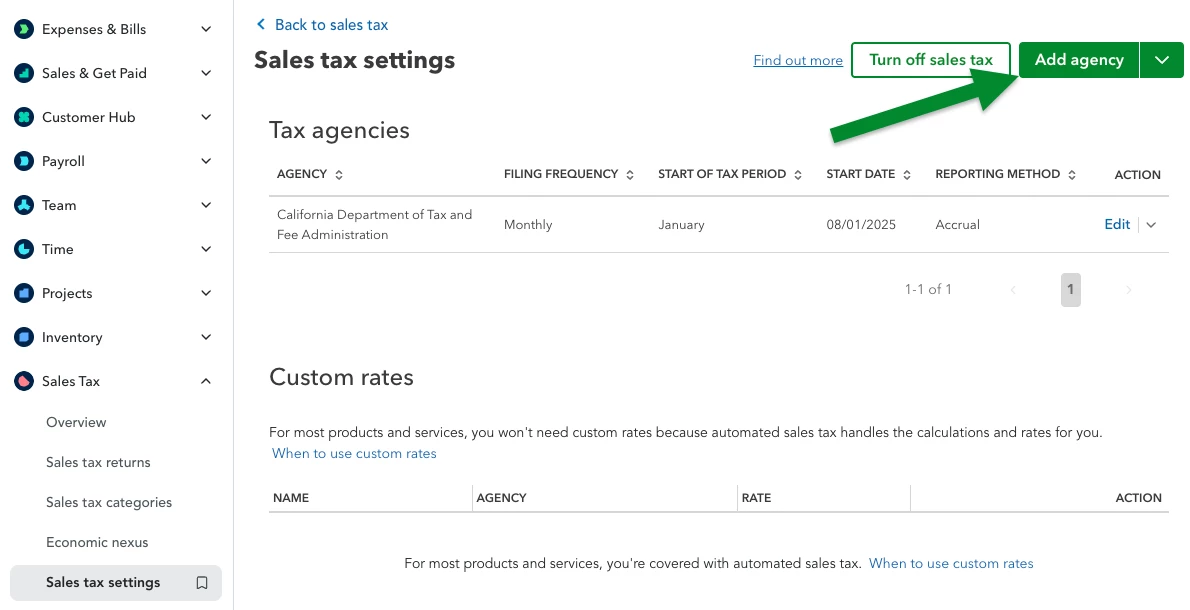
From the Sales Tax Settings page, you can add your tax agencies (the city, county, or state jurisdictions you pay to) and their specific rates. QuickBooks supports both single-rate and combined (multi-rate) setups for businesses that report to multiple jurisdictions.
Common fixes for incorrect tax on transactions
- Check individual customer records to confirm they're marked as taxable
- Check your products and services to ensure the 'taxable' checkbox is selected
- If you do not see sales tax settings, you may be set up with the automated sales tax feature. Learn more here.
Note: You cannot disable sales tax if transactions have already been recorded with it. You'd need to remove tax from those transactions first.
Learn more: Set up your sales tax in QuickBooks Online
4. How do I find or recover transactions that are missing or not loading in QuickBooks?
If transactions have disappeared or aren't showing up after a bank sync, there are several places to look before assuming they're lost.
Refresh your bank connection
Go to All apps - Accounting - Bank transactions and select Update. This triggers a fresh sync and will often pull in any transactions that didn't load automatically. Note that QuickBooks only downloads posted transactions, pending items from your bank won't appear yet.
Check all transaction tabs
On the Bank transactions page, select your bank and look through all three tabs:
- Pending: transactions downloaded but not yet categorized
- Posted: transactions that have been matched or added to your books
- Excluded: transactions that were manually excluded from your records
- Missing transactions are sometimes found in the Excluded tab by accident.

Review your Chart of Accounts
Some transactions may have been categorized to an unexpected account. Search your chart of accounts to see if the transaction ended up somewhere you weren't looking.
If QuickBooks still cannot download the transactions, you can import them manually using a supported file format (QBO, CSV, OFX) from your bank's website.
Learn more: Find missing downloaded transactions in QuickBooks
5. How do I troubleshoot failed direct deposits in QuickBooks Online Payroll?
When a direct deposit fails, QuickBooks Payroll receives an ACH (Automated Clearing House) return code from the bank. Understanding these codes is key to resolving the issue quickly.
What to do when you receive a return code
- Check the email from Intuit as it will include the specific return code and the affected payment
- Refer to the return code chart to understand the reason for the failure
- Contact your financial institution first so they can confirm whether your account is set up to accept payroll debits from Intuit
- After working with your bank, contact QuickBooks Payroll Support for any remaining issues
Common ACH return codes
Some of the common codes include:
- R01 - Insufficient funds: The account balance didn't cover the debit amount
- R02 - Account closed: A previously open account is now closed
- R03 / R04 - Account not found or invalid account number: The routing or account number on file is incorrect
- R16 - Account frozen: The account has been restricted by the bank or a legal action
Find the full ACH return code reference chart here.