

Connect FreshBooks cloud accounting to QuickBooks Online
Learn how to connect FreshBooks cloud accounting to QuickBooks Online.
Here's the step-by-step guide on how to connect FreshBooks cloud accounting to QuickBooks Online.
- Log in to your QuickBooks Online account.
- Go to Apps, search and install the app FreshBooks connector.
- Select Connect.
- You will be redirected to the Connections tab in your OneSaas. Just select Connect to Freshbooks.
- A new window will pop up on your screen and will ask for your FreshBooks cloud accounting login credentials. Once done, select Log in to proceed.
- You will be asked to select your FreshBooks business account from the dropdown menu. Select Connect.
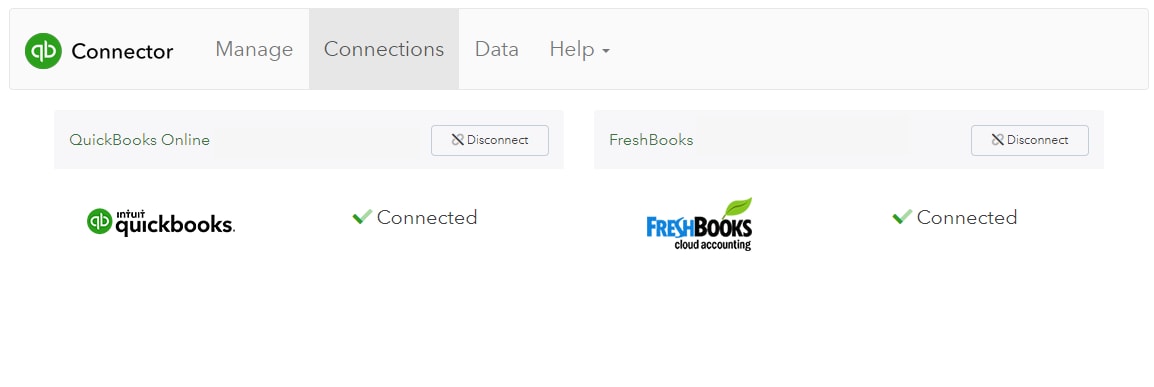
Now that you've connected to FreshBooks cloud accounting, you can either add another connection by selecting Add Connection or move forward and configure your integration.