
Get 50% OFF QuickBooks for 3 months*

Buy now
Switch to QuickBooks and 70% off for 3 Months
February 3, 2019
Question

QBCFMonitorService not starting or crashing

  • February 3, 2019
  • 2 replies
  • 48 views

We have an issue with Quickbooks Enterprise Solutions 2019 failing to start services on a Windows Server 2016 installation. Issue is most recognized by user trying to open company file and getting an error “This action requires Windows administrator permissions”. Also gave error code (-12, 0) in event viewer.
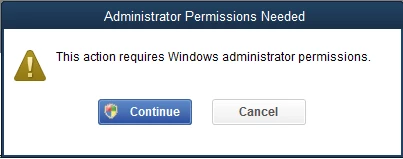
 

You would initially think this is related to any number of permission errors, but after debugging I discovered the error is simply caused because the QBCFMonitorService is not running. After reboot it does not start automatically! There are two temporary solutions to this:

1. Quickbooks Database Manager → Start Scan. This will launch the service.

2. Windows Services → Manually start service QBCFMonitorService

All is good … until next restart


My only permanent solution to this is to delay the startup of the DNS service from “Automatic” to “Automatic (Delayed Start)”. Huh, DNS? What does that have to do with it? Previous to this error I had this exact error in 2016 described here:

http://www.ngcci.com/quickbooks-server-manager-does-not-run-on-a-windows-server-2012-or-2016-with-dns-server-role/

or

https://support.rbtechvt.com/knowledgebase/article/View/326/0/quickbooks-pro-2017-database-service-on-domain-controller-fails-to-start-no-access-to-hosted-quickbooks-data-files


It notes there is a conflict between Windows DNS server ports and Quickbooks. This was written for 2016/2017, however in 2019 Intuit changed to Dynamic ports, so theoretically this should not be an issue. However changing the DNS service to delayed start clearly works: at least 15 times testing both ways.


I tried reserving the ports (both UDP & TCP just to be safe) but no change.


What is going on here? This is a fairly typical install, single server running typical services, DNS, Remote Desktop, Remote Access VNC. Quickbooks support told me change Logon user as “System” and to set the recovery options to restart (unlimited). They say it could be a firewall issue. None of this has helped. It is not a firewall issue – that would not cause the service to not start or crash. I’ve re-installed, clean installed, removed older versions running in parallel, everything.


Only my self discovered DNS server delay startup seems to work and I worry that may not someday if it is a weird race condition. I can’t find any logs pointing to anything useful, nothing in Event Viewer or log files in Intuit directories. No sign of why the service does not start up.


Please help!

2 replies

Chris DAuthor
February 5, 2019
This post has been deleted.

Hi. I have already tried Quickbooks File Doctor. It was the very first thing I attempted. Did not fix.


I have reviewed the page you linked which lists three suggestions for if QBCFMonitorService is not running:

1. Configure you firewall port to open 8019.

It is configured correctly by both Quickbooks installation and verified here. Port 8019 is open as well as the “dynamic port”: 62979. Again manually starting the service fixes the issue proving the firewall is not misconfigured.


2. Ensure the server has hosting turned on

It clearly does. Manually starting QBCFMonitorService fixes everything proving hosting is on and not the root cause.

3. Ping the server

Please understand this is technically not over a physical network since it is Windows Server 2016 with Remote Desktop Services (RDS), although it does utilize network sockets. It is not multiple workstations/servers. So yes, I can ping 127.0.0.1 as well as its IP address 192.168.22.10 from both admin and client accounts.


Again I believe this is a startup race condition with QBCFMonitorService and DNS Server on Windows 2016 Server with RDS.


Does QBCFMonitorService provide debug logging?


Thank you

Adrian_A
Level 8
February 5, 2019

Good day to you, Chris D.


Thank you for all the information and for trying the steps provided by ShiellaGraceA


Yes. QBCFMonitor Service provides debug logging since it helps to continually monitors the assigned drives.

Here's how to locate the system information about the computer where the database server is installed.

  1. Go to Start menu, then choose Programs.
  2. Select QuickBooks folder, then choose QuickBooks Database Server Manager folder.
  3. Look for the folder.

You'll want to call the QuickBooks Desktop support team so they can assist you further


Here's how you can contact them

  1. Sign in to your QuickBooks Online account.
  2. At the top right corner, select the Help (?) icon.
  3. Click the Contact us button.

You can always post your concerns here. I'd be glad to help.


Moderator
June 7, 2023

Hey there, @Ben23_1. Thanks for joining the thread and sharing the troubleshooting steps that you've done.


I'd like to share some additional steps that may help address the issue.


QBCFMonitorService may stop working on Windows due to several reasons.


  • Windows Defender and third-party firewall applications restrict QuickBooks connection with the company file that you have stored on the server
  • The server on which you have installed QuickBooks isn't up correctly to host company files in a multi-user environment
  • A virus or malware attack has corrupted your QBCFMonitorService.exe.file
  • There might be some issue with the Windows registry


To fix the problem, let's try restarting QBCFMonitorService.exe. Here are the steps:


  1. Press Ctrl + Alt + Del keys to open the task manager and then go to the Processes menu.
  2. Right-click on the QBCFMonitorService process and choose the option End Task.
  3. Click Yes to confirm.
  4. Open the QuickBooks application again.


Before performing the steps, make sure to back up your QuickBooks Desktop company file to safeguard your data while in the process. 


If you're still getting the same results, let's scan your system using antivirus software. Then, re-download the QBCFMonitorService.exe file and replace the one stored in the QuickBooks folder.


If the issue persists, I'd suggest contacting our QuickBooks Desktop Support Team. They have the expertise and tools to diagnose the cause of the problem and provide a solution.


Moreover, here's the list of features and tasks that can be performed in two different hosting modes: Features and tasks available in single or multi-user mode.


Let me know if you have follow-up questions. I'm always here to help. Take care. 

September 2, 2024

Getting consistent crashes of this service also.   running server 2022 with qb enterprise 24.   ran ALL suggested fixes.   would be great if this could get resolved

September 2, 2024

Let me direct you to the right support to address this issue promptly, acasadei.


Since you've tried performing the steps provided above to fix the error, I'd suggest contacting our live technical support team for more in-depth assistance. They have the tools to conduct further investigation as to why you're experiencing this error.


Here's how:


  1. On the top menu, go to Help.
  2. Select QuickBooks Desktop Help/Contact Us.
  3. Click Contact Us.
  4. Give a brief description of your concern. Then, Continue.
  5. Sign in to your Intuit account. Then, enter the code you receive in your email.
  6. Choose to Chat with us or Have us call you.


To ensure that we can assist you promptly, please refer to our support hours and types for more details.


Moreover, you can visit this article to see the lists of tasks available in single and multi-user modes of QuickBooks Desktop.: Features available and tasks you can perform in single or multi-user mode in QuickBooks Desktop


I'll be available in the comment section if you have further questions about consistent service crashes or other concerns related to QuickBooks Enterprise. Take care.