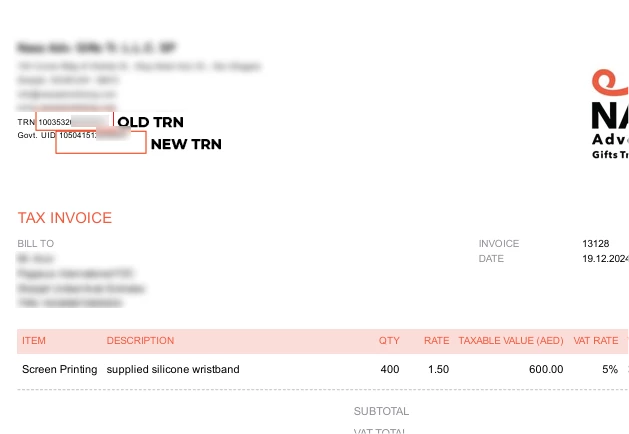
We can go to Business ID No. field on updating your Tax Information in QuickBooks Online, Kerkurgel.
The reason the old TRN is still appearing is that we only have the CRN feature in the Custom Form styles. To resolve the issue of updating your TRN on the invoice, we can remove the outdated CRN numbers you’ve entered and then add the correct information in the Taxes menu.
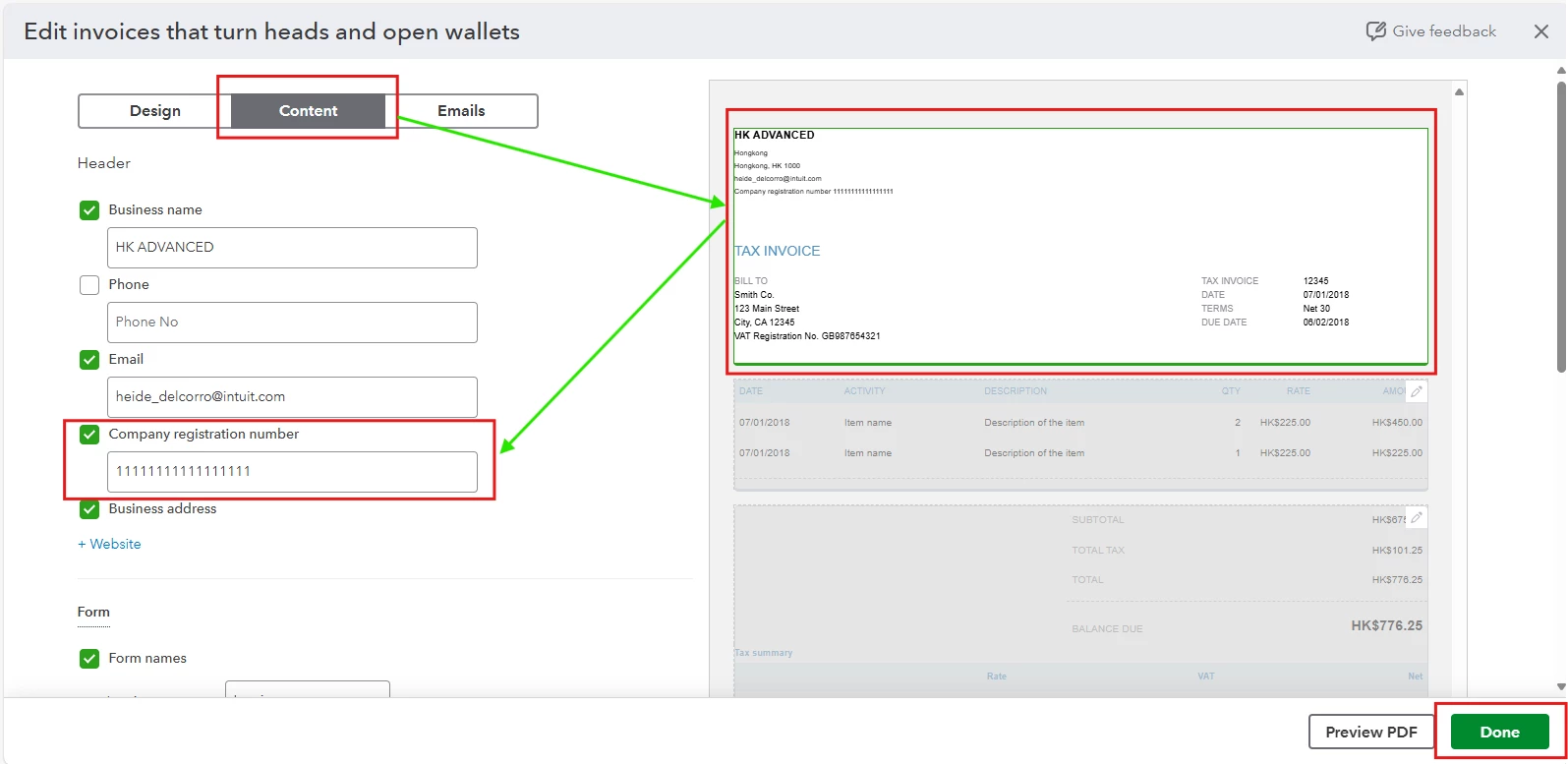
First, let's remove the information added in the CRN feature. Here’s how to do it:
- Go to Custom Forms Style.
- Locate the default template and click on the Edit option.
- Select the Content tab and click on the Header body.
- In the Company registration number section, erase any information you've recently added.
- Click Done to confirm the changes.
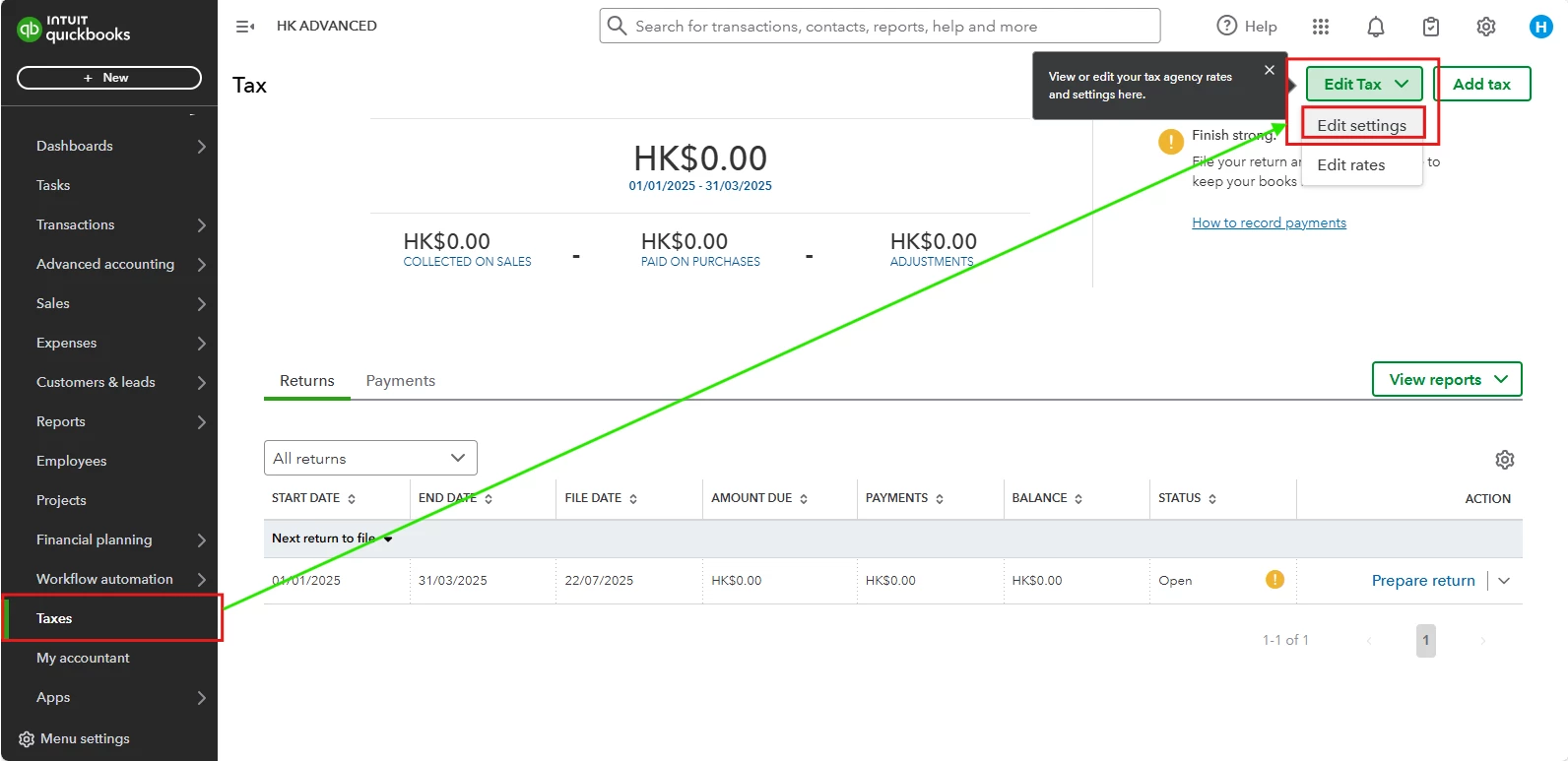
Once done, we can now update your TRN in the Taxes menu section. Here's how:
- Navigate to the Taxes menu and click the Edit Tax button.
- Select Edit settings.
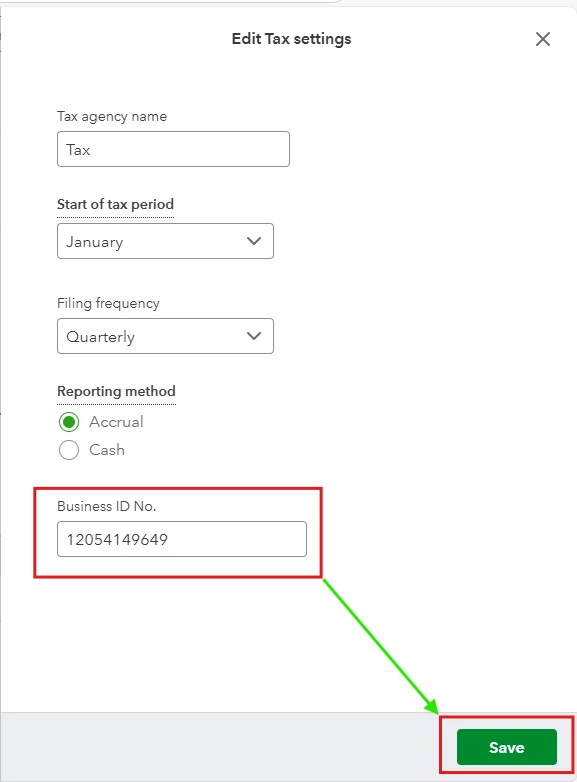
- In the Business ID No., enter your new TRN information.
- Click Save to confirm the changes.
You can also refer to this article to help you create personalized sales forms in QBO according to your specific needs: Add, customise, or remove logos on sales forms.
Come back again to this thread if you need more help with updating you tax information or any QuickBooks concerns.
