
Get 50% OFF QuickBooks for 3 months*

Buy now
Switch to QuickBooks and 70% off for 3 Months
January 2, 2021
Solved

How to transfer data from existing quick book online to new QB online.

  • January 2, 2021
  • 5 replies
  • 86 views
No text available
Best answer by ReymondO

Glad to have you here in the Community, @ben-jbpaccountin.


Let me walk you through the process of how to transfer your existing QuickBooks data to your new account. You can export your old data to Excel and save it to your computer. Then, import it to your new QuickBooks account to transfer your files. Here's how:
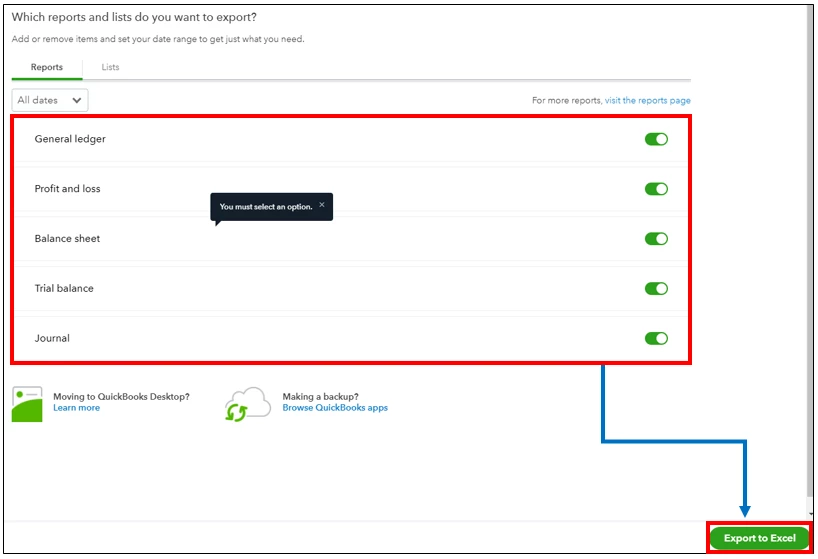
 

  1. In your existing QBO account, click the Gear icon and select Export data.
  2. In the Reports tab, select the date range and choose the report you want to export.
  3. Click Export to Excel.
  4. Then, go to the Lists tab and select CustomersEmployees, and Suppliers, then click Export to Excel.


Here's an article you can read for more details: Export reports, lists, and more.


Once done, save the data to your computer and import it to your new QBO account. 


  1. Click the Gear icon, then select Import data.
  2. Select the data you want to import.
  3. Hit the Browser button and select the file you export.
  4. Click Next, then follow the onscreen instruction.


You can check out this article for further guidance: Common questions about importing data to QuickBooks Online.


Please keep in touch if there's anything else I can do to help you succeed with QuickBooks. I've got your back. Have a great day and be safe.

5 replies

ReymondOModeratorAnswer
Moderator
January 2, 2021

Glad to have you here in the Community, @ben-jbpaccountin.


Let me walk you through the process of how to transfer your existing QuickBooks data to your new account. You can export your old data to Excel and save it to your computer. Then, import it to your new QuickBooks account to transfer your files. Here's how:


  1. In your existing QBO account, click the Gear icon and select Export data.
  2. In the Reports tab, select the date range and choose the report you want to export.
  3. Click Export to Excel.
  4. Then, go to the Lists tab and select CustomersEmployees, and Suppliers, then click Export to Excel.


Here's an article you can read for more details: Export reports, lists, and more.


Once done, save the data to your computer and import it to your new QBO account. 


  1. Click the Gear icon, then select Import data.
  2. Select the data you want to import.
  3. Hit the Browser button and select the file you export.
  4. Click Next, then follow the onscreen instruction.


You can check out this article for further guidance: Common questions about importing data to QuickBooks Online.


Please keep in touch if there's anything else I can do to help you succeed with QuickBooks. I've got your back. Have a great day and be safe.

June 23, 2023

Hello, I just followed your instruction and exported all data and then go to new QBO (Accoutant version).


But when go to Import data page (Bring your existing data into quickbooks) but I can't find balance sheet /P&L/Trial balance....etc) other icon to import. 


So now I have all excel file for old account data but don't know how import.


Please advise thanks.

Regards

Franky4

Fiat Lux - ASIA
Level 14
June 23, 2023

@franky4 

You need to import starting from CoA, Lists (e.g Customer, Supplier, Item), and finally Transactions (e.g Bills, Bill Payments, Invoice, Receive Payments, Sales Receipt, Journal Entry).

https://quickbooks.intuit.com/learn-support/en-uk/help-article/import-export-files/common-questions-importing-data-quickbooks-online/L4OYJRFdj_GB_en_GB?uid=lj8hpxpr


Another option, purchase a 3rd party conversion service.

Fiat Lux - ASIA
Level 14
January 3, 2021

@ben-jbpaccountin 

Open a new blank QBO account

https://quickbooks.grsm.io/UK


then you may have 2 options:

1. Utilize a migration tool

https://transactionpro.grsm.io/qbo


2. Purchase a 3rd party migration service.

October 15, 2022

when we do an export in this way does it delete the data from QuickBooks?

Fiat Lux - ASIA
Level 14
October 15, 2022

@chazza 

No. You must delete the data on your old QBO account yourself or cancel your account and let Intuit delete your data after one year.

February 17, 2024

Can you still use the old account to record transactions?

May 26, 2023

I’d like to know how to transfer all the data from one company to another as I just set up a new license for this company and need to move data over. Thanks

LieraMarie_A
Level 8
May 26, 2023

Hi there, @AGI Avant Group.


To clarify, are you trying to move from one QuickBooks Online company to another? To do so, you can follow these steps:


Export data from the original company:
 

  1. Log in to QBO for the original company.
  2. Go to the Gear icon and select Export Data.
  3. Choose the data you want to export, such as customers, vendors, chart of accounts, products, services, etc.
  4. Click Export to Excel. QBO will create a .zip file containing the exported data.


Import data into the new company:


  1. Log in to QBO for the new company.
  2. Go to the Gear icon and select Import Data.
  3. Choose the data you want to import from the .zip file, such as customers, vendors, chart of accounts, products, services, etc.
  4. Follow the prompts to import the data. 


However, if you need to transfer from QBO to QuickBooks Desktop, you can refer to this article for detailed steps: Migrate Data.


I’ll keep an eye out if you have more questions about managing your data. Just let me know in the comments. Have a wonderful rest of your day!

July 24, 2023

According to this help article https://quickbooks.intuit.com/learn-support/en-uk/help-article/import-export-files/common-questions-importing-data-quickbooks-online/L4OYJRFdj_GB_en_GB?uid=lj8hpxpr the data import must be performed in the following order

1. Customers
2. Suppliers
3. Products and services
4. Invoices
5. Bills

Assuming the specific order of imports is followed, does the migration of this data also include all previously entered Journal Entries, Bills (including attachments), Bill payments etc.? So that the end result is a 100% replica of the original account?


Thanks

July 8, 2025

Can you help me out?

JoesemM
QuickBooks Team
July 8, 2025

You're in the right place, Moshe.


I'd be happy to assist you in achieving your goal. Could you provide more details about the help you need? This will allow me to understand your situation better and provide an accurate solution.


If you're looking to transfer information from an old QuickBooks Online (QBO) account to a new one, you can export data from the old account and import it into the new account. Here's how:
 

  1. Go to the Gear icon and select Export Data.
  2. Set the date range on the Reports tab.
  3. Toggle the slider to add or remove items from the Reports and Lists tabs.
  4. Select Export to Excel.

 
Your data will be saved in a zip file containing individual Excel files. Then, you can import them into the newly created QBO account. Please follow the steps below:


  1. From the new account, select the Gear icon.
  2. Click Import data.
  3. Check the type of data you'd like to import.
  4. Select Browse to choose a file.
  5. Click the Next button until finished.


For further guidance, refer to this article: Common questions about importing data to QuickBooks Online. The FAQs included can help address your concerns regarding data importation.


Feel free to comment if you have questions about transferring data or handling financial transactions in QBO. I'm here to help.
