I've got the steps that can help you sort this out, parliamententerprises05. To ensure everything is accurately recorded, we'll have to mirror your real-life business transactions in QuickBooks Online (QBO).
First, you'll need to record the full payment received from your customer, including the amount that was incorrectly billed. Take note that the program will notify you of an unapplied payment since the amount you received exceeds the total owed, but that's okay. Save the unapplied payment for now, as this reflects the actual money you received. Here’s how:
- Hover over the +Create button, then select Receive Payment.
- Pick a customer and choose the correct bank account.
- Select the invoices you’ve paid.
- Enter the total payment in the Amount received field.
- Click Record and Close.
Next, create either a check or an expense in QBO to account for the refund you issued to your customer. Make sure to post it under Accounts Receivable.
Once done, use the Receive Payment function to link the unapplied payment to the refund. This ensures QBO knows that part of the original payment was refunded, resolving the unapplied payment and clearing up the account balance.
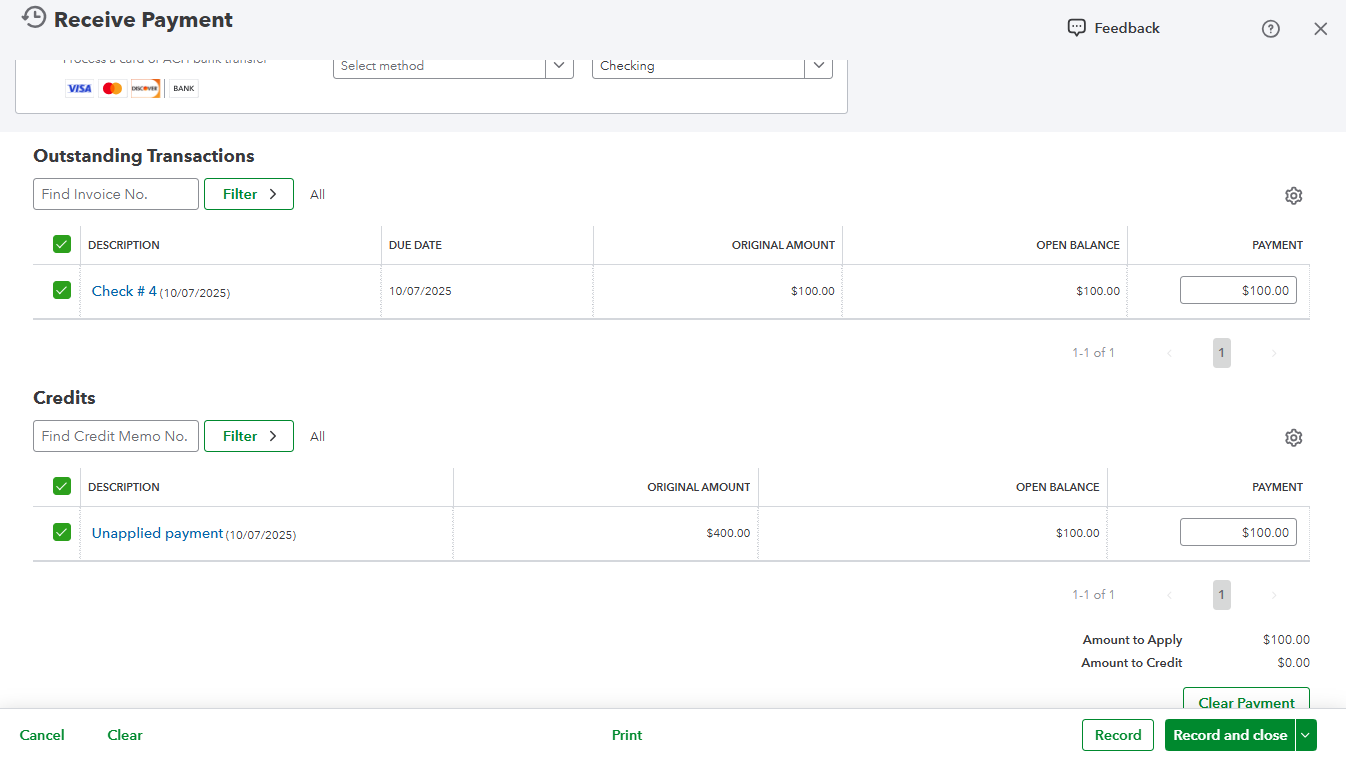
After that, you can go to the bank feeds and match the correct invoice payment and the outgoing refund with the corresponding transactions.
If you have more questions regarding this concern, feel free to reply down below.
