
Get 50% OFF QuickBooks for 3 months*

Buy now
Switch to QuickBooks and 70% off for 3 Months
December 13, 2024
Solved

pdf attachments

  • December 13, 2024
  • 1 reply
  • 9 views

We attached some documents to all transactions on QuickBooks for audit purposes, but they are not opening now. They are giving us this message. Please assist

This XML file does not appear to have any style information associated with it. The document tree is shown below.
<DocumentErrorResponse xmlns="http://schema.intuit.com/platform/document/v2">
<code>INVALID_AUTHORIZATION</code>
<type>CLIENT</type>
<message>Authorization header is missing</message>
</DocumentErrorResponse>
Best answer by LouiseG12

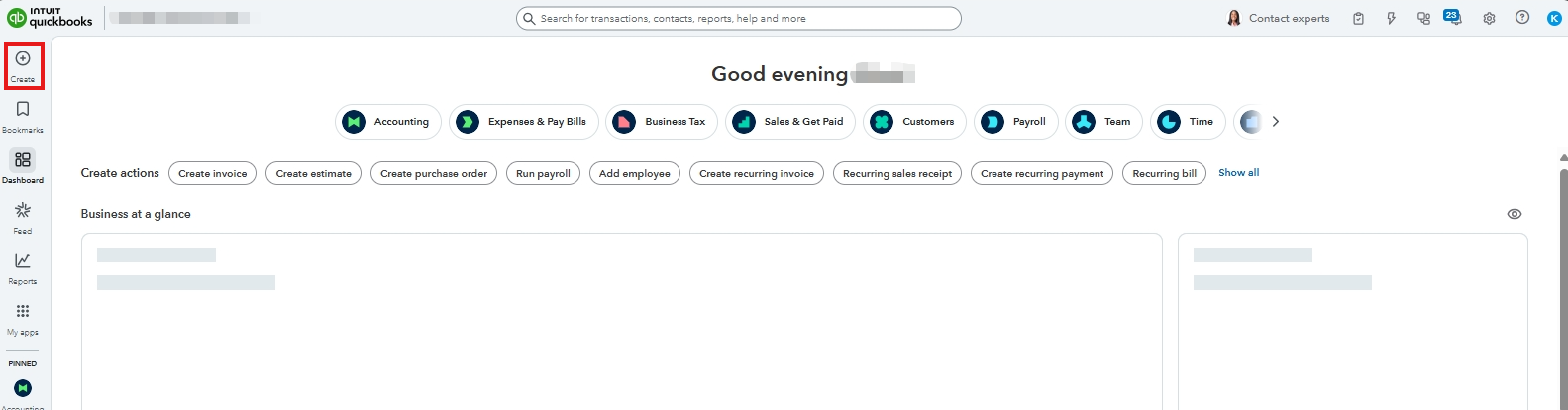
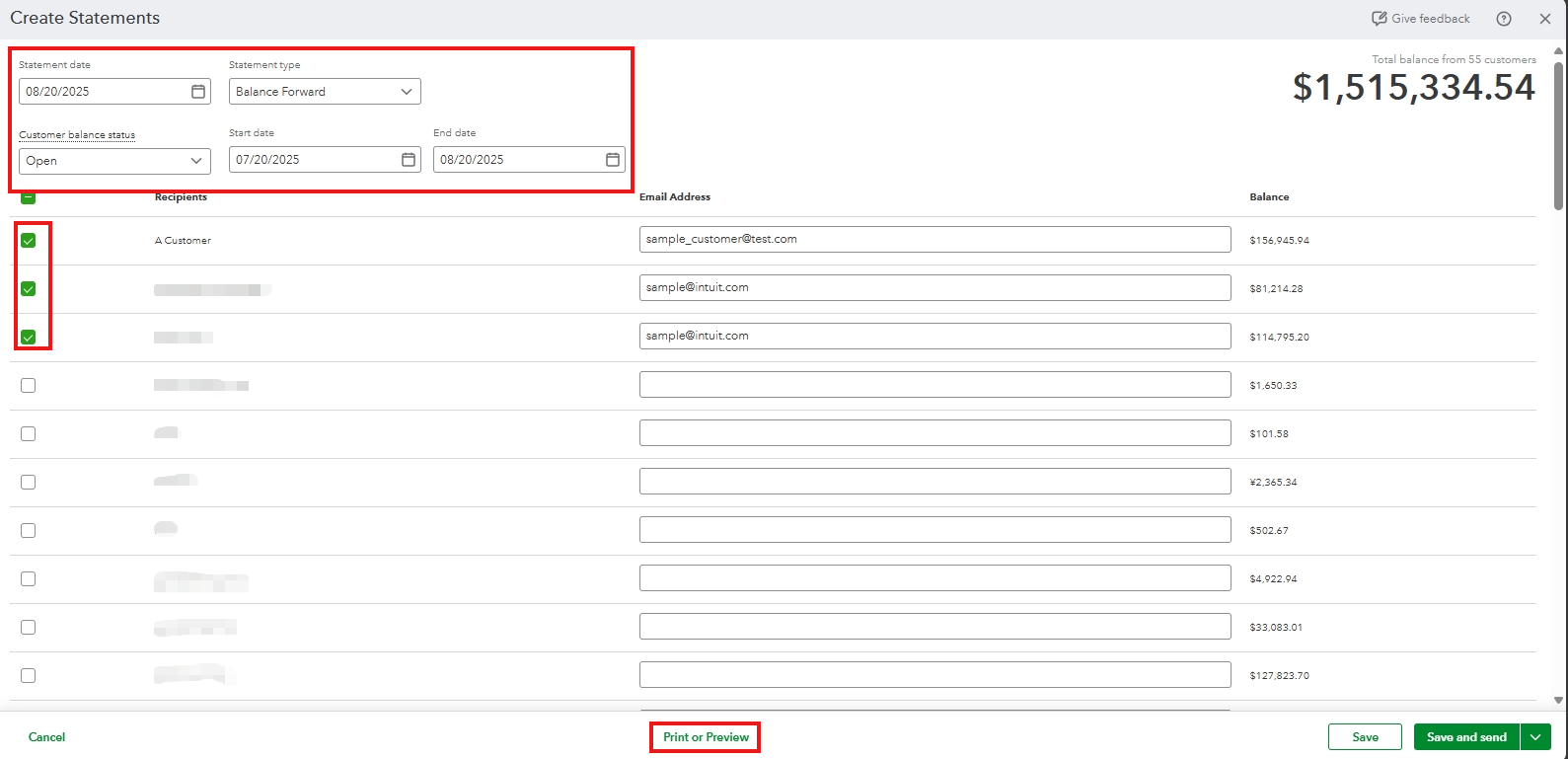
Yes, Shava. You can go to + Create to generate your clients' statements. 

Here’s how:
 

  1. Hover over to +Create in the upper left corner, then Statement.
  2. In the Statement Type drop-down, choose the statement type you want to download.
  3. Enter the desired date in the Statement Date field to specify the statement’s timeframe.
  4. In the Customer Balance Status  drop-down, select the status you want to display.
  5. Verify the Start Date and End Date fields.
  6. Mark the checkbox for the customer you want to view or download.
  7. Select Print or Preview.
  8. Select Close to exit the PDF viewer.


Check out this article for more information: Download and save sales forms and statements.
 

Let us know in the comments if you need additional assistance.

1 reply

QuickBooks Team
December 13, 2024

Hello there, SShava. I’m here to help you resolve the issue with accessing your attached PDF in QuickBooks Online (QBO).


The problem you're experiencing is a possible cause of a cache issue. Browsers use cache to speed up the loading of web pages, but over time, it accumulates and leads to unusual behavior of the program.


To fix this, log in to your QBO account using an incognito or private browser window. This will enable you to work with a clean slate. Please use these keyboard shortcuts:


  • Google Chrome: Ctrl + Shift + N
  • Mozilla Firefox: Ctrl + Shift + P
  • Microsoft Edge: Ctrl + Shift + N
  • Safari: Command + Shift + N


Then, try to create a sales receipt. If it's successful, clear your browser's cache to remove specific issues and help the program run efficiently. Also, you can use other devices and supported browsers to ensure everything works as expected. 


If the issue persists, I recommend contacting our support team for them to find the root cause of this issue and provide a resolution. They have the tools and expertise to do this in a secure manner.


Also, you can refer to this article for more details about the file types allowed in the program: Add or delete attachments in QuickBooks Online.


Additionally, you can refer to this article about personalizing your sales forms: Customize invoices, estimates, and sales receipts in QuickBooks Online.


Please feel free to return to this thread if you have other concerns regarding your PDF attachments in QBO, SShava. We're here to support you in any way we can.

SShavaAuthor
August 20, 2025

Good day,

We are using Quick-books Online and we are having challenges downloading client statements. We normally go to Sales- Customer- Drop down on 'New' then Statement. However on the dropdown, the command word 'statement' has disappeared . Is there a way we can generate/download client statements please?

LouiseG12QuickBooks TeamAnswer
QuickBooks Team
August 20, 2025

Yes, Shava. You can go to + Create to generate your clients' statements. 

Here’s how:
 

  1. Hover over to +Create in the upper left corner, then Statement.
  2. In the Statement Type drop-down, choose the statement type you want to download.
  3. Enter the desired date in the Statement Date field to specify the statement’s timeframe.
  4. In the Customer Balance Status  drop-down, select the status you want to display.
  5. Verify the Start Date and End Date fields.
  6. Mark the checkbox for the customer you want to view or download.
  7. Select Print or Preview.
  8. Select Close to exit the PDF viewer.


Check out this article for more information: Download and save sales forms and statements.
 

Let us know in the comments if you need additional assistance.