
SUMMER SAVINGS 90% OFF QuickBooks for 3 months* Ends 8/27

Buy now
Switch to QuickBooks and 70% off for 3 Months
April 10, 2026
Question

Unable to import backup file to Inhuit Quick books enterprise solution 24.0 trial version

  • April 10, 2026
  • 2 replies
  • 40 views

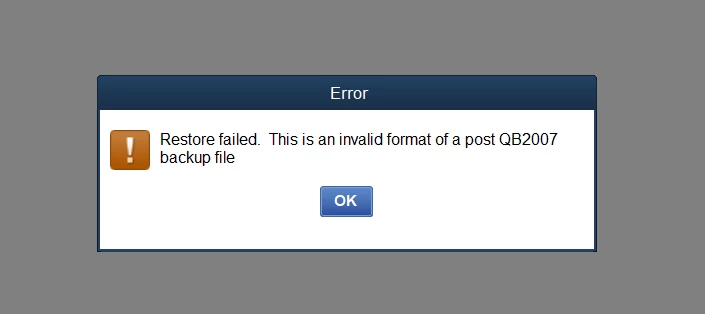
Hello experts, while importing company  backup file to inhuit quick books enterprise solution 24.0 trial version getting error message. Restore failed. this is invalid format of a post QB2007 backup file.
2 replies

SIAB
Level 2
April 10, 2026

Did the backup file created on QB Desktop 2007? The version is ancient and you can't restore it directly on QB Desktop 2024. You can purchase a 3rd party service to upgrade your file. Contact @Fiat Lux - ASIA directly via email for assistance.

Moderator
April 10, 2026

Thanks for getting in touch with the Community, vishalsharma. I appreciate your detailed information and screenshot.


There's a few possible causes of a "Restore Failed. This is an Invalid Format of a Post QuickBooks 2007 Backup File." error message:
 

  • The company file is compromised.
  • The backup was restored over an existing company file.
  • The file name includes special characters (/ < > ! $).
  • The file you're trying to restore isn't an actual backup file.
  • The backup was restored from a USB flash drive to a network drive (Error -6189, -816).
  • The backup was made in a newer version. For example, it was created in QuickBooks 2019, but you're restoring it in QuickBooks 2018.


Another important thing to check:
 

  • Confirm your backup file is no less than 6MB (6MB = 6,000KB). If it's less than that, there's a good chance it's not a true backup file, and you'll need to create a backup from the working file. To check a file's size, right-click it and go to Properties.


If the message continues displaying, you can try some of our recommended troubleshooting processes. Initially, you'll want to remove any special characters that may be in your file's name.


Here's how:
 

  1. Search for the location of your company file. Refer to our Search for files using Windows article if you need help locating the file.
  2. Once you've found it, right-click its file name and choose Rename.
  3. Create a file name that has no special characters in it.
    Select Enter.


If that didn't solve it, the next step is to avoid overwriting an existing file when restoring your backup:
 

  1. When you're on the window that asks where you want to save the file, browse to your standard location for saving it.
  2. In the event its name is identical to another file in the folder, you'll see a "The file name exists. Would you like to overwrite this file?" message.
  3. Select No and change its name to be different from your existing file.


The next troubleshooting step is copying the backup from your flash drive or network drive before restoring it. You can find additional troubleshooting processes (Solutions 3 - 6) in our Get help with Error: Failed or Error: Restore Failed article. This resource also details what to do if the message continues displaying after performing each solution.


I'll be here to help if there's any additional questions. Have a wonderful Friday!