
SUMMER SAVINGS 90% OFF QuickBooks for 3 months* Ends 8/27

Buy now
Switch to QuickBooks and 70% off for 3 Months
New Member
September 16, 2026
Question

Invoicing has stopped working

  • September 16, 2026
  • 1 reply
  • 8 views

Invoicing has stopped working. I go to sales and get paid, sales transactions, select unbilled. There is no longer a “Convert to Invoice” option on the right side, and on the “Batch Actions” button, everything is grayed out if, even if I select just one invoice.
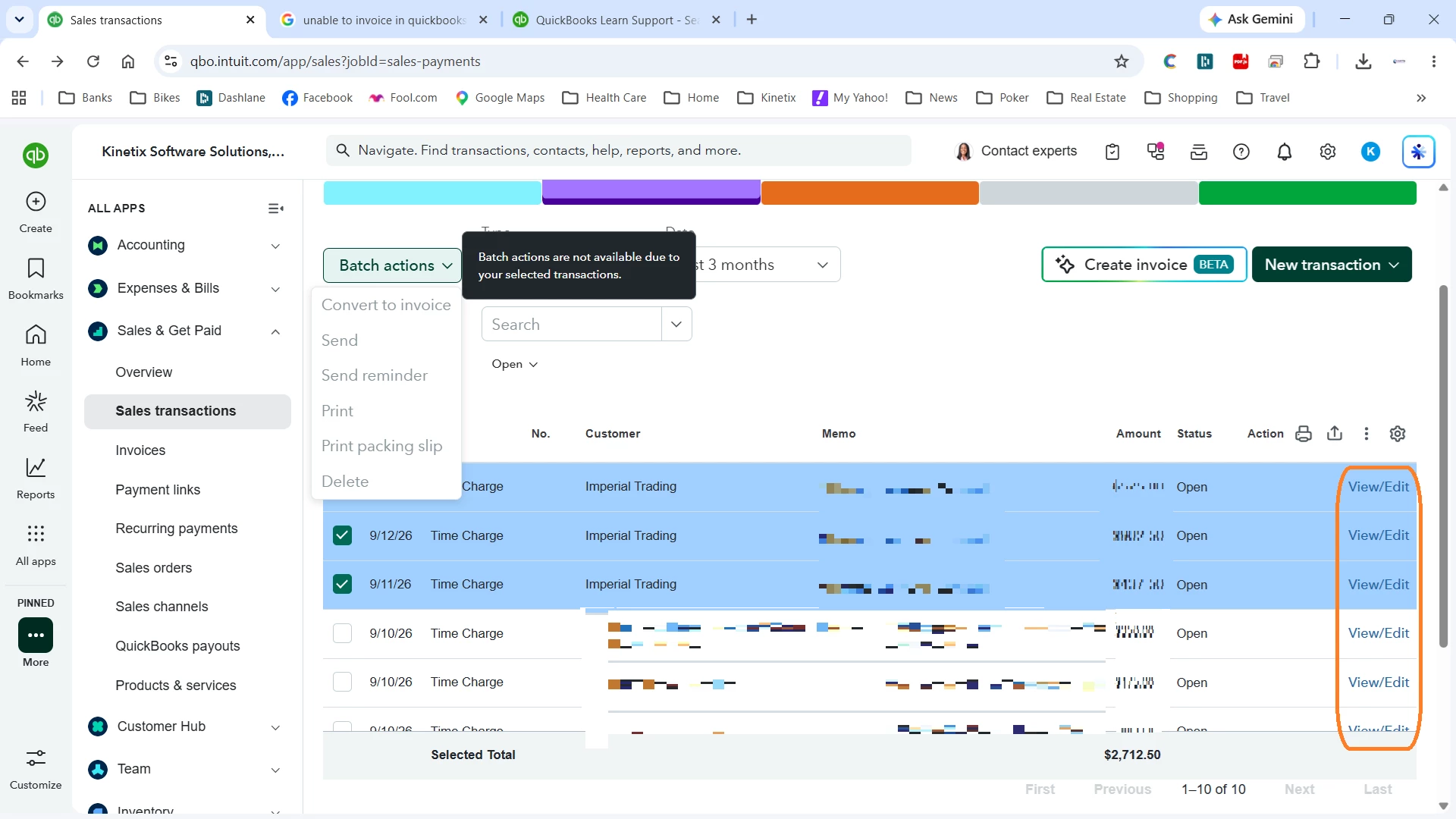
 

I’ve tried incognito mode, tried a different computer, and downloaded the desktop app. All are having the same problem. Please help asap, I’d like to get paid...

1 reply

Moderator
September 16, 2026

Thank you for reaching out to the QuickBooks Community, kinetix-world. I would love to help. I appreciate you for sharing that screenshot. 


Based on the screenshot you shared, it seems like you are trying to batch-convert entries listed as a "Time Charge" rather than a standard delayed charge, estimate, or unbilled product/service.


The caption "Batch actions are not available due to your selected transactions."  with this, QuickBooks Online enforces this restriction because Time Charges (billable time entries) cannot be batch-converted directly into invoices from this general Sales Transactions menu screen. They must be compiled into invoices through a different workflow which I will share below. 


Instead of starting from your transaction list, create the invoice first and pull the unbilled time into it: 

  1. Click the + New button in the top left corner of your screen.
  2. Under the Customers column, select Invoice.
  3. Choose Imperial Trading from the customer drop-down menu.
  4. A Suggested Transactions drawer will automatically slide open on the right side of your screen, displaying all of those unbilled 9/12/26 and 9/11/26 Time Charges.
  5. Click Add or Add all to instantly pull them onto the invoice, then click save.


Here’s another method to try:

  1. Look at your left-hand navigation sidebar and click on Customer Hub (or Sales > Customers).
  2. Find and click on Imperial Trading.
  3. Scroll down to their account ledger activity. Under their open, unbilled time activity section, you will see individual action links next to each charge to generate an invoice.


QuickBooks Online recently updated its data table behaviors. Because a Time Charge relies on specific employee hourly rates, item mappings, and billable tags, the system locks out general list-view batch actions to prevent formatting errors. Using either of the two workflows above will bypass this menu restriction completely and let you bill your client immediately. 


Let me know if you experience any other issues, my team and I will be here to assist further. See you soon and looking forward to that update!