
Get 50% OFF QuickBooks for 3 months*

Buy now
Switch to QuickBooks and 70% off for 3 Months
January 12, 2026
Solved

How do I set up payment scheduling on an invoice?

  • January 12, 2026
  • 1 reply
  • 12 views

Full amount $3000, $1000 due 1/15/2026, $1000 due 2/15/2026, $1000 due 3/15/2026

Best answer by Jessavell_A

It's great to see you posting in the Community forum for the first time, @moorelakedays.


Currently, QuickBooks Online (QBO) does not support multiple due dates on a single invoice (for example, a $3,000 total split into three separate due dates of $1,000 each). An invoice is designed to have only one Due date field.


To achieve your goal, you can create Recurring Invoices, which is ideal for automation. This feature allows QuickBooks to automatically send invoices and potentially charge the customer on the designated dates. However, please note that this will create separate invoices totaling $1,000 each to reach the total payment of $3,000. Here’s how to set this up:


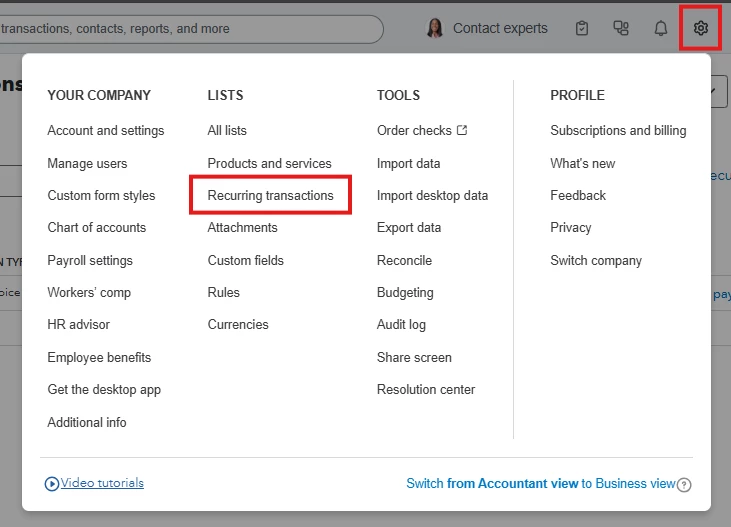
1. Click on the Gear icon and select Recurring transactions.
2. Click New and choose Invoice as the Transaction Type.
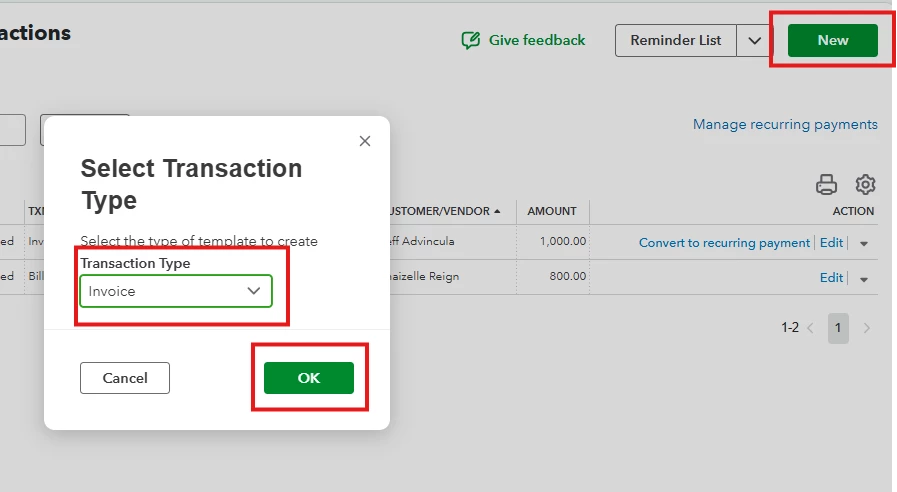
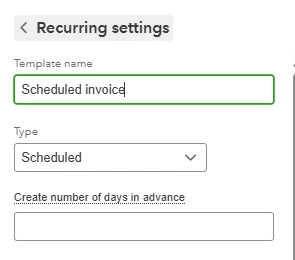
3. Click OK, then enter a Template name.

4. Set up the schedule:

  • Type: Scheduled
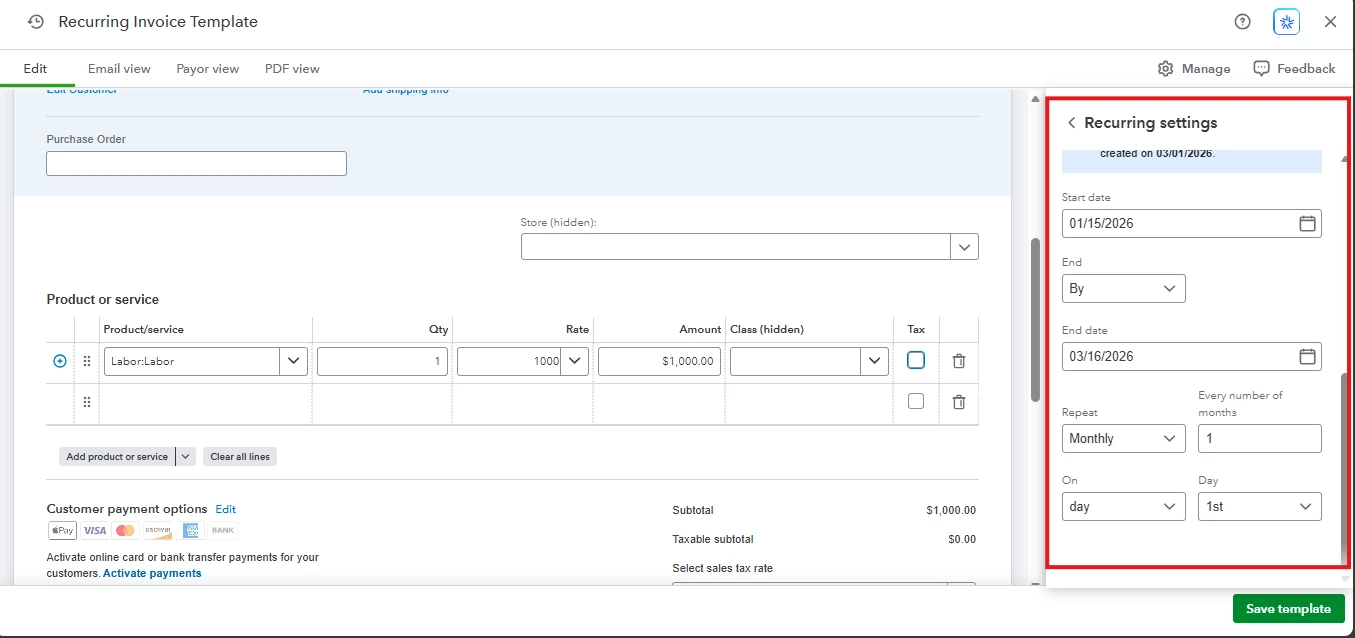
  • Start Date: 01/15/2026
  • End Date: By 03/16/2026 (this ensures it only runs three times)
  • Repeat: Monthly.

You can customize it further based on your needs.

5. Complete the necessary information in the invoice and enter $1,000 in the Amount field.

6. Once you’ve filled in the details, click Save template.
 

QuickBooks will now automatically generate and send a $1,000 invoice on the 15th of January, February, and March.


For additional information about creating recurring transactions in QBO, feel free to read this article: Create recurring invoices and other transactions in QuickBooks Online.


If you have any further questions, don’t hesitate to revisit this thread.

1 reply

QuickBooks Team
January 12, 2026

It's great to see you posting in the Community forum for the first time, @moorelakedays.


Currently, QuickBooks Online (QBO) does not support multiple due dates on a single invoice (for example, a $3,000 total split into three separate due dates of $1,000 each). An invoice is designed to have only one Due date field.


To achieve your goal, you can create Recurring Invoices, which is ideal for automation. This feature allows QuickBooks to automatically send invoices and potentially charge the customer on the designated dates. However, please note that this will create separate invoices totaling $1,000 each to reach the total payment of $3,000. Here’s how to set this up:


1. Click on the Gear icon and select Recurring transactions.

2. Click New and choose Invoice as the Transaction Type.

3. Click OK, then enter a Template name.

4. Set up the schedule:

  • Type: Scheduled
  • Start Date: 01/15/2026
  • End Date: By 03/16/2026 (this ensures it only runs three times)
  • Repeat: Monthly.

You can customize it further based on your needs.

5. Complete the necessary information in the invoice and enter $1,000 in the Amount field.

6. Once you’ve filled in the details, click Save template.
 

QuickBooks will now automatically generate and send a $1,000 invoice on the 15th of January, February, and March.


For additional information about creating recurring transactions in QBO, feel free to read this article: Create recurring invoices and other transactions in QuickBooks Online.


If you have any further questions, don’t hesitate to revisit this thread.