SUMMER SAVINGS 90% OFF QuickBooks for 3 months* Ends 8/27

Buy now
Switch to QuickBooks and 70% off for 3 Months
October 19, 2025
Solved

I do not want to offer online ACH payment or credit card - my invoices are now automatically offering that option and I want that taken off - help???

  • October 19, 2025
  • 4 replies
  • 338 views

Have tried settings under payments but it doesn't give an option to remove that being offered.

Best answer by JamaicaA

Once you sign up for and connect QuickBooks Payments to your QuickBooks Online company, the program will automatically offer online payment options on your invoices. I've got a way to turn them off, deanna.


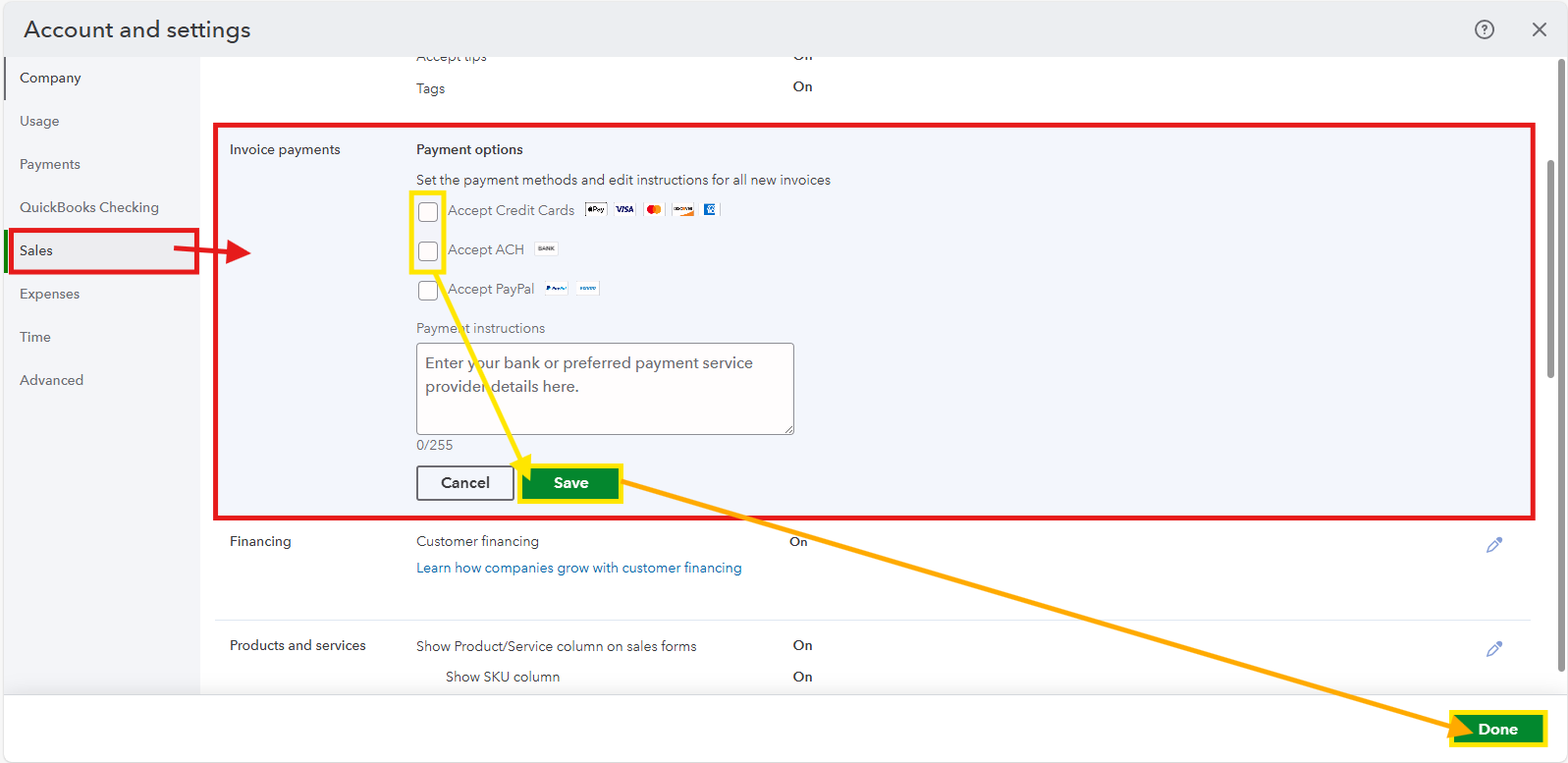
While we're unable to edit the Payment Methods under the Payments, we can still disable ACH and Credit card payments from the Sales section. Here's how to do that:


  1. Go to the Gear icon, then select Account and settings.
  2. Navigate to the Sales from the left panel.
  3. Click the pencil icon in the Invoice payments section to remove the checkmark from the Credit Cards and ACH.
  4. Tap Save, then Done.


See this article to learn how to tailor sales forms to improve business communications: Customize invoices, estimates, and sales receipts in QuickBooks Online.


Do you need help tracking your sales and ensuring they're on the correct accounts? Speak now with a QuickBooks Live Expert for more personalized assistance.


For additional questions about payment methods or any sales transactions, add them below. We'll be here to provide more resources.

4 replies

JamaicaAQuickBooks TeamAnswer
QuickBooks Team
October 22, 2025

Once you sign up for and connect QuickBooks Payments to your QuickBooks Online company, the program will automatically offer online payment options on your invoices. I've got a way to turn them off, deanna.


While we're unable to edit the Payment Methods under the Payments, we can still disable ACH and Credit card payments from the Sales section. Here's how to do that:


  1. Go to the Gear icon, then select Account and settings.
  2. Navigate to the Sales from the left panel.
  3. Click the pencil icon in the Invoice payments section to remove the checkmark from the Credit Cards and ACH.
  4. Tap Save, then Done.


See this article to learn how to tailor sales forms to improve business communications: Customize invoices, estimates, and sales receipts in QuickBooks Online.


Do you need help tracking your sales and ensuring they're on the correct accounts? Speak now with a QuickBooks Live Expert for more personalized assistance.


For additional questions about payment methods or any sales transactions, add them below. We'll be here to provide more resources.

QuickBooks Team
October 23, 2025

Hi Deanna,


Just checking in to see if the solution we shared worked for you. Did it fix the issue, or are you still having trouble?


Happy to help if you need any more assistance!

New Member
January 19, 2026

Hi, I’m having the same issue removing these payments options I no longer want to offer credit card payments etc. I click on the Sales tab and nothing comes up when I click the sales tab under settings. 

QuickBooks Team
January 19, 2026

Hello, Fab234,


QuickBooks Online may encounter loading errors or display blank pages due to factors such as an unstable internet connection, multiple active browser tabs, or an accumulation of cache. We can follow the troubleshooting steps to address this issue:


Let's start by ensuring your internet connection is stable to prevent disrupting QuickBooks Online’s functionality. 


Then, try closing any extra browser tabs or windows dedicated to QuickBooks Online to improve loading performance. You can also refresh the current page to clear minor glitches by pressing F5 on your keyboard or clicking your browser’s Refresh button.


Next, log out of your QuickBooks Online account and log back in to reset your session. It can resolve temporary issues and ensure your connection with QuickBooks Online is running smoothly.


If the issue continues, open QuickBooks Online in a private or incognito browser window. This mode bypasses cached files and interference from browser extensions. Alternatively, switching to a supported browser, such as Google Chrome, can help optimize performance.


Once completed, you’ll be able to follow my colleague’s instructions to remove the payment options within the Sales section.


Feel free to reach out if you need further support. We’re here to help.