Solved
I received a Paid In Full invoice for an event that I was going to teach and they had to cancel last minute and would like their money back. How do I refund them?
No text available

Welcome to QuickBooks Community, @nikki69.
Issuing a refund in QuickBooks Online is a three-step process. Following these steps ensures your bank balance and Accounts Receivable remain perfectly in sync.
Please note that this is only for recording purposes in QuickBooks, and you can refund the amount directly to your customer externally.
Here is the workflow to follow:
First, let's create a Credit Memo to record the credit on the customer's account. Here's how:
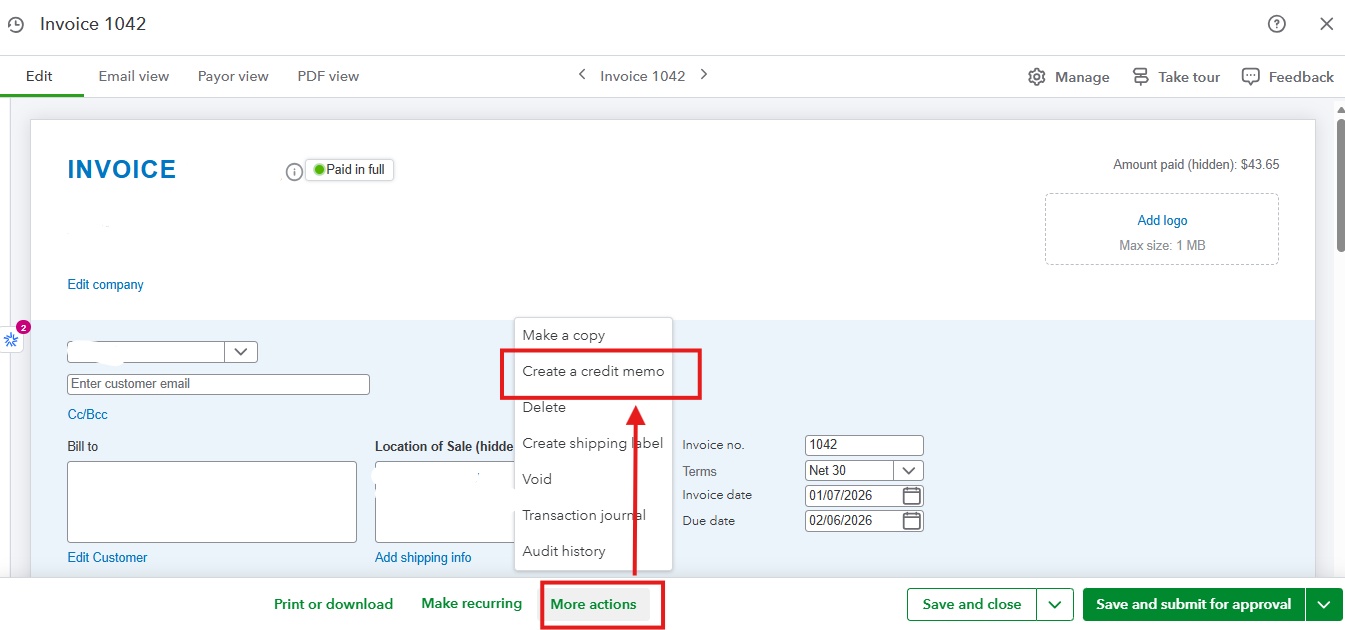
Next, let's create an Expense to document the funds provided to the customer. Here's how:
Finally, link the Credit Memo and the Expense to indicate that the credit has already refunded. Here's how:
Once you link the transactions, your customer's account will display the credit memo as paid, and your bank account balance will accurately reflect the money sent.
However, if you want to refund individual items or services, you can create a refund receipt instead. Please visit this article for guidance on how: Refund your customer for an item or service in QuickBooks Online.
Your questions are always welcome here in the Community space.
Enter your E-mail address. We'll send you an e-mail with instructions to reset your password.