SUMMER SAVINGS 90% OFF QuickBooks for 3 months* Ends 8/27

Buy now
Switch to QuickBooks and 70% off for 3 Months
March 22, 2020
Solved

Why won't the "Print Later" checkbox uncheck on a bill payment that's stuck in the To Be Printed queue?

  • March 22, 2020
  • 8 replies
  • 78 views

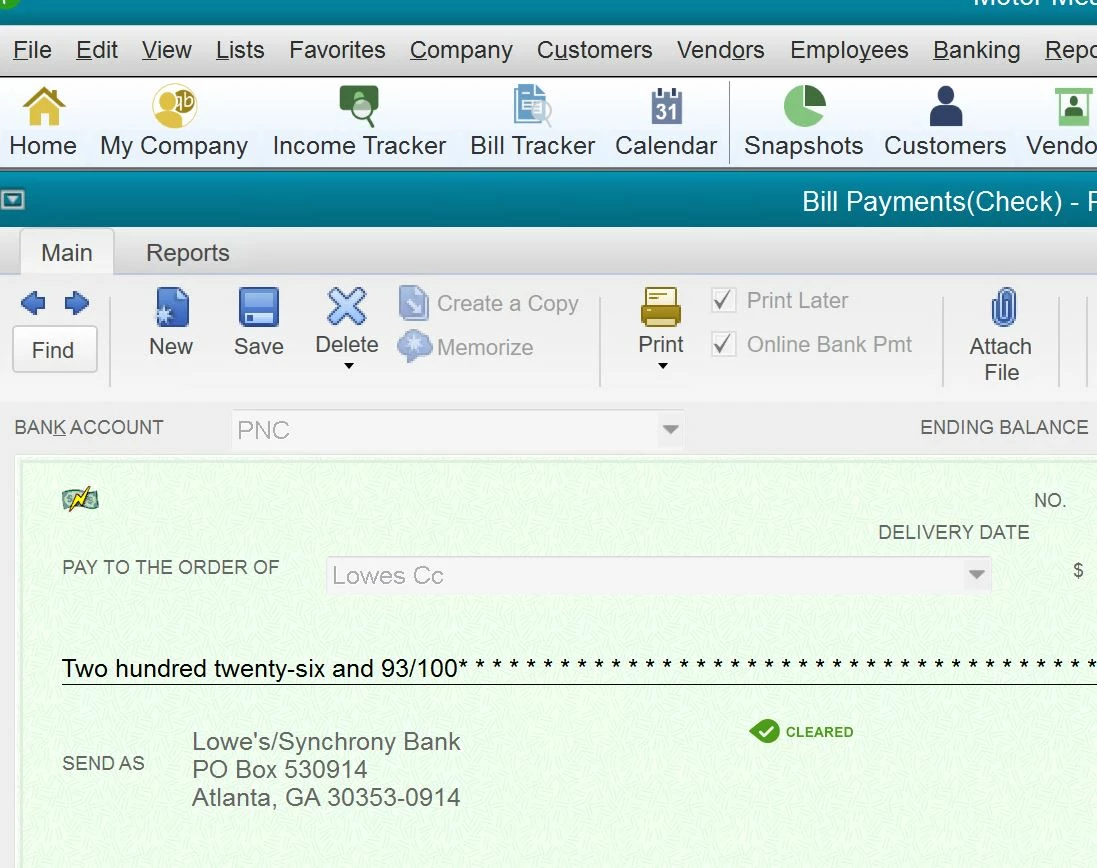
I have one transaction that comes up with the "checks to be printed" and I can't disable. It was paid via online banking in quickbooks which I use 95% of the time. It is also reconciled. It is not a payroll check. I have attempted to edit but the pull down to remove is not highlight-able.

Best answer by Emma_P

Normally, clearing a transaction from the print queue is straightforward: open it, uncheck Print Later, and save. If the transaction was actually paid online rather than by printed check, you'd select Pay Online instead of leaving Print Later checked.

  1. Open the check or bill payment.
  2. Uncheck Print Later, or select Pay Online if the payment was processed online.
  3. Select Save & Close.

If the checkbox itself won't respond, meaning you can't select or unselect it at all, that points to something more unusual with this specific transaction rather than a setting you're missing.

If the checkbox won't respond, check for data damage

Run the Verify and Rebuild Data utilities, which scan for and repair common data integrity issues:

  1. Go to Window, then select Close All.
  2. Go to File, then select Utilities.
  3. Select Verify Data.

If QuickBooks reports "Your data has lost integrity," proceed to Rebuild Data from the same Utilities menu, then run Verify Data again afterward to confirm the repair worked.

Still stuck after that?

If the checkbox remains unresponsive even after verifying and rebuilding your data, this is a good point to contact support directly so they can look at the transaction itself. A stuck field like this usually points to something in the file that's outside what's fixable from the transaction window alone.


Resources: 

Create, modify, and print cheques in QuickBooks Desktop

Verify and rebuild data in QuickBooks Desktop

If another question pops up, we're right here.

 

8 replies

MaryLandT
Level 10
March 23, 2020

Hi there, tj1953,


I appreciate you providing a screenshot. I've got the steps to remove the check from the print queue.


While it remains to be printed in QuickBooks Desktop, you'll want to use a plain paper. Then, print the check to remove it from the queue list.


Let me walk you through the steps:

  1. Go to File.
  2. Pick Print Forms, then choose Checks.
  3. Select your bank account.
  4. Mark the check you want to print 
  5. Enter the first check number, and click OK.
  6. Click Print.

I've added this handy article: Print checks one at a time or in a batch for more details.


Should you need anything else, please let me know. I'm always here to assist.


Thank you and stay safe!

tj1953Author
April 3, 2020

This did don't Clear the "To Print"

Emma_P
Emma_PCommunity ManagerAnswer
Community Manager
August 21, 2026

Normally, clearing a transaction from the print queue is straightforward: open it, uncheck Print Later, and save. If the transaction was actually paid online rather than by printed check, you'd select Pay Online instead of leaving Print Later checked.

  1. Open the check or bill payment.
  2. Uncheck Print Later, or select Pay Online if the payment was processed online.
  3. Select Save & Close.

If the checkbox itself won't respond, meaning you can't select or unselect it at all, that points to something more unusual with this specific transaction rather than a setting you're missing.

If the checkbox won't respond, check for data damage

Run the Verify and Rebuild Data utilities, which scan for and repair common data integrity issues:

  1. Go to Window, then select Close All.
  2. Go to File, then select Utilities.
  3. Select Verify Data.

If QuickBooks reports "Your data has lost integrity," proceed to Rebuild Data from the same Utilities menu, then run Verify Data again afterward to confirm the repair worked.

Still stuck after that?

If the checkbox remains unresponsive even after verifying and rebuilding your data, this is a good point to contact support directly so they can look at the transaction itself. A stuck field like this usually points to something in the file that's outside what's fixable from the transaction window alone.


Resources: 

Create, modify, and print cheques in QuickBooks Desktop

Verify and rebuild data in QuickBooks Desktop

If another question pops up, we're right here.