
Get 50% OFF QuickBooks for 3 months*

Buy now
Switch to QuickBooks and 70% off for 3 Months
New Member
July 17, 2026
Question

Bug Report for Quickbooks Desktop Enterprise

  • July 17, 2026
  • 1 reply
  • 11 views

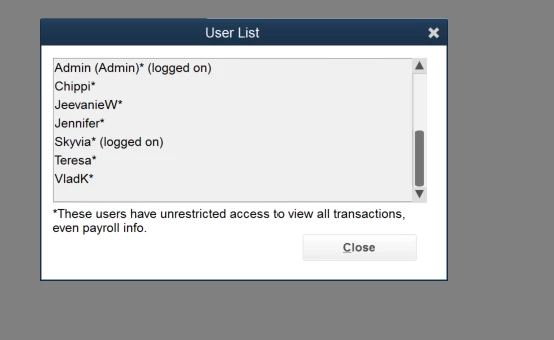
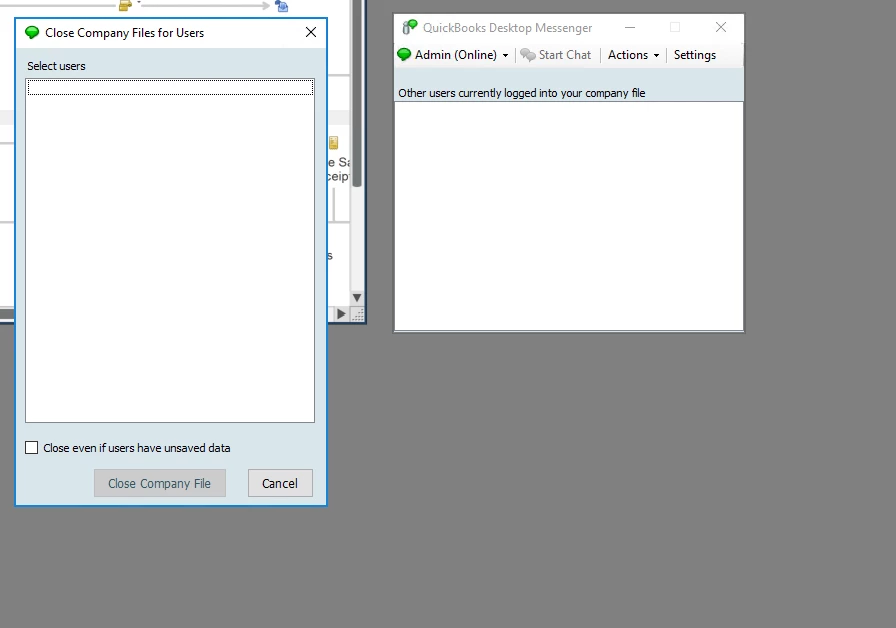
There is an issue with Quickbooks Desktop Enterprise where-in if an integration tool (Skyvia in this example) fails to log out of Quickbooks, the Admin is unable to end the user session. The user is visible as logged in, however using the various prescribed methods - using Quickbooks Messenger, changing to Single User mode - all fail to remove that logged in session. See screenshots below where the user is logged in, but not appearing as a user that can be messaged or removed by the Admin.


1 reply

QuickBooks Team
July 18, 2026

When a third-party tool like Skyvia disconnects improperly, it leaves a hidden background connection active in the database. Because this happens behind the scenes, standard QuickBooks tools and the Admin screen cannot see or terminate the session.


You can clear this stuck session using either of these two methods:


Option A: Restart the QuickBooks Database Service. This resets the connection from the server side and clears the lock immediately.
 

  1. Go to the server computer where the QuickBooks file is hosted.
  2. Open the Windows Run dialog, type services.msc, and press Enter.
  3. Locate QuickBooksDBXX (where XX is your version number), right-click it, and select Restart. (Note: This will temporarily disconnect all active users).


Option B: Close the background processes. If you cannot restart the server, you can force the malfunctioning programs to close manually.
 

  1. Open Windows Task Manager on the computer running the Skyvia agent.
  2. Locate QBW32.exe or Skyvia.Agent.Client.exe.
  3. Select the process and click End Task.


To prevent this issue from happening again, assign Skyvia to its own dedicated user account instead of a real person's login. This ensures that if the integration crashes again, it will not lock actual employees out of the system.
 

  1. Log in as Admin and go to Edit > Preferences.
  2. Select Integrated Applications and click the Company Preferences tab.
  3. Select Skyvia, click Properties, and assign it to a separate, dedicated user account (such as "SkyviaUser").


Please let us know if you have any questions.