I'd be happy to help with your question regarding user logins in QuickBooks Desktop (QBDT) Enterprise, @traceyhhf. I have the steps to ensure your team can log in and get to work without waiting for admin access.
Your employee can definitely use their own Intuit account login to open your QuickBooks Desktop (QBDT) Enterprise company file, but only after you have properly invited them to be an Intuit Account user. Once they accept your invitation, they should be able to log in and manage your account even when you're unavailable due to time differences or other factors.
Here's how to add Intuit account users within your QBDT account:
- Sign in as the company admin.
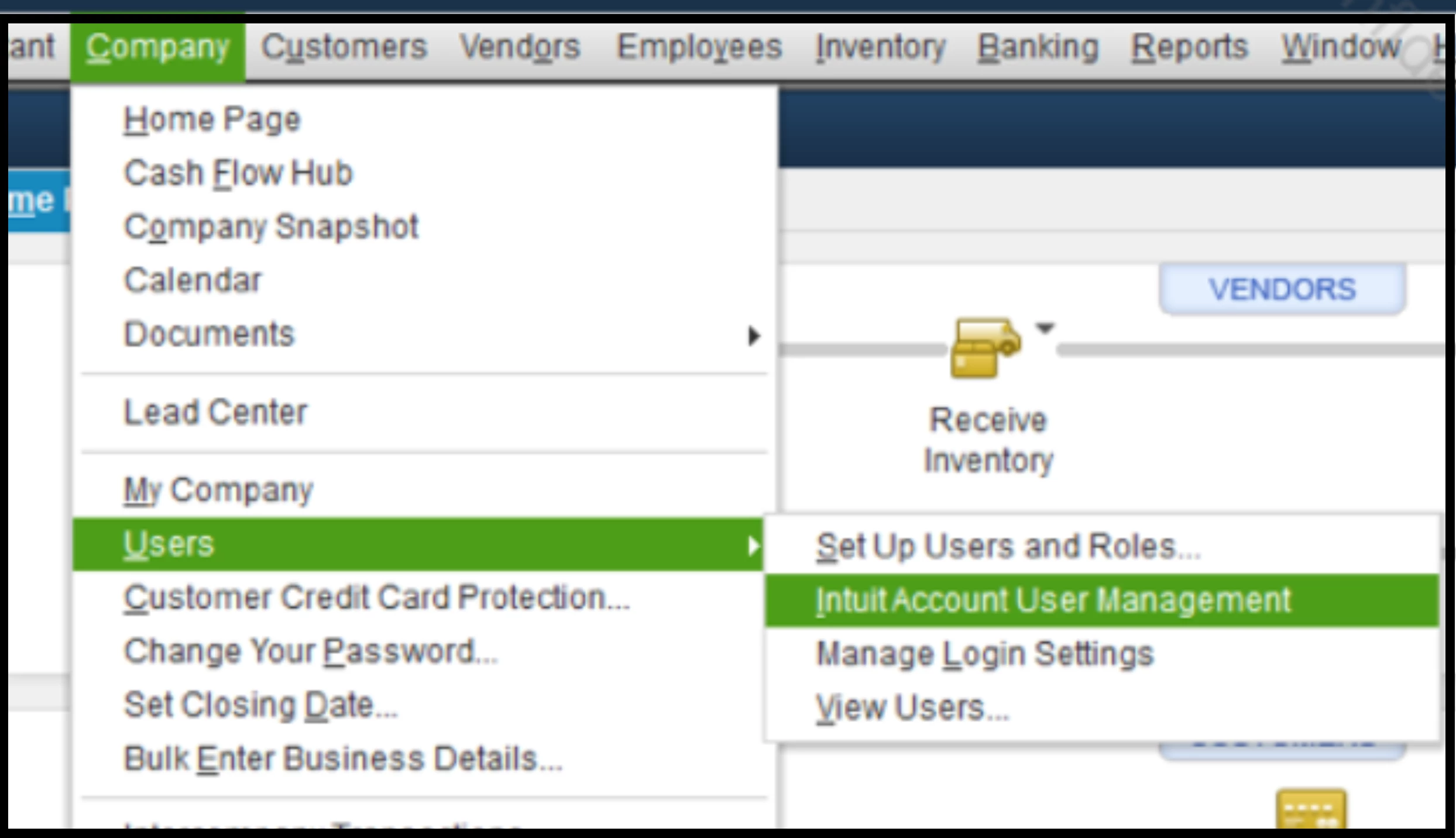
- Pick the Company button, then Users.
- Select Intuit Account User Management.
- Choose Add user and enter a valid first name, last name, and email address.
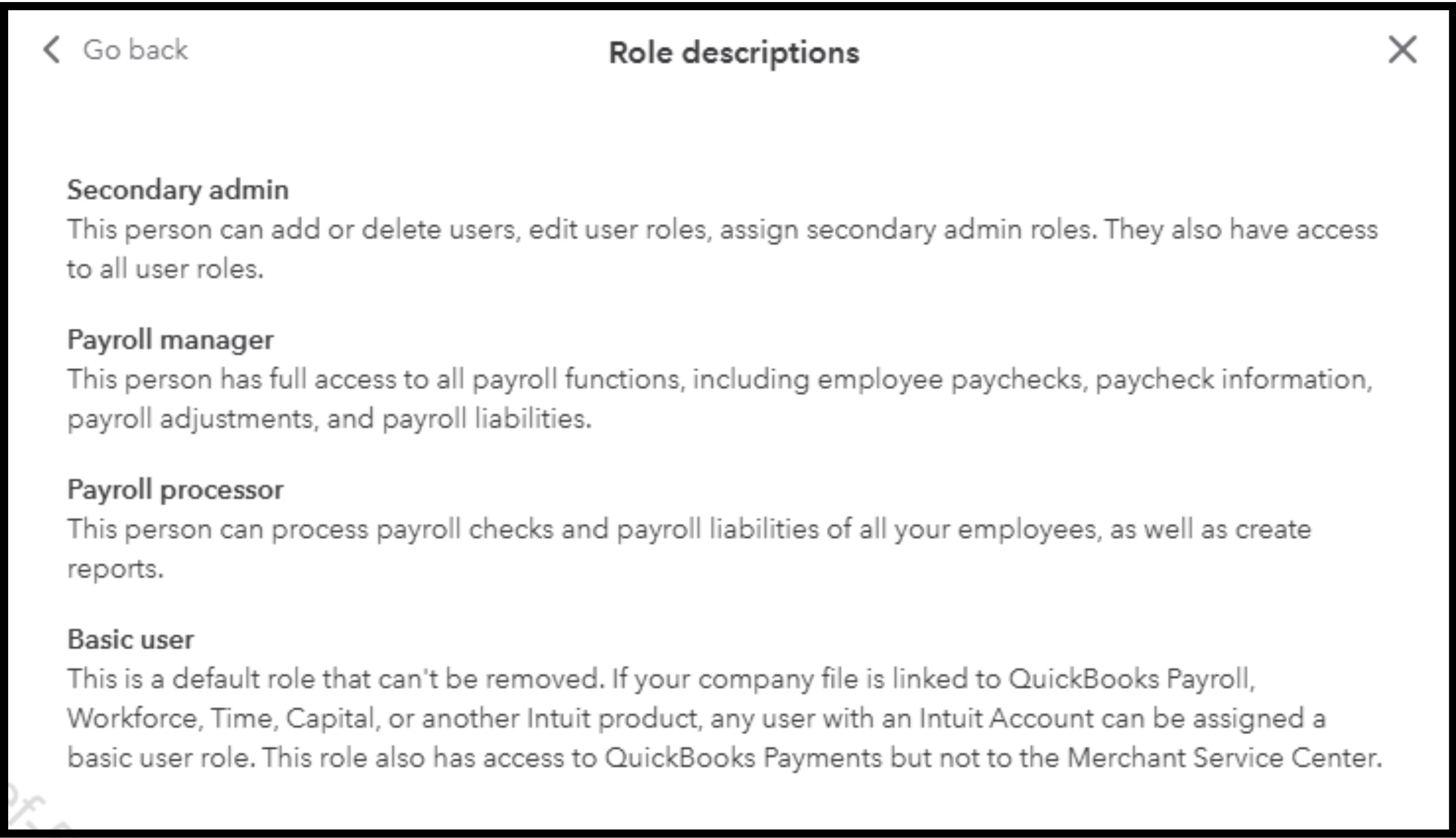
- Go to Roles and select the role for the user.
- Tick the View role descriptions option to see available roles and their descriptions.
- When ready, hit the Send invitation option to notify the user.
- A message about the invitation status, the role(s) assigned, and the QBDT Company file name will appear.
- Select OK to confirm and close the message.
Here's an article about opening a company file with these credentials: Create or open a company file with your Intuit account.
Moreover, added users in your QBDT account are not listed in the main Intuit account because their credentials are only intended for the QBDT company. The Intuit account serves as an additional security layer and is used to manage access to connected Intuit services.
This information should help you retain control over your admin account and your employees securely manage your company file using their own unique credentials. If you run into any trouble or if the invite doesn't go through. We're always here to lend a hand.
