


How to Connect Your Bank, Categorize Transactions, and Set Up Rules in QuickBooks Online
Connecting your bank account and categorizing transactions function as a single, unified workflow: after linking your bank, transactions are downloaded automatically, allowing you to review and confirm QuickBooks Online's recommendations. Without the connection, every transaction is manual entry. Without the review step, automated suggestions go unchecked and your reports end up wrong. Get both right and your bookkeeping shrinks to a quick weekly check-in.
How Do You Connect a Bank Account to QuickBooks Online?
You connect your bank through the Banking menu using your standard online banking login. QuickBooks Online uses a secure, read-only connection to pull transactions from your financial institution. It can see your transactions but can't move money.
Step-by-step: Linking your bank or credit card
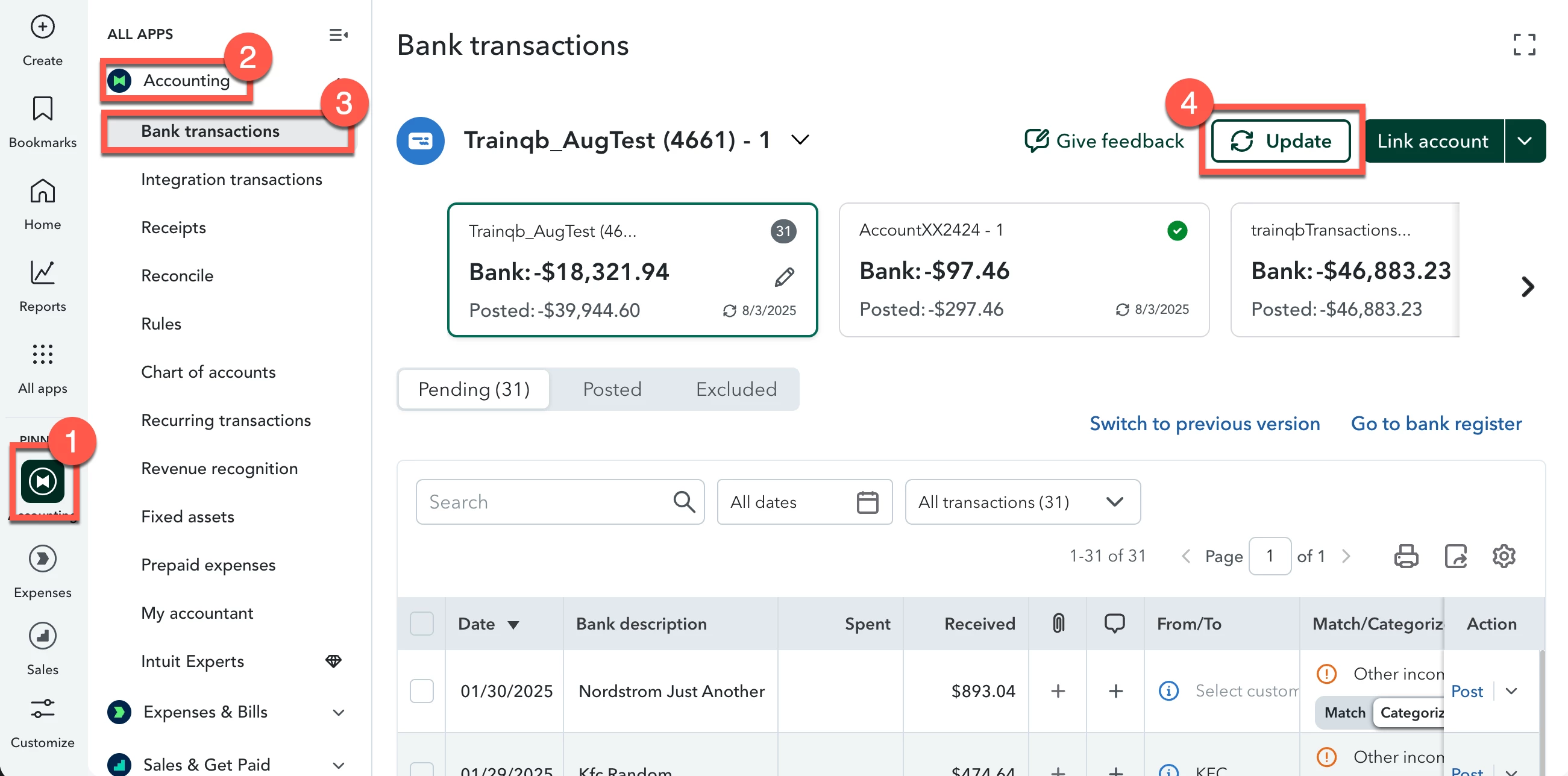
- Go to All apps > Accounting > Bank transactions.
- Select Connect account for your first connection. For additional accounts, select Link account instead.
- Search for your bank or credit card provider by name.
- Select your bank from the results and click Continue.
- Enter your online banking username and password when prompted.
- Select the specific accounts you want to connect. (checking, savings, credit card, or any combination).
- Download timespans vary by bank, typically 90 days, but some institutions allow up to 24 months. Check the date range dropdown after selecting your accounts.
- Click Connect. QuickBooks Online begins importing transactions immediately.
Once connected, your account syncs automatically each day. You can trigger a manual refresh at any time by clicking Update in the Banking menu. You can connect as many accounts as your business uses as there's no limit.
What If Your Bank Isn't Listed in QuickBooks Online?
Most major banks appear in QuickBooks Online search automatically. If yours doesn't, try searching by your bank's full legal name first as some institutions appear under a slightly different name than what's on your card or statement.
If you still can't find it, select Request a provider at the bottom of the search results and enter your bank's website URL. Intuit will review the request and notify you when it becomes available. In the meantime, you can upload transactions manually.
Download a CSV or QuickBooks Online file from your bank's online portal (look under transaction history or account activity) and import it into QuickBooks Online from the Bank transactions screen.
Manually upload transactions into QuickBooks Online: Detailed instructions for importing QuickBooks Online, QFX, or CSV files when direct banking integration isn't supported.
What If Your Bank Connection Drops?
Connections occasionally break, most often after your bank updates its security settings or prompts a credential change. If you see a connection error in QuickBooks Online, the fix is usually quick.
Step-by-step: Reconnecting a dropped bank feed
- Go to Bank transactions and find the account showing an error.
- Select Reconnect or Fix connection next to the account.
- Re-enter your online banking credentials.
- Complete any additional verification your bank requires, such as a one-time code.
- Once confirmed, QuickBooks resumes downloading transactions automatically.
QuickBooks Online does not store your password. It re-authenticates each time the connection renews. If you've recently changed your banking password, that's usually what triggered the disconnect.
How Do You Review and Categorize Transactions in QuickBooks Online?
When you link your bank account, no entries are posted to your books immediately. Instead, transactions are imported into a staging area where QuickBooks Online offers category suggestions. You must review, edit, or confirm these recommendations before any transaction is recorded.
To access these downloaded items, navigate to All apps > Accounting > Bank transactions and select the Pending tab. Items in this area require your review and have not yet affected your ledger.
Step-by-step: Reviewing and categorizing transactions
- Open the Pending tab under Bank transactions.
- For each transaction, QuickBooks Online shows a suggested category. If the suggestion is correct, select Post to confirm it and add it to your books.
- If the suggestion is wrong, change the category using the dropdown first, then select Post to confirm and add it to your books with the corrected category.
- If the transaction is a transfer between two of your own accounts (such as a sweep from checking to savings), select Record as transfer instead of assigning a category.
What Is the Difference Between Add, Match, and Record as Transfer?
When a transaction downloads, QuickBooks Online checks whether it already exists in your books as a manually entered record. If it finds one, it suggests Match instead of a category. Using the wrong action here is one of the most common ways duplicate records end up in your account.
| Action | When to use it |
|---|---|
| Add | Transaction is new and needs to be recorded for the first time |
| Match | QuickBooks Online found a corresponding manually entered record (e.g., a bill payment you already entered) |
| Record as transfer | Transaction moves money between two of your own accounts |
| Exclude | Transaction is a duplicate or shouldn't be in your books at all. Check out more here. |
If you Add a transaction that should have been Matched, you'll have two records for the same payment. This throws off your account balances and makes reconciliation harder.
Check out this article for full details: Match online bank transactions in QuickBooks Online
How Do You Set Up Rules to Categorize Transactions Automatically?
By setting up rules, QuickBooks Online automatically processes recurring vendor transactions, saving you from manual reviews. Active rules ensure matching entries appear in your Pending tab pre-categorized, so all you need to do is give final confirmation.
Step-by-step: Creating a categorization rule
- Go to Bank transactions, then select the Rules tab.
- Click New rule.
- Name the rule descriptively (e.g., "Office Depot = Office Supplies").
- Set the conditions: choose money in or money out, and specify what triggers the rule - vendor name, description text, or transaction amount.
- Set the action: choose the category, payee, and class you want applied.
- Choose whether to apply the rule automatically or flag matching transactions for your review first.
- Click Save.
Bank rules are ideal for recurring fixed costs, such as rent, subscription services, or routine vendor charges that consistently belong in the same category.
For step-by-step guidance, refer to the official article on how to Set up bank rules to categorize online banking transactions in QuickBooks Online. If a rule fails to trigger as expected, check out Troubleshoot bank rules in QuickBooks Online to learn about common causes, such as differences between bank text and descriptions.
How Do You Fix a Transaction That Was Categorized Wrong?
To fix a transaction already posted under an incorrect category, simply adjust it within the account register. There is no need to delete and re-create the entry.
- Go to All apps > Accounting > Chart of accounts.
- Find the account the transaction was posted to and click View register.
- Locate the transaction and click on it to open it.
- Change the category to the correct account.
- Click Save.
The correction applies immediately across all reports.
FAQ
Does QuickBooks Online store my banking password? No. QuickBooks Online uses a read-only connection and does not store your password. It re-authenticates securely each time the feed syncs, the same way your bank's own app does.
How far back can QuickBooks Online import bank transactions when I first connect? Download timespans vary by bank - typically 90 days, but some institutions allow up to 24 months. If you need older transactions, download them from your bank and upload the file manually into QuickBooks Online.
Why does QuickBooks Online keep suggesting the wrong category for the same vendor? Set a rule. Rules override QuickBooks's auto-suggestions and apply your preferred category every time. Go to Bank transactions > Rules > New rule and set the condition to trigger on that vendor's name.
Should I categorize personal transactions that show up in my business bank feed? Record them as an Owner's draw (sole proprietors) or Shareholder distribution (corporations) rather than a business expense. This keeps your expense accounts clean and your reports accurate.
How do I split a transaction across multiple categories? Click into the transaction to expand it, then select Split. Assign different amounts to different categories within the same transaction - useful for a purchase that covers both supplies and a meal, for example.
What's the difference between connecting a bank and uploading transactions? A connected feed syncs automatically every day with no action needed from you. Uploading is a manual process - you download a file from your bank and import it. The connected feed is better for ongoing use; uploading is the fallback for unsupported banks or historical data.
Key Takeaways
- Connect your bank through All apps > Accounting > Bank transactions > Connect account. You can connect as many accounts as you need.
- Downloaded transactions land in the Pending tab. Nothing there has posted to your books until you confirm it.
- Use Post to confirm a suggested category, Match for transactions you already entered manually, and Record as transfer for money moving between your own accounts. Using the wrong action creates duplicates.
- Set rules for recurring vendors so they arrive pre-categorized. One rule eliminates months of repetitive manual review.
- If a transaction posted with the wrong category, fix it in the account register - no need to delete and re-enter.
Still running into issues?
Drop a question in the comments and we'll help you work through it. For connection errors that won't resolve, go to Help (?) in QuickBooks Online and select Contact us.
Helpful Resources
- Connect bank and credit card accounts to QuickBooks Online: Official step-by-step guide for linking your accounts.
- How to Avoid QuickBooks Online Bank Connection Errors Before They Happen: Prevention steps for the most common reasons bank feeds disconnect.
- How to Get More Accurate Auto-Categorize Transactions in QuickBooks Online: How to train QuickBooks Online's categorization to match your actual accounts and reduce manual corrections.
- How to Get More Accurate Bank Transaction Matches in QuickBooks Online: How QuickBooks matches downloaded transactions to existing records, and how to improve match quality.