


How to update your business name, address, or EIN in QuickBooks Online
Renamed your business, moved offices, or got a new Employer Identification Number (EIN) from the IRS? You can update all of that in QuickBooks Online in just a few clicks.
Quick definition: an EIN is the nine-digit number the IRS uses to identify your business for tax purposes, kind of like a Social Security number, but for a business.
This guide outlines where to perform these updates, details what updates automatically in QuickBooks Online, and highlights the steps you must complete manually.
Why your business info in QuickBooks Online matters
Your business name, address, and EIN show up in more places than just the settings screen. QuickBooks Online pulls your customer-facing info, such as your business name and address, onto your invoices, sales receipts, and other sales forms. Your EIN is primarily used for tax reporting (such as W-2s and 1099s) and isn't typically displayed on customer-facing invoices unless added manually.
It's also the info Intuit keeps on file for your account, and a few QuickBooks features depend on it being accurate.
Note: If your business name or EIN changes and QuickBooks Online still shows the old one, that mismatch can show up on your invoices, your tax filings, and your Payments or Payroll accounts if you use them. Best to update it now instead of untangling it later.
Before you edit, ask yourself, are you just updating your company, or starting a new one?
Not every business name or EIN change belongs in your existing company file. If you're just fixing a typo, or your business rebranded but you're still the same legal entity, go ahead and edit your company info in place. No need to start over.
But if you're moving to a new EIN because you've become a different legal entity for tax purposes (say, you incorporated after operating as a sole proprietor), it's usually cleaner to create another company in QuickBooks Online instead of overwriting your EIN. Each company you set up is its own subscription with its own books, so your existing records stay tied to the EIN that created them, and your new records start clean under the new one.
Not sure which situation fits you? A tax advisor can help you figure that out before you touch anything in QuickBooks Online.
How to change your business name, address, or EIN in QuickBooks Online
Once you've decided you're editing your existing company, here's how:
- Select Settings ⚙
- Under Settings, Select Company, then select the pencil Edit icon next to the section you want to change.
- Make your changes, then select Save and Done.
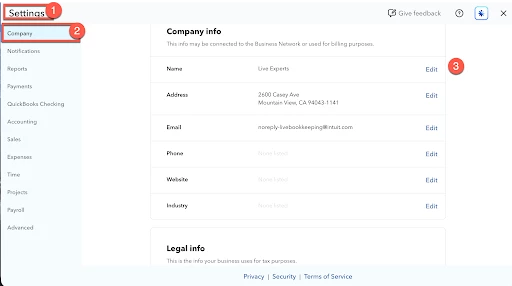
You should see your updated info on the Company page right away. Give it a second, then open a new invoice or sales form just to double-check the change carried over.
A couple of fields are worth knowing about here. In the Company name section, you'll find both a Company name field (what your customers see on invoices) and a Legal name field (what's on file with the government). If they're the same, just leave Same as company name checked. If not, uncheck it and add your legal name separately. Your address section works the same way, with a legal address option for whatever address you use when filing taxes.
Heads up: only the primary admin on your QuickBooks Online account can change these details on the Company info tab. If you don't see the option to edit, that's probably why. It's not something you're doing wrong.
Why you might not be able to edit your Company name, Legal name, or EIN
There are two usual culprits here, and neither one means anything's wrong with your account.
- You're not the primary admin. This field is locked to the primary admin specifically, even if you're a company admin with access to everything else. If your primary admin has left the business, you can transfer the primary admin role to someone who's still with you.
- Your info needs updating in Payments or Payroll first. If you use QuickBooks Payments or QuickBooks Payroll, your company name, legal name, and EIN also live in those accounts, and QuickBooks Online won't let the two go out of sync. If you can't edit these fields, or you see Error -7000, update your info in your Payments and Payroll accounts first, then come back and edit your Company info.
What to update next after you change your business name
QuickBooks Online won't carry your new name everywhere it shows up automatically, so after you save your changes, check these spots too:
- Your default sales form message. If you don't update this too, your invoices and estimates will keep showing your old business name in that text.
- Sales forms by location, if you use location tracking with different business names per location. You'll need to update your custom sales forms for each location on its own.
- Your payroll company info, if you run payroll. Update this first, since it feeds your tax forms and paychecks.
- Your QuickBooks Payments company info, if you accept payments. This lives in a separate account profile. Sign in to QuickBooks Payments, then go to Account, then Account Profile, to update your legal business name, Doing Business As (DBA) name, and tax ID there too. Only someone with full admin access can make these changes, and only the primary admin's user ID can request updates to your linked bank deposit account.