


Where did Classic View Reports Go? A Mini Guide to What Changed & How to Navigate QuickBooks Modern View

Where did Classic View Reports Go? A Mini Guide to What Changed & How to Navigate QuickBooks Modern View
Hello QuickBooks users, and thanks for joining us! These mini guides are designed to help you feel confident navigating your QuickBooks account so you can spend less time troubleshooting and more time running your business. This month we're tackling one of the biggest sources of confusion we're seeing: the move from Classic Reports to Modern View. If you've searched "Why did my QuickBooks reports change" or "How do I get Classic View back," you're in good company. Let's walk through exactly what changed and what stayed the same.
Quick Answer
Classic View for reports has moved to Modern View. Your data, filters, and saved reports carried over automatically, nothing was lost, and no action was needed on your end. Most of what you relied on daily (reporting periods, filters, accounting methods, display options, comparisons, and the ability to show/hide active or non-zero rows and columns) works exactly the same in Modern View, just in a new layout. On top of that, Modern View adds capabilities Classic never had, plus a round of improvements QuickBooks made afterward based on user feedback.
Wait, Where Did My Classic Reports Go?
If a report now looks different than you remember, or the "Switch to Classic View" button has disappeared entirely, that's not a glitch. QuickBooks Online rolled out the move from Classic to Modern View in phases over 2026, and it's now complete:
- Standard reports (the 150+ built-in report types) moved to Modern View first, with Classic access removed for them mid-2026.
- Custom saved reports followed, with Classic View fully retired for every report type, on every plan, as of August 18, 2026.
Because this was a phased, multi-month rollout, you may see slightly different dates referenced in older QuickBooks articles or Community threads. What matters now is the end state: Classic View is gone, and Modern View is the only reporting experience. Your data, filters, saved reports, and schedules all carried over automatically. Nothing needs to be manually rebuilt.
What's Equivalent (You're Not Losing These)
It's worth saying plainly: Modern View is not a stripped-down version of Classic. Everything you rely on today carries forward, including:
- Reporting periods
- Filters
- Accounting methods
- Display options
- Comparisons
- The ability to show or hide active and non-zero-value rows and columns
If a report looks different, it's a layout change, not a missing-data problem.
What's New in Modern View
On top of that baseline, Modern View adds capabilities Classic never had:
- Add almost any attribute as a column
- Group and pivot data for deeper analysis
- Built-in charts alongside your numbers
- Banded rows, color-coded columns, and flexible gridlines (some of these are limited to QuickBooks Online Advanced and Intuit Enterprise Suite)
- Full-page scrolling plus Ctrl+F / Command+F search on longer reports
- Auto-refresh after you edit a transaction from a drill-down
- Standard accounting order (Assets, Liabilities, Equity, Income, Expenses) on reports like General Ledger and Trial Balance
- Customizations and drill-down settings that persist even after a page reload
- Exports to Excel that keep live formulas on calculated rows and columns, instead of landing as a flat snapshot
Tip: If you're an accountant managing this for multiple clients, the fastest way to build comfort is to start doing real client work in Modern View now, rather than reflexively clicking back to Classic.
What Works Differently (Not Missing, Just Moved)
| Classic View Location | Modern View Location | How to Access It Now |
|---|---|---|
| Top Bar Customization Button | Right-Hand Panel (Filter / Columns) | Clicking Customize opens a sidebar on the right instead of a top pop-up window. 
|
| Header / Title Customization | Directly on the Report Canvas | Hover over and click directly on the report title, subtitle, or date header text to edit it in place. 
|
| Select / Rearrange Columns | Right Panel → Columns Tab | Click Columns in the right panel. Use checkboxes to show/hide fields, or drag handles to reorder. 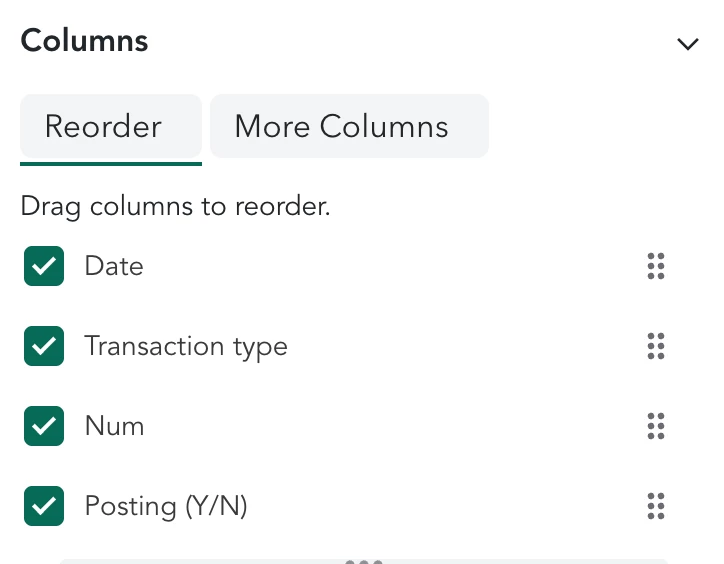
|
| Group By / Filter Rows | Right Panel → Group or Filter | Settings like "Group by Account" or filtering by Customer/Vendor are now individual collapsible sections in the right panel. 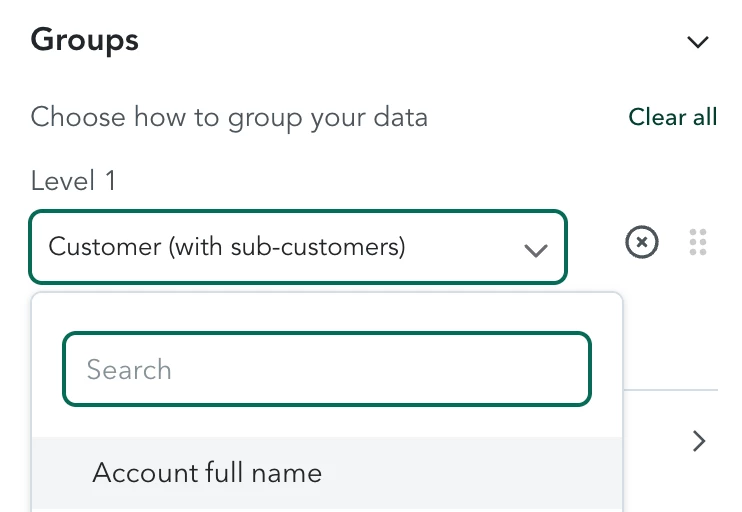
|
| Display Columns By (Period) | Top Header Controls | Quick selectors (Days, Months, Total Only) remain pinned at the top header, outside the right panel. 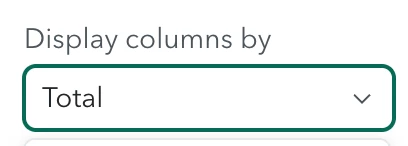
|
| Cash vs. Accrual Toggle | Top Header Controls | Pinned at the top-left or top-right bar above the data grid. 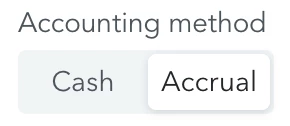
|
| Collapse / Expand Sub-Accounts | Inline Report Grid Controls | Downward arrows next to parent account names directly inside the report table. 
|
| Export / Print / Management | On Report Canvas | Located on the right corner of the report canvas. 
|
Where Things Stand Now
Yes,: Modern View is now the only reporting experience, on every plan, with no Classic fallback. That means the transition is done, not pending. If you're still running into something that feels like a gap rather than a relocated feature, that's the point to submit direct feedback rather than wait for a future fix.
Tip: Use the Feedback button under the Gear icon (Profile > Feedback) to report a specific gap. QuickBooks has said user feedback is what shapes what gets prioritized going forward.
You've got this!
The short version: your data didn't go anywhere, most of what you use daily is already equivalent, and a couple of workflows (like column edits and vendor history) just moved to a different spot rather than disappearing. If something still feels missing after trying the workarounds above, submit feedback through the Gear icon so it gets tracked properly.
For more information, check out this article: Transition from Classic to Modern View reports
Helpful resources:
- Official transition article: Transition from Classic to Modern View reports
- Community confirmation that Classic View is fully retired, with workarounds: Where did Classic View go?
- Customize reports in Modern View: Customize reports
- Advanced customization: Customize your reports with a modern view (QuickBooks Online Advanced)
- Save a customized report (formerly "Memorize reports"): Save a customized report
- View a vendor's transaction history: View and edit supplier transactions