
SUMMER SAVINGS 90% OFF QuickBooks for 3 months* Ends 8/27

Buy now
Switch to QuickBooks and 70% off for 3 Months
Best answer by Jessavell_A

Welcome to the Community space, @projectbydesign1


Yes, you can absolutely mark an overdue invoice as Paid in QuickBooks Online (QBO).


When you receive a payment for an overdue invoice, you simply need to record a Receive payment transaction. Doing this will automatically update its status from Overdue to Paid, clear it from your Accounts Receivable, and update your records.


There are two primary ways to mark an overdue invoice as paid, depending on where you are in the software:


First, you can do it directly from the Invoices List. Here's how:


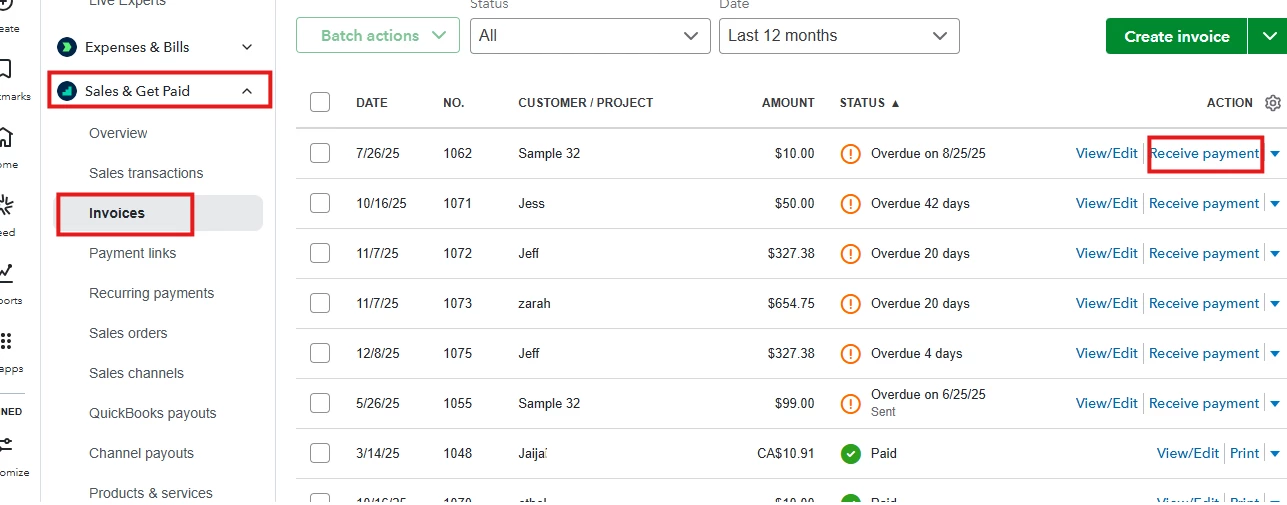
1. Go to Sales & Get Paid and select Invoices.

2. Locate the overdue invoice in the list.

3. In the Action column on the right, click Receive payment.
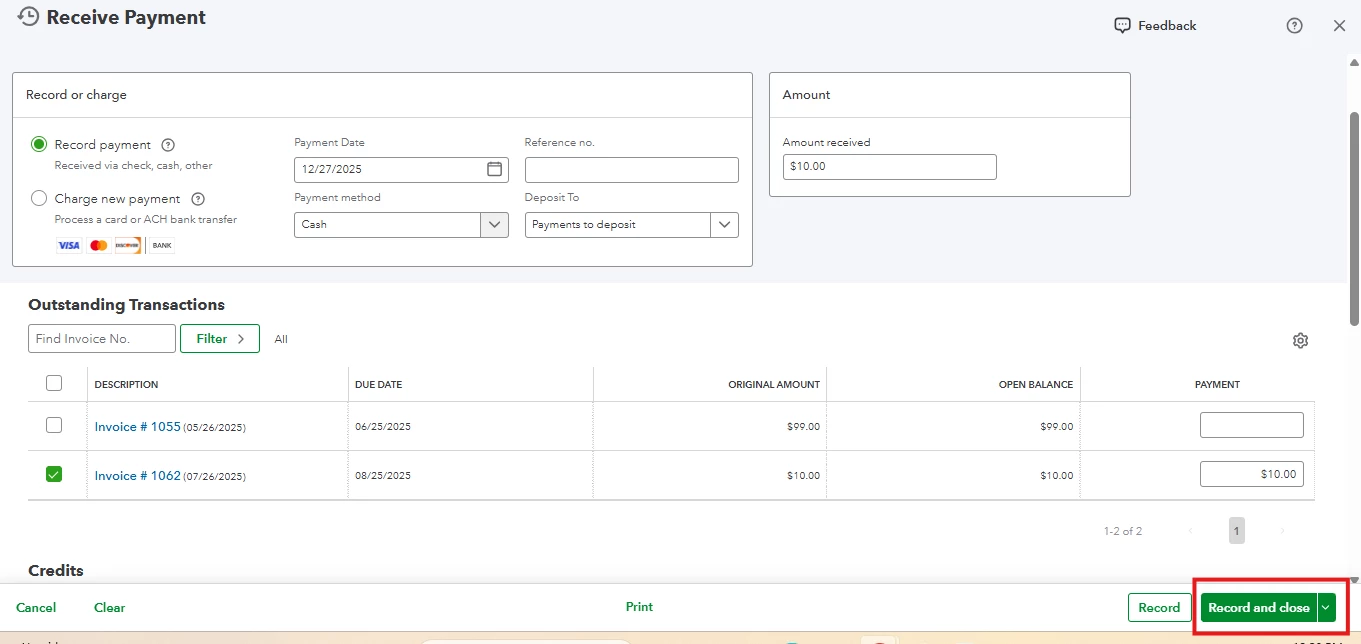
4. A Receive Payment window will open. Ensure the Payment date, Payment method, and Deposit to (e.g., your bank account or Undeposited Funds) are correct.

5. Verify the invoice checkbox is selected and the amount matches.

6. Click Record and close.
 

Next is by using the +Create button. Here's how:


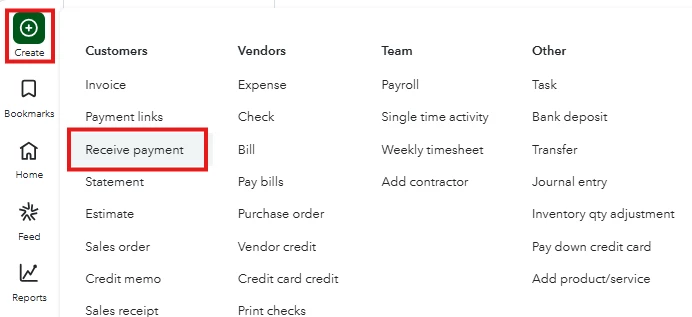
1. Click the +Create button in the top left corner.

2. Under the Customers column, select Receive payment.
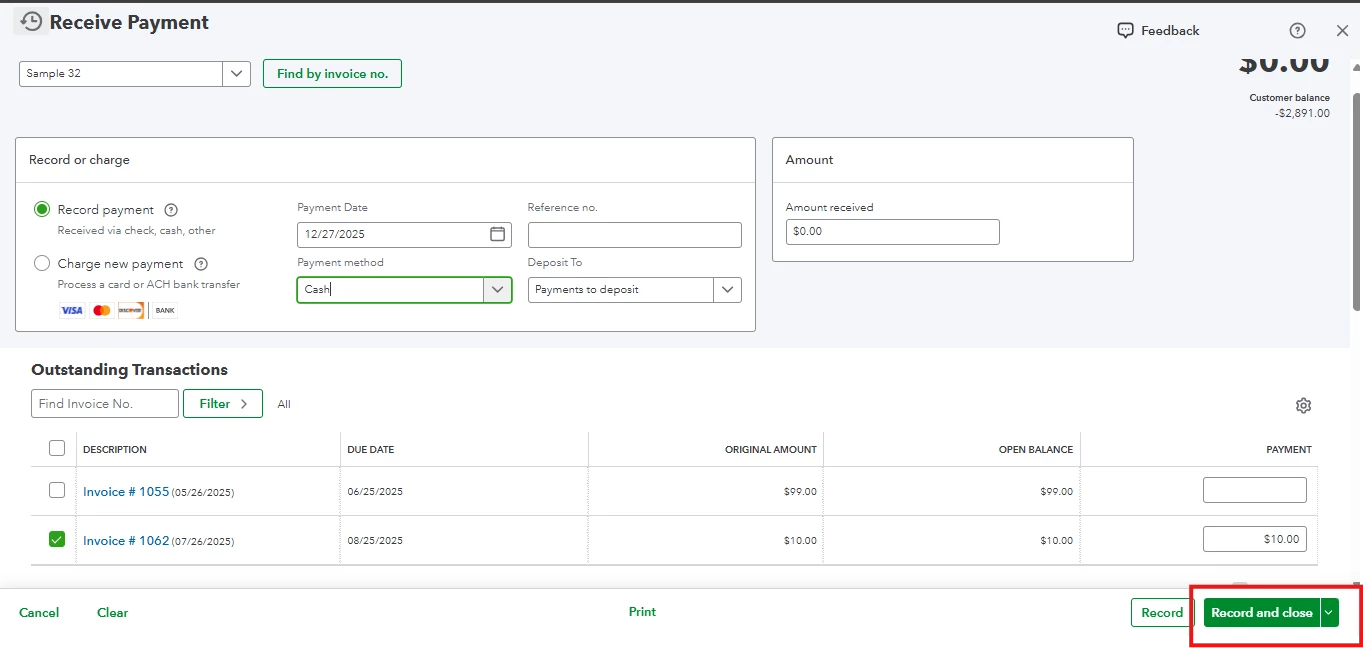
3. Select the Customer from the dropdown menu.

4. QuickBooks will automatically list all open and overdue invoices for that customer under Outstanding Transactions.

5. Select the checkbox for the overdue invoice you want to pay.

6. Enter the payment details (Date, Method, Amount).

7. Click Record and close.
 

Additionally, if the customer only paid a portion of the overdue amount, you can enter the smaller amount in the Amount received field. The invoice status will change to Partial instead of Paid, and it will remain in your overdue list with the remaining balance.


Feel free to revisit this thread if you have any additional questions.

2 replies

QuickBooks Team
December 27, 2025

Welcome to the Community space, @projectbydesign1


Yes, you can absolutely mark an overdue invoice as Paid in QuickBooks Online (QBO).


When you receive a payment for an overdue invoice, you simply need to record a Receive payment transaction. Doing this will automatically update its status from Overdue to Paid, clear it from your Accounts Receivable, and update your records.


There are two primary ways to mark an overdue invoice as paid, depending on where you are in the software:


First, you can do it directly from the Invoices List. Here's how:


1. Go to Sales & Get Paid and select Invoices.

2. Locate the overdue invoice in the list.

3. In the Action column on the right, click Receive payment.

4. A Receive Payment window will open. Ensure the Payment date, Payment method, and Deposit to (e.g., your bank account or Undeposited Funds) are correct.

5. Verify the invoice checkbox is selected and the amount matches.

6. Click Record and close.


Next is by using the +Create button. Here's how:


1. Click the +Create button in the top left corner.

2. Under the Customers column, select Receive payment.

3. Select the Customer from the dropdown menu.

4. QuickBooks will automatically list all open and overdue invoices for that customer under Outstanding Transactions.

5. Select the checkbox for the overdue invoice you want to pay.

6. Enter the payment details (Date, Method, Amount).

7. Click Record and close.


Additionally, if the customer only paid a portion of the overdue amount, you can enter the smaller amount in the Amount received field. The invoice status will change to Partial instead of Paid, and it will remain in your overdue list with the remaining balance.


Feel free to revisit this thread if you have any additional questions.

QuickBooks Team
December 28, 2025

Hi @projectbydesign1,


I just wanted to follow up to check if the resolution we provided helped resolve your issue.


Please let us know if everything is now working as expected or if you’re still experiencing any problems.


We’ll be glad to assist further if needed.
