Get 50% OFF QuickBooks for 3 months*

Buy now
Switch to QuickBooks and 70% off for 3 Months
September 28, 2025
Solved

How do you add a refund check from a vendor?

  • September 28, 2025
  • 1 reply
  • 11 views

There is no outstanding invoice to apply it to. It is actually from the Franchise Tax Board.

Best answer by ThomasJosephD

You can record the refund as a bank deposit, Janna1122.


Since there is no outstanding invoice to apply the refund check from the vendor, you can record it as a bank deposit.


Here’s how to record the refund as a bank deposit:


  1. Go to +Create and select Bank Deposit.
  2. Select the Account where the refund should be recorded.
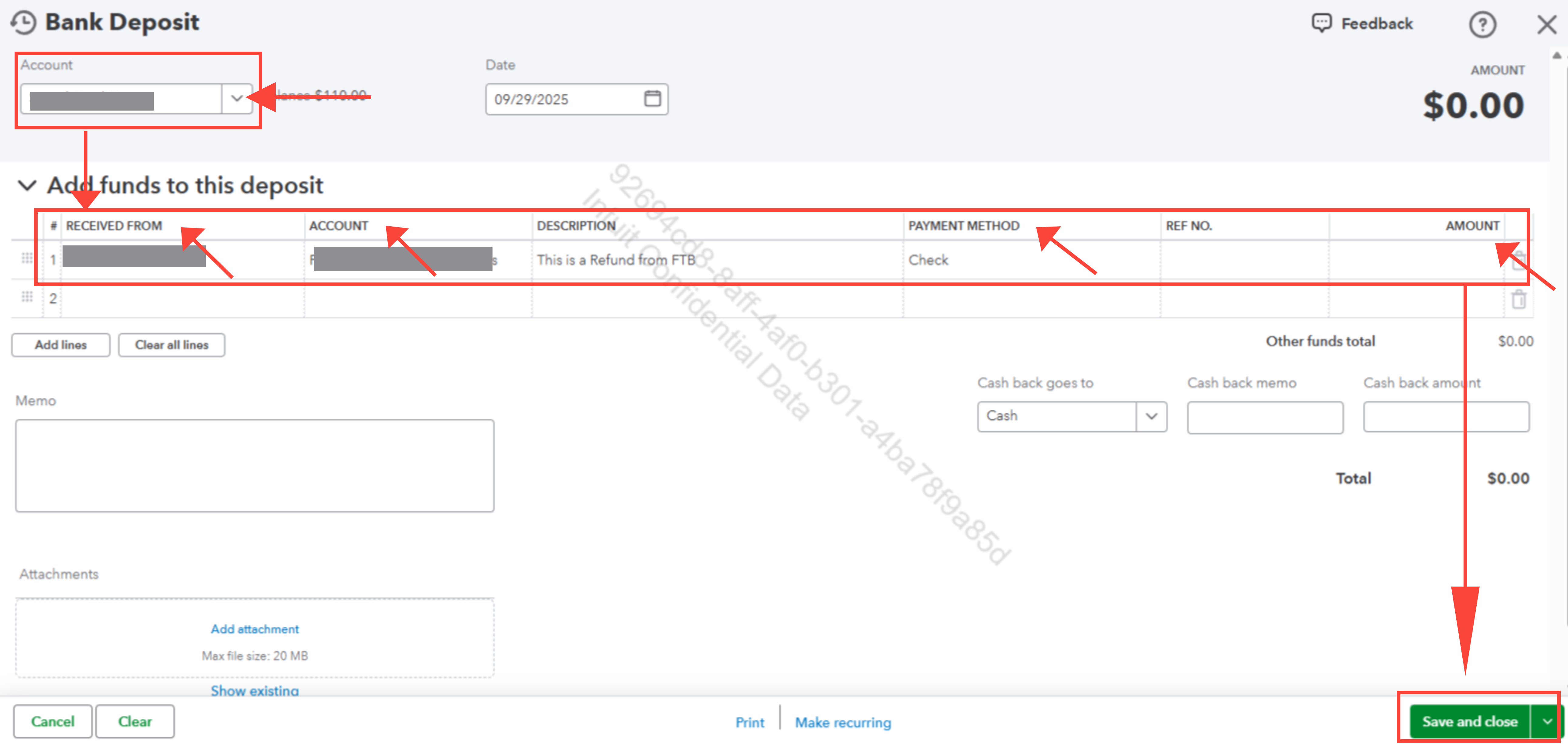
  3. In the RECEIVE FROM field, choose the vendor (e.g., Franchise Tax Board).
  4. Select the appropriate category in the ACCOUNT field.
  5. Optionally, enter a Description (e.g., FTB refund).
  6. In the PAYMENT METHOD field, select Check.
  7. Enter the AMOUNT.
  8. Click Save and close.


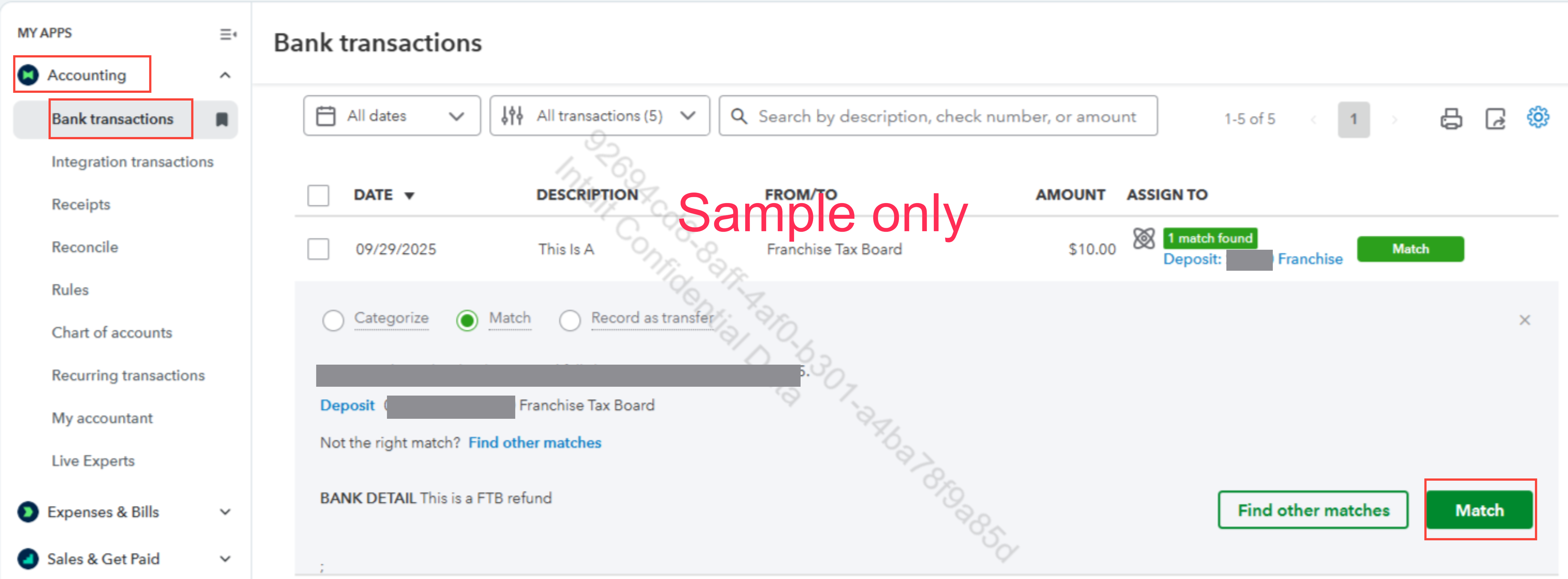
If the bank account where the refund was received is connected to QuickBooks, the transaction will be automatically downloaded. Once the refund transaction appears in QuickBooks, you can match it to the recorded bank deposit.


Here's how:


  1. Go to Accounting and select Bank Transactions.
  2. Locate the refund transaction.
  3. Click Match.


This method records the refund without applying it to an invoice.


Let us know if you have additional questions.

1 reply

QuickBooks Team
September 28, 2025

You can record the refund as a bank deposit, Janna1122.


Since there is no outstanding invoice to apply the refund check from the vendor, you can record it as a bank deposit.


Here’s how to record the refund as a bank deposit:


  1. Go to +Create and select Bank Deposit.
  2. Select the Account where the refund should be recorded.
  3. In the RECEIVE FROM field, choose the vendor (e.g., Franchise Tax Board).
  4. Select the appropriate category in the ACCOUNT field.
  5. Optionally, enter a Description (e.g., FTB refund).
  6. In the PAYMENT METHOD field, select Check.
  7. Enter the AMOUNT.
  8. Click Save and close.


If the bank account where the refund was received is connected to QuickBooks, the transaction will be automatically downloaded. Once the refund transaction appears in QuickBooks, you can match it to the recorded bank deposit.


Here's how:


  1. Go to Accounting and select Bank Transactions.
  2. Locate the refund transaction.
  3. Click Match.


This method records the refund without applying it to an invoice.


Let us know if you have additional questions.