Solved
How do you remove the Vendor ACH information. When you click on the "Update" button and enter Zero's it will not allow you to save. Ho do you remove the ACH information
No text available

Once information is entered in the Bill Pay ACH info section of your vendor profile, it can only be updated by providing new valid details, Ernie.
Removing or replacing the existing information with zeros is unavailable. I recommend sending feedback to let our product team know how this is useful for your business. To do so, follow these steps below:
In the meantime, you can create a new vendor with a slight difference in the name and merge both contacts. This will delete the information and keep all transactions.
As an example below, the Sample Vendor created has a Bill Pay ACH info on it.
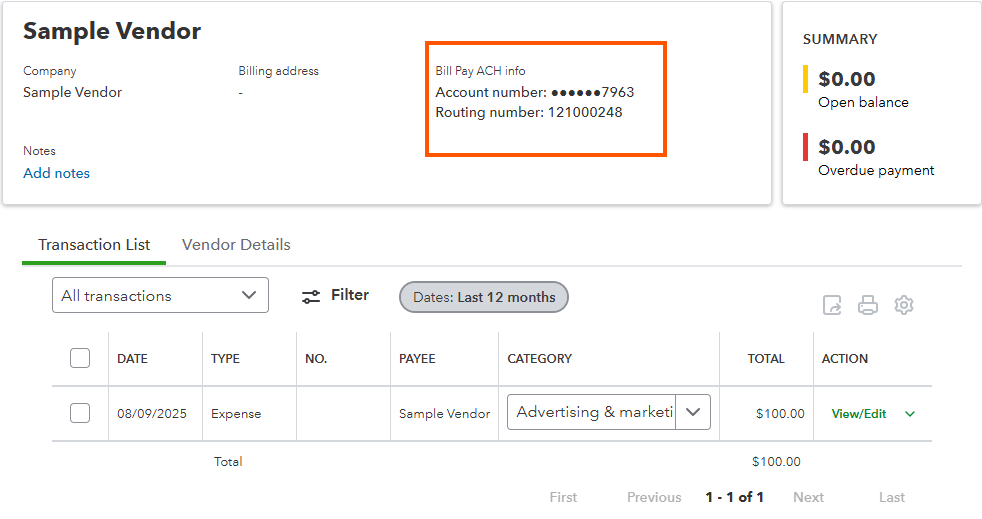
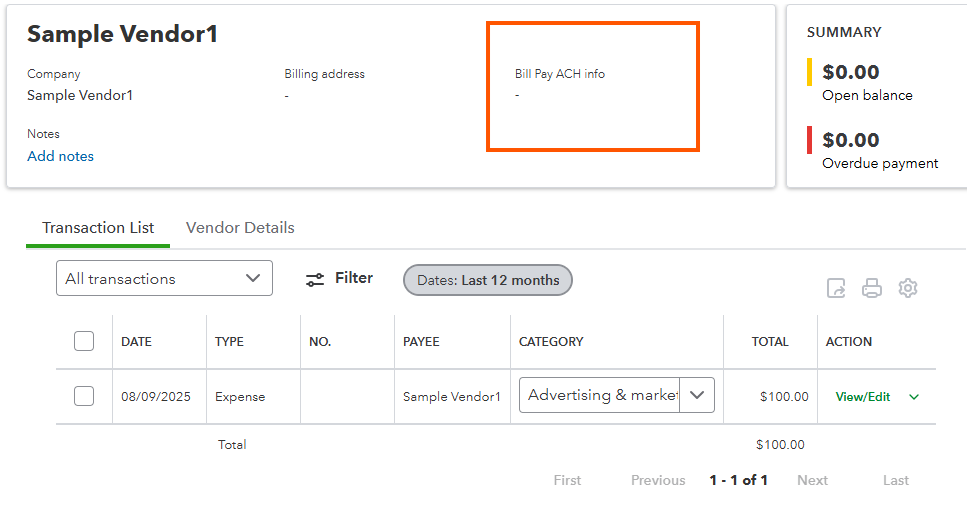
You can create a new vendor like Sample Vendor1, and then, merge its details with the original Sample Vendor by changing the name to "Sample Vendor1." Here's how:
Enter your E-mail address. We'll send you an e-mail with instructions to reset your password.