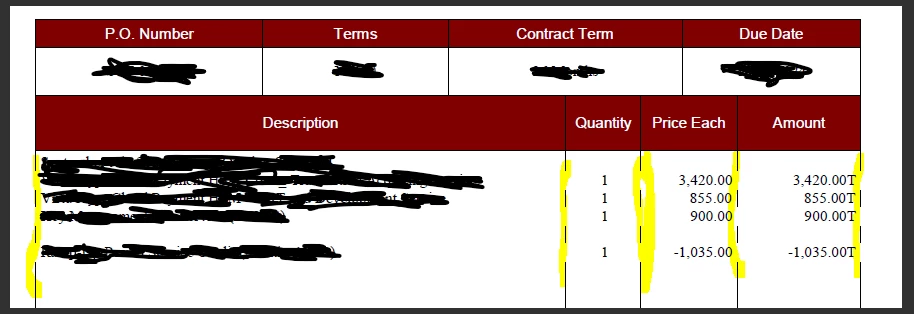
I appreciate the screenshot you've shared and I'll be more than happy to help you fix the unwanted line breaks in your invoice template, @lafuturex. Together, we'll make sure your invoices display correctly.
The broken lines you see when exporting an invoice to PDF are due to the customization in your invoice template. To resolve this, we just need to find the invoice template you're currently using:
Open your QuickBooks Desktop (QBDT) company.
Go to the Lists tab and select Templates.
Select the specific template in question and double-click it.
Click on the Layout Designer button below.
Double-click on the border part wherein the broken lines are showing.
Select the Border field.
In the Pattern section, choose Normal.
You can adjust the Thickness if necessary.
Once done, click OK.
For additional guidance about customizing form templates, you can refer to this attached article: Use and customize form templates.
I'll share this helpful resource just in case you want to personalize your reports in QBDT. This allows you to focus on the financial details that are most important to you: Customize reports in QBDT.
Keep your posts coming if you've got additional questions about broken lines in your invoice template or any QuickBooks queries. I'll be right here to assist you further. Have a good one.
Invoice display stems from various reasons depending on the system or platform used. I'm here to help you resolve these issues, lafuturex.
You can use the Verify and Rebuild Data tool. This is a vital utility designed to identify and fix data integrity issues in the company file. To do so, follow the steps outlined:
Verify your company data:
Click on the Window menu, then select Close All to ensure no other files are open.
Navigate to the File menu, then select Utilities.
Select Verify Data. If you see:
QuickBooks detected no problems with your data, your data is clean, and you don’t need to do anything else.
Your data has lost integrity. Data damage was found in the file. Rebuild your data to fix it.
Rebuild your company file data:
Go to File, Utilities, and then select Rebuild Data.
QuickBooks will ask you to make a backup before it rebuilds your company file. Select OK. A backup is required before you can rebuild.
Select where you want to save your backup, then OK. Don’t replace another backup file. Enter a new name in the File name and select Save.
Select OK when you get the message Rebuild has completed.
Go to File, select Utilities then select Verify Data again to check for additional damage.
If the verification finds more damage, you’ll need to fix it manually. Search for the error(s) in the qbwin.log on the QuickBooks Desktop support site for how to fix it.
If your error can't be found, you can restore a recent backup. Go to File then select Open or Restore Company. Don’t replace your existing company file. You’ll need to enter the info into your company file again since the backup was created.
Another option to resolve the issue is to delete and recreate the invoice to ensure to fix if the template is defective and corrupted. Just right-click the template and select Delete Template. I've added this screenshot for your reference:
Once you've created an invoice, you can learn how to receive and process customer payments for those invoices. I've added this article for more information: Take and Process Payments in QuickBooks Desktop.
You can always comment below if you have any other questions about the invoice template display. We're always here to cover you.
Need QuickBooks guidance?
Log in to access expert advice and community support instantly.