Solved
Why do check numbers not appear in my custom report? The NUM column appears and a Journal number appears, but no check numbers.
No text available

Hi there, bookkeeper120. Let me share a workaround so you can show a check number on a report.
Since you recorded the check as a deposit, the check number won’t show on most reports. However, the Check Detail report works because it’s designed specifically for check transactions (money out), not deposits (money in). You can make the number appear on a report by entering it as the deposit’s reference number. Here's how:
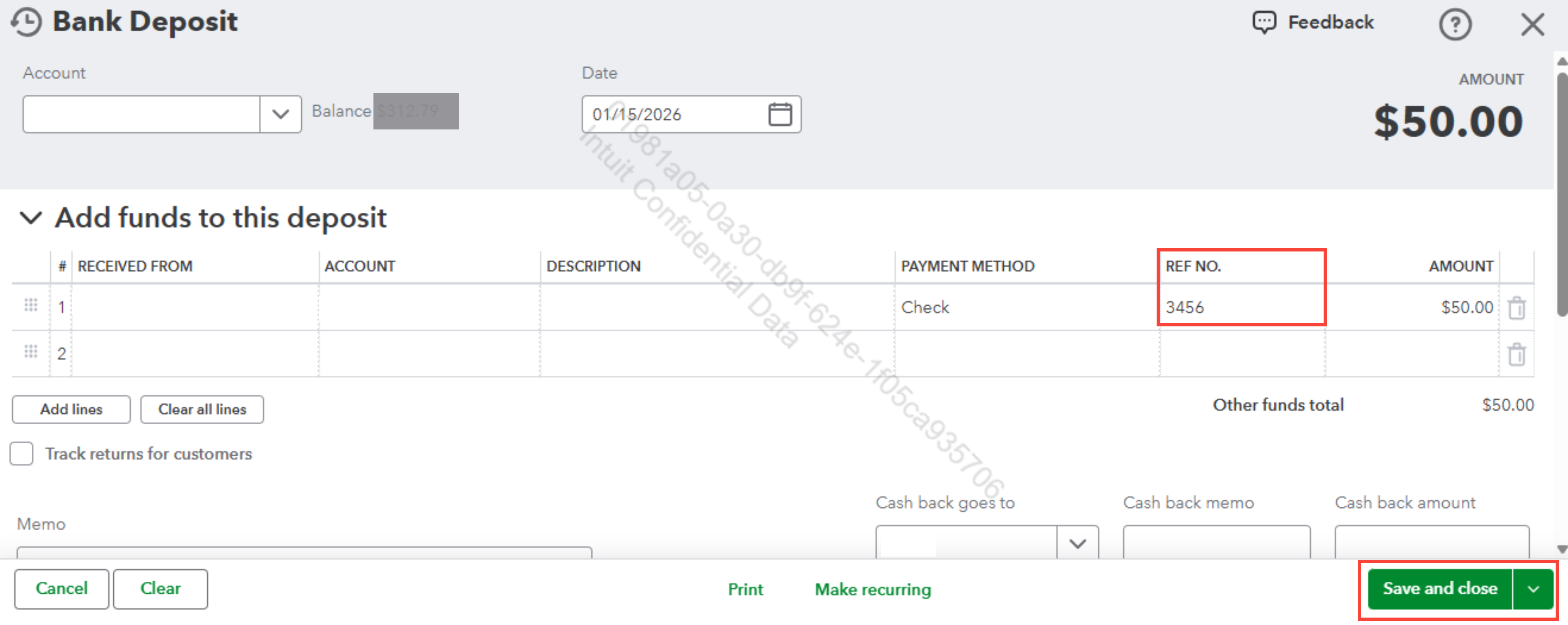
Please note that the number won't appear in your customized report. It will appear in the Deposit Detail report under the Num column.
See the photo for reference.
Let us know if you have further questions by clicking the Reply button below.
There is a solution -- see below. For this: Thanks for the effort. I guess that is helpful in that it generates a list that slightly simplifies the task of entering all the numbers by hand in the report where I really need them. That said I don't call that a solution to my problem. Note that in Quickbooks Desktop the standard report generated by listing the account includes a Num column that contains the check numbers.
The actual solution: This solution was found by a QB Accounting Expert: First, you need to be using QBOL Advanced so as to have the expanded range of column options for customizing a report. (Don't ask what I think about that.) Choose Customize/More Columns/Line Items/Attributes/Num. Check Num. You probably will have to browse around the possible columns a bit to find it. This adds a second column labeled Num to your report and it will have the check numbers. You can get rid of the first one. This is the Num column that should have been in the default report, not the other one, so that it behaves like Desktop. Some coder screwed up.
BTW, while I am not happy about buying extra support for finding a workaround to bad programming, the Accounting Expert person was very good. It took her a while to find it, but find it she did.
Enter your E-mail address. We'll send you an e-mail with instructions to reset your password.
