
Get 50% OFF QuickBooks for 3 months*

Buy now
Switch to QuickBooks and 70% off for 3 Months
April 3, 2026
Solved

Service Items on a per customer basis in time sheets

  • April 3, 2026
  • 1 reply
  • 23 views

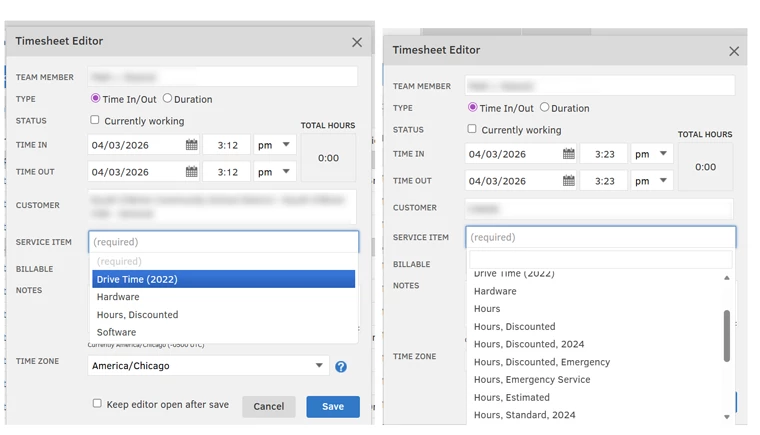
I had previously configured Service Items on a per-customer basis so the techs don't have to select which hourly labor rate the customer receives. See the screenshot below with the customer on the left only seeing (4) service items available, and the one on the right showing all service items. 


Since the latest updates, I can no longer find the option to assign these. 


Does anyone have specific instructions on where I can access the setting to assign the service items on a per-customer basis for timesheets?
 

Best answer by Nathania_P

Hello there, Beemer. To manage which service items appear for specific customers, you can adjust the assignments directly within the Customer menu.


Go to Customers and select the specific customer you want to manage. Click Custom Fields and check the Service Item box, then select All Items. Use the right arrow to assign items to that customer and the left arrow to unassign them then click Save.


image.png


image.png


Once finished, your service items will be filtered specifically for that customer.


If you have any additional concerns, please reach out to us again. We’re always here to help.

1 reply

QuickBooks Team
April 3, 2026

Hi Beemer, is the Automatic import from QuickBooks option enabled in your QuickBooks Time settings? If not, have you already manually synced those changes from QuickBooks Online? If you haven't enabled the automatic import yet, I recommend turning it on. This ensures that any future changes made in QuickBooks will automatically reflect in QuickBooks Time. 

You can do this by going to the QuickBooks icon > Preferences. From there, tick the Service Items in the Automatic import from QuickBooks section.

In the meantime, you can manually sync your service item updates by clicking Import in the QuickBooks icon. Once done, you can now assign the items to each customer. 

If you have follow-up questions, let us know in the comments below.

BeemerAuthor
April 4, 2026

Automatic sync is on, because new customers automatically appear in QuickBooks Time. How do I manage which service items appear for those customers, specifically?

QuickBooks Team
April 4, 2026

Hello there, Beemer. To manage which service items appear for specific customers, you can adjust the assignments directly within the Customer menu.


Go to Customers and select the specific customer you want to manage. Click Custom Fields and check the Service Item box, then select All Items. Use the right arrow to assign items to that customer and the left arrow to unassign them then click Save.


image.png


image.png


Once finished, your service items will be filtered specifically for that customer.


If you have any additional concerns, please reach out to us again. We’re always here to help.