Get 50% OFF QuickBooks for 3 months*

Buy now
Switch to QuickBooks and 70% off for 3 Months
January 26, 2021
Solved

Customer center list showing wrong balance

  • January 26, 2021
  • 1 reply
  • 25 views

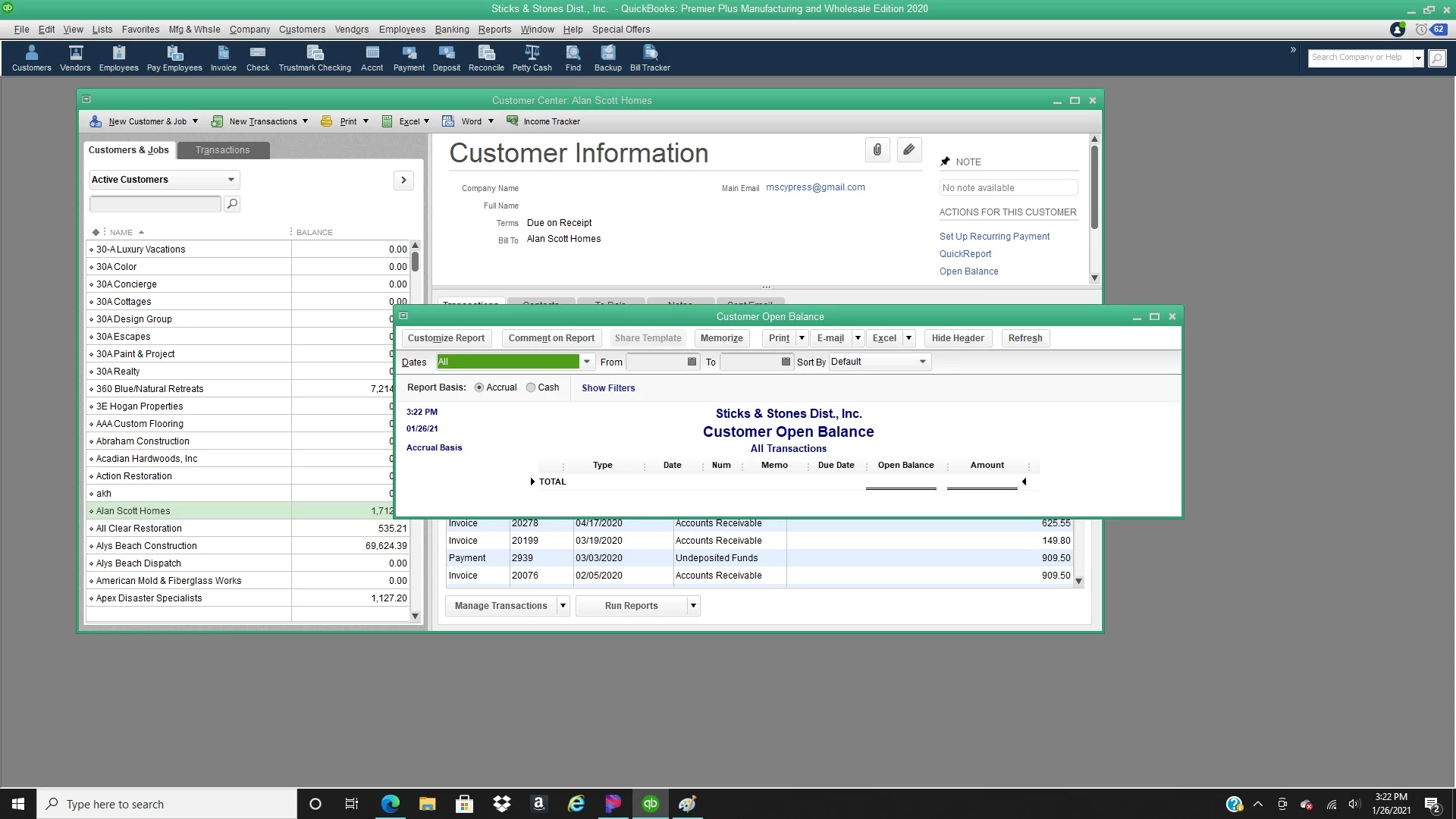
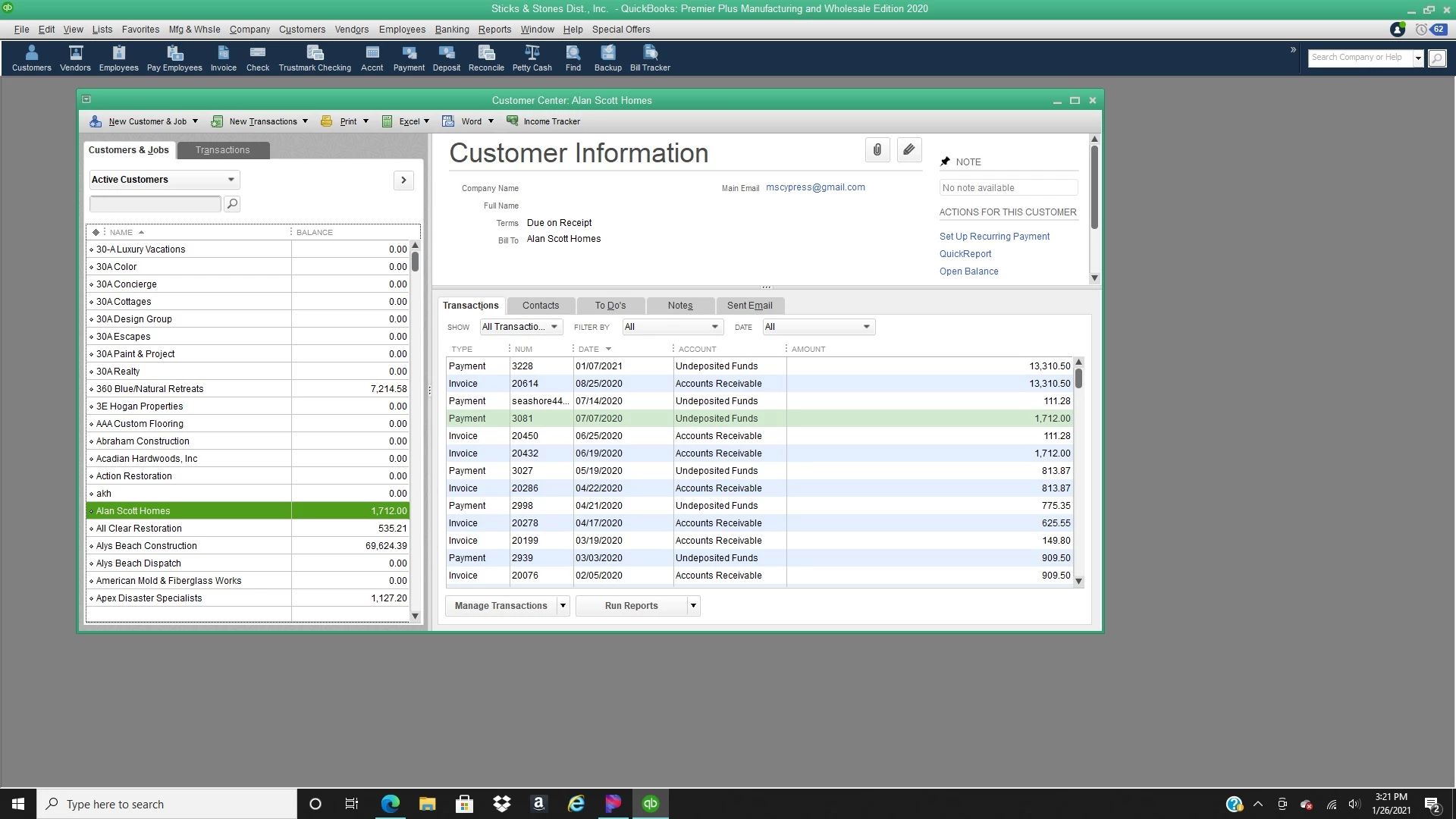
Just recently some of the balances on my customer list are wrong. It will show that a customer has a balance on the list, but then when I run a report, their balance is actually zero (which is right). I've attached a couple screenshots. I've went through some troubleshooting that I found here online like comparing reports etc., but nothing seemed to help.  There are not any credits for the customer, and it is not happening with every customer.  This customer in particular is not part of a subcategory and doesn't have any separate jobs listed.  The transaction is straightforward with payment applied like usual. Is this just a glitch? It seems to be new since I downloaded premier 2020.

Any help would be greatly appreciated!  
Best answer by SarahannC

Hello there, Amber15lynn.


Thanks for including screenshots along with the details. It seems like unusual behavior. Let's go ahead and resort to your customer balance. This helps you fix the incorrect balance showing on the lists. Here's how:
 

  1. Go to the Edit menu and select Find.
  2. Select the Advanced tab.
  3. From the Filter list, select Name.
  4. Click the Name drop-down arrow, then press Ctrl+L on your keyboard.
  5. Select the Include Inactive checkbox. 
  6. Select the Name drop-down arrow, then select Re-sort List.
  7. Select OK.
  8. Close and reopen your company file. This ensures to reflect the changes after resorting to your company file.


If the same thing happens, let's run the verify rebuild. This can help fix data-related issues on a company file. Here's how:


  1. Go to the File menu.
  2. Select Utilities.
  3. Click Verify Data then select OK to close all windows.
  4. Then, go back to the File menu.
  5. Select Rebuild Data under Utilities.
  6. QuickBooks will ask to make a backup before rebuilding your company file, select OK.
  7. Once the rebuild is done, click OK.


Also, you can check these articles to learn more about managing customer reports in QBDT:


Let me know how it goes. If there’s anything else you need, please comment below. Keep safe always.

1 reply

SarahannCAnswer
Level 9
January 26, 2021

Hello there, Amber15lynn.


Thanks for including screenshots along with the details. It seems like unusual behavior. Let's go ahead and resort to your customer balance. This helps you fix the incorrect balance showing on the lists. Here's how:
 

  1. Go to the Edit menu and select Find.
  2. Select the Advanced tab.
  3. From the Filter list, select Name.
  4. Click the Name drop-down arrow, then press Ctrl+L on your keyboard.
  5. Select the Include Inactive checkbox. 
  6. Select the Name drop-down arrow, then select Re-sort List.
  7. Select OK.
  8. Close and reopen your company file. This ensures to reflect the changes after resorting to your company file.


If the same thing happens, let's run the verify rebuild. This can help fix data-related issues on a company file. Here's how:


  1. Go to the File menu.
  2. Select Utilities.
  3. Click Verify Data then select OK to close all windows.
  4. Then, go back to the File menu.
  5. Select Rebuild Data under Utilities.
  6. QuickBooks will ask to make a backup before rebuilding your company file, select OK.
  7. Once the rebuild is done, click OK.


Also, you can check these articles to learn more about managing customer reports in QBDT:


Let me know how it goes. If there’s anything else you need, please comment below. Keep safe always.

January 27, 2021

Hi! 

Thank you for the troubleshooting. That worked!! 

There were a few customer balance errors found in the verify data step, so I'm assuming the rebuild did the trick. 

Thanks again!

Amber