Get 50% OFF QuickBooks for 3 months*

Buy now
Switch to QuickBooks and 70% off for 3 Months
July 22, 2025
Solved

How to remove bill payment from an invoice?

  • July 22, 2025
  • 1 reply
  • 9 views

Hi,

I've searched for a while but everything I found either doesn't work or isn't applicable.


My problem is that I have a customer who's also a supplier. When he's paying, he subtracts from the payment whatever I owe him.

  • I have a customer account and a supplier account. Both representing the same company
  • I have created a bill with what I owe him
  • I have created an invoice with what he owes me.
  • The deposit in my bank account is the invoice minus the bill.

How do I reconcile this in QBO?


Best answer by JamesDuanT

The quickest way to reconcile the amounts on your bill and invoice is by affecting Accounts Payable and Accounts Receivable through your bank deposit, yvesriel.


Here's how we can record your bank deposit:


  1. Click the + New button, then select Bank deposit.
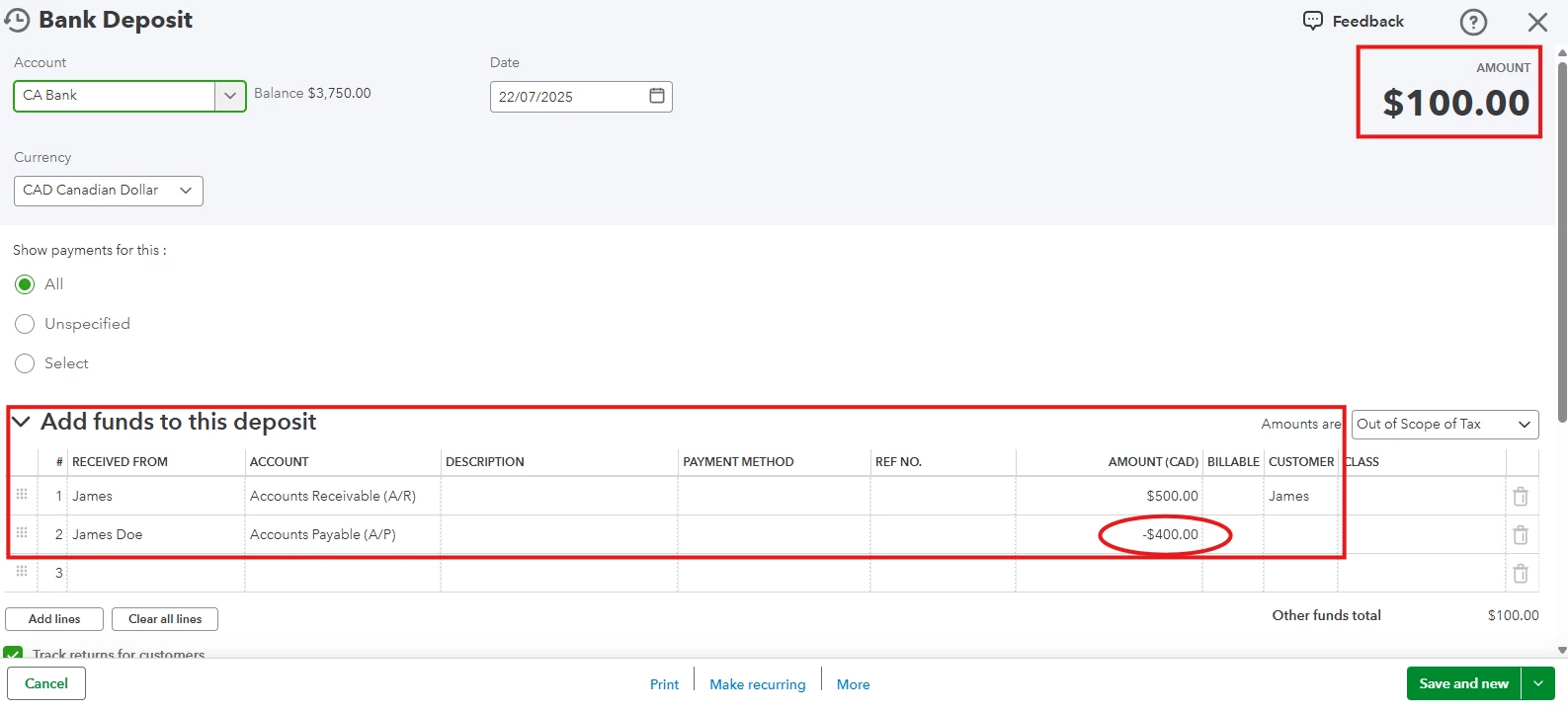
  2. Scroll down to the Add funds to this deposit section.
  3. On the first line, enter:
    RECEIVED FROM: Select the customer profile.
    ACCOUNT: Choose Accounts Receivable (A/R).
    AMOUNT: Enter the invoice's full amount.
  4. On the second line, enter: 
    RECEIVED FROM: Select the supplier profile. 
    ACCOUNT: Choose Accounts Payable (A/P)
    AMOUNT: Enter the bill's full amount as a negative value.
  5. Verify the AMOUNT at the upper-right corner of the Bank deposit page matches the net amount you received.
  6. Click Save and close or Save and new to record the deposit.
 

Then, we can link the deposit to the bill.


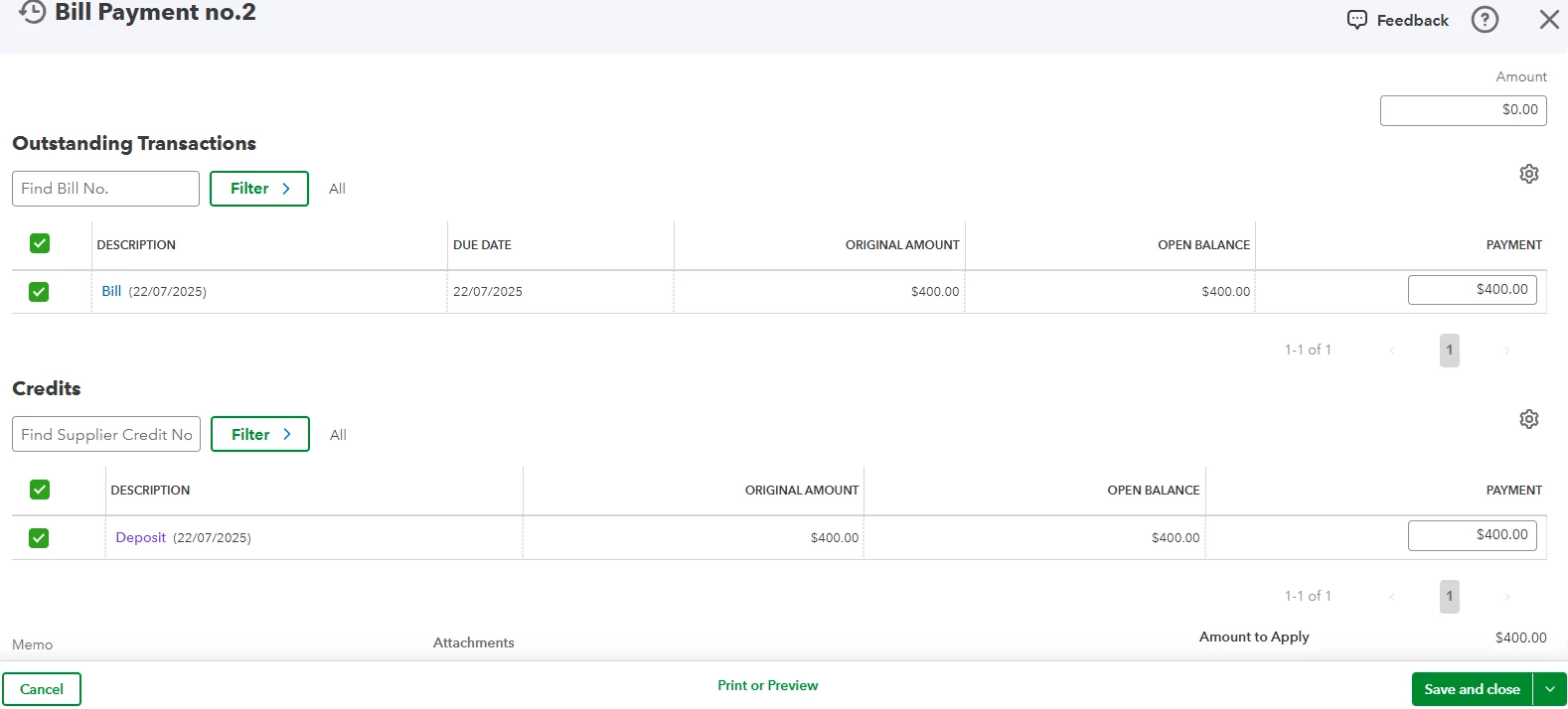
  1. Open the bill, then click the Make payment button.
  2. On the Bill Payment page, mark the bill under the Outstanding Transactions section.
  3. Mark the deposit under the Credits section.
  4. Confirm that the AMOUNT PAID at the upper-right corner is zero (0.00).
  5. Click Save and close.


The same process will apply to the invoice. We will link the deposit as payment to the invoice.


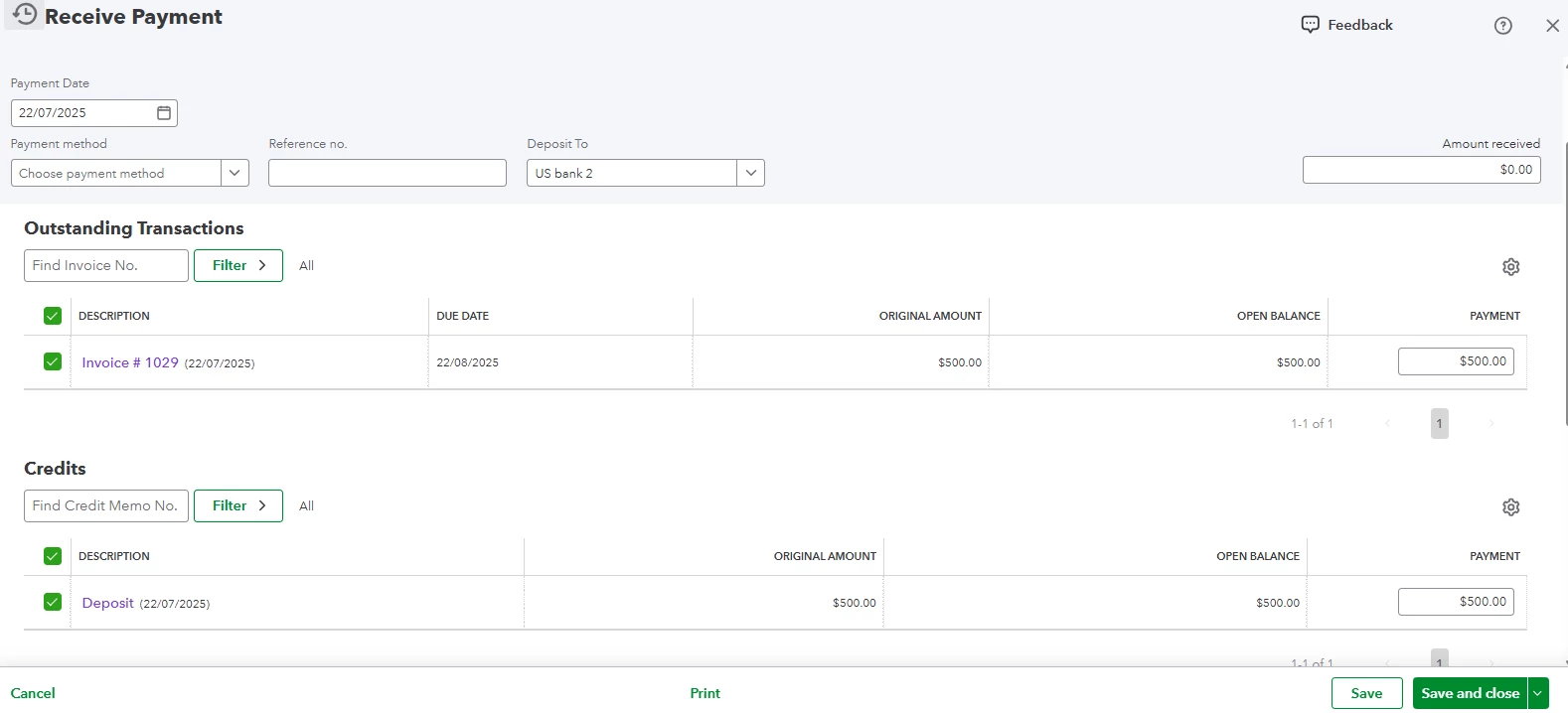
  1. Open the invoice, then click Receive payment.
  2. On the Receive Payment page, make sure the invoice is marked under the Outstanding Transactions section.
  3. Go to the Credits section and mark the bank deposit to apply it as payment.
  4. Confirm that the AMOUNT RECEIVED at the upper-right corner is zero (0.00).
  5. Click Save and close.


After completing these transactions, the account will be ready for reconciliation without any issues. I also recommend consulting your accountant to explore alternative methods that can simplify this process further.


Feel free to reach out if you need any further assistance. We're here to help.

1 reply

QuickBooks Team
July 22, 2025

The quickest way to reconcile the amounts on your bill and invoice is by affecting Accounts Payable and Accounts Receivable through your bank deposit, yvesriel.


Here's how we can record your bank deposit:


  1. Click the + New button, then select Bank deposit.
  2. Scroll down to the Add funds to this deposit section.
  3. On the first line, enter:
    RECEIVED FROM: Select the customer profile.
    ACCOUNT: Choose Accounts Receivable (A/R).
    AMOUNT: Enter the invoice's full amount.
  4. On the second line, enter: 
    RECEIVED FROM: Select the supplier profile. 
    ACCOUNT: Choose Accounts Payable (A/P)
    AMOUNT: Enter the bill's full amount as a negative value.
  5. Verify the AMOUNT at the upper-right corner of the Bank deposit page matches the net amount you received.
  6. Click Save and close or Save and new to record the deposit.


Then, we can link the deposit to the bill.


  1. Open the bill, then click the Make payment button.
  2. On the Bill Payment page, mark the bill under the Outstanding Transactions section.
  3. Mark the deposit under the Credits section.
  4. Confirm that the AMOUNT PAID at the upper-right corner is zero (0.00).
  5. Click Save and close.


The same process will apply to the invoice. We will link the deposit as payment to the invoice.


  1. Open the invoice, then click Receive payment.
  2. On the Receive Payment page, make sure the invoice is marked under the Outstanding Transactions section.
  3. Go to the Credits section and mark the bank deposit to apply it as payment.
  4. Confirm that the AMOUNT RECEIVED at the upper-right corner is zero (0.00).
  5. Click Save and close.


After completing these transactions, the account will be ready for reconciliation without any issues. I also recommend consulting your accountant to explore alternative methods that can simplify this process further.


Feel free to reach out if you need any further assistance. We're here to help.

yvesrielAuthor
July 23, 2025

Hi James,


Thanks a lot! It worked perfectly. I used to do it differently, with a single operation via the bank deposit, but then it calculated a negative amount for taxes (GST/QST). When it was time to do the tax report, the government portal wasn't accepting negative values. At least, now, the taxes are properly set in the report.


Many many tanks for such a detailed answer.

QuickBooks Team
July 23, 2025

Hello there, Yvesriel.
 
Thank you for taking the time to respond and share how our solutions have positively impacted your business. Your feedback motivates us to continue providing exceptional service.
 
If you have any additional questions or concerns , please feel free to reply below. We are always here to assist you further.