
Get 50% OFF QuickBooks for 3 months*

Buy now
Switch to QuickBooks and 70% off for 3 Months
December 15, 2020
Question

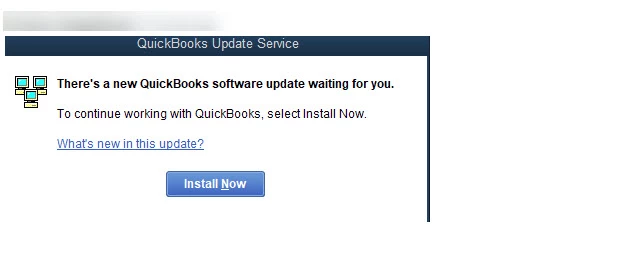
There's a new Quickbooks software update waiting for you

  • December 15, 2020
  • 19 replies
  • 86 views

Up until today, users were able to bypass QuickBooks update prompts but I’ve had two users this morning that have the error below and can’t get past it. I’ve tried a repair install but that didn’t work. I had to do a complete removal and reinstall of QuickBooks Enterprise 20 (R6) and then they can get into the file again


Why all of a sudden can two users not open QB without updating? The rest of the users on QB Ent 20 R6 are in the file working.
 

19 replies

November 9, 2021

I have more that one version of QuickBooks on my computer and I can now only get into 2019.  This needs to be fixed?

May 5, 2022

I am having the same problem.  I tried all day yesterday to log in and could not.  I need my Quick Books to work.  My boss is the primary user and can't remember his superuser name or password.  Can someone please help me?  The company name is Craft Office Plus.  The owner is Jimmy Craft.


Thanks,


Kathy


May 10, 2022

it keeps asking me for a PIN number. WHAT PIN? I was on the phone with QB for 2 hours with no resolution. I have purchased 2022 and it wont even let me install that. HOW DO WE GET PAST THIS BLOCK! 

May 20, 2022

How can i updated my QB desktop version 2022?

Moderator
May 20, 2022

Welcome to the Community, Rumald8890.
 

You can update your books to our latest release while using QuickBooks.
 

Here's how:

  1. Close the company file and QuickBooks.
  2. Open your Windows Start menu.
  3. Perform a search for "QuickBooks Desktop", then right-click its icon and choose Run as administrator.
  4. While on the No Company Open screen, go to your Help menu, then click Update QuickBooks Desktop.
  5. Access the Options tab.
  6. Pick Mark All and click Save.
  7. Go to your Update Now tab and tick the Reset Update checkbox.
  8. Hit Get Updates.
  9. When your update completes, close and reopen QuickBooks, then select Yes to begin the installation of your updates. When it's finished, restart the computer.


You can also configure your books to update automatically.
 

Please don't hesitate to send a reply if there's any questions. Have an awesome Friday!

May 26, 2022

I am having the same issue! I don't want the update!

January 5, 2023

I do not get install now.   I get close your quickbooks

January 11, 2023

Please help - this is happening to me

Moderator
January 11, 2023

Glad to have you here in the Community, @Jen1733.


Let's get rid of the QuickBooks Update Service prompt so you can get back to working order.


Have you tried updating your QuickBooks Desktop software manually? If you haven't yet, I suggest doing it so. This will help remove the QuickBooks Update Service prompt every time you open your QuickBooks Desktop. It'll also keep your QuickBooks up-to-date so you have the latest features and product improvements.


To do so, you can go to the Help menu and select Update QuickBooks Desktop. Then, go to the Update Now tab and click Get Updates.


If you get the same result, perform a clean installation of your QuickBooks Desktop program to start fresh. You can browse this article for detailed instructions: Clean install QuickBooks Desktop.


If the issue persists after performing the troubleshooting steps, I recommend contacting our QuickBooks Support Team. This way, they can further check on this matter and provide in-depth troubleshooting steps to get this resolved.


As always, feel free to visit our QuickBooks Community help website if you need tips and related articles in the future.


Come back to this post and let me know how the troubleshooting steps go, @Jen1733. I want to make sure you're taken care of.

January 12, 2023

Intuit really is pushing themselves out of the business accounting market.  NO business should allow their users to login to their computers with Administrative priviledges.  As a managed service provider, we do not allow our users to do this.  So our accountants offices often have to wait on us to login and install the updates for them.  Our customers have an "on-site" contact that has an admin login, but they are often not available, or don't remember their credentials.  It almost seems like Intuit doesn't care about the productivity of their clients, or the security of their data.  Apparently installing their latest marketing and tracking updates is more important than the usefulness of the software.

QuickBooks Team
May 1, 2025

I appreciate you bringing this observation to our attention, @HHLS1. Since your QuickBooks is already up to date, it seems that the issues you’re facing could be related to data or program corruption or a buildup of data.


To resolve this, let's start running your QuickBooks Desktop (QBDT) program in administrator mode. Here's how:


  1. Close your QBDT account.
  2. Then, look for the QBDT icon and right-click.
  3. Next, choose Run as administrator.


Next, let’s download and use the QuickBooks Tool Hub to fix the update notification loop. This tool is designed to address common errors and can often resolve various looping issues.


Here's how to operate it:


  1. Open the file you downloaded (QuickBooksTollHub.exe.)
  2. Perform the on-screen instructions to install and agree to the terms and conditions.
  3. After the installation, double-click the icon on your Windows desktop to open the tool hub. If you can't find it, manually search on your computer.
  4. After that, launch the QuickBooks Tool Hub to utilize tools to fix installation and upgrading errors.


After that, let's run QuickBooks File Doctor from the tool hub. For a detailed, step-by-step guide on how to do this, check out these steps below:


  1. From the tool hub, go to Company File Issues.
  2. Click on Run QuickBooks File Doctor.
  3. In QuickBooks File Doctor, select your company file from the dropdown menu.
  4. Select Check your file and network and then Continue.
  5. Put in your QuickBooks admin password and then click Next.


If the same thing happens, we can proceed to Step 3 in this article to manually configure the firewall: Set up firewall and security settings for QuickBooks Desktop. Once done, restart your computer for changes to save.


If the issue persists, I recommend contacting our QuickBooks Desktop to have them take a look at this behavior. They have advanced tools to examine your account and suggest specific fixes for this loop.


I'm also including this article that guides you on creating a portable version of your company file. This can be useful for backup or transfer purposes: Create and open portable company files in QuickBooks Desktop.


Please don’t hesitate to comment below if you have further questions about updates and handling company files in QuickBooks. I’m always here to help.