SUMMER SAVINGS 90% OFF QuickBooks for 3 months* Ends 8/27
QuickBooks Q&A
Recently active
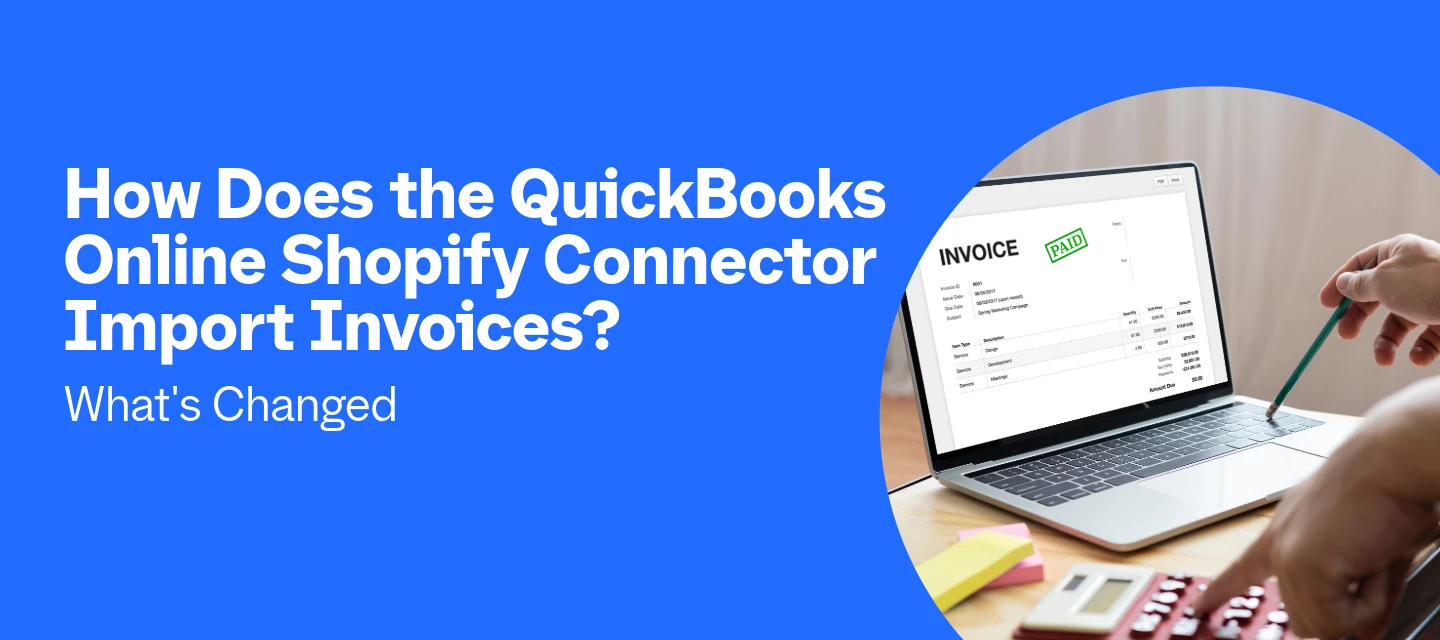
The QuickBooks Shopify Connector now imports B2B (wholesale) Shopify orders directly as invoices, with company details, PO numbers, and payment terms already filled in. It does this by routing every Shopify order into the Integration Transactions tab, where B2B orders post as linked invoices and DTC (retail) orders post as sales receipts. For merchants running both retail and wholesale through Shopify, that means less manual data entry and one less spreadsheet to reconcile at month-end.What changed with Shopify invoice import in 2026?Two things changed: the connector itself, and how it treats B2B orders. Earlier in 2026, we retired the legacy Shopify integration (the one some merchants knew as OneSaaS or "Connect to Shopify") and moved every store to the rebuilt Shopify Connector by QuickBooks, which holds incoming transactions in a For Review queue instead of posting them straight to your books. Then in June 2026, as part of Shopify Editions, we added native B2B support: wholesale ord
Hiring your first employee, or moving your payroll into QuickBooks Online for the first time, comes with a stack of decisions that all need to happen in the right order. Miss a step and QuickBooks won't let you run payroll until it's fixed, which can turn a same-day task into a multi-day scramble.The good news is that QuickBooks Workforce organizes everything into a single checklist the moment you start setup, and every task on that checklist maps to something you'll need anyway: your business address, your employees' pay rates, your federal Employer Identification Number (EIN), and your state tax account numbers. Gathering those five items before you open Payroll for the first time is the single fastest way to get through setup without getting stuck partway.This guide walks through the full process in the order you'll actually move through it: getting set up, getting ready to pay, and then payday and beyond. Tune in below. Key TakeawaysQuickBooks Workforce setup breaks into three b
Welcome to Know Your Numbers, our monthly series breaking down key business metrics: what they mean, why they matter, and where to find them in QuickBooks Online.First up is Gross Profit Margin. This is the share of every sales dollar left after covering your direct costs. The best part? QuickBooks Online calculates it automatically in your Profit and Loss report. This month’s question: are you actually making money on what you sell?What is gross profit margin? Let's see it in action Where to find it in QuickBooks Online So what's a good number? Your one move this month That's the habitWhat is gross profit margin?Gross profit is what's left of your sales after subtracting your direct costs, also known as cost of goods sold (COGS). Direct costs only exist because you made a sale: materials, inventory you resold, subcontractors, direct labor on a job, shipping to fulfill an order. Rent, marketing, and software subscriptions don't belong here. These represent overhead expenses, which ente
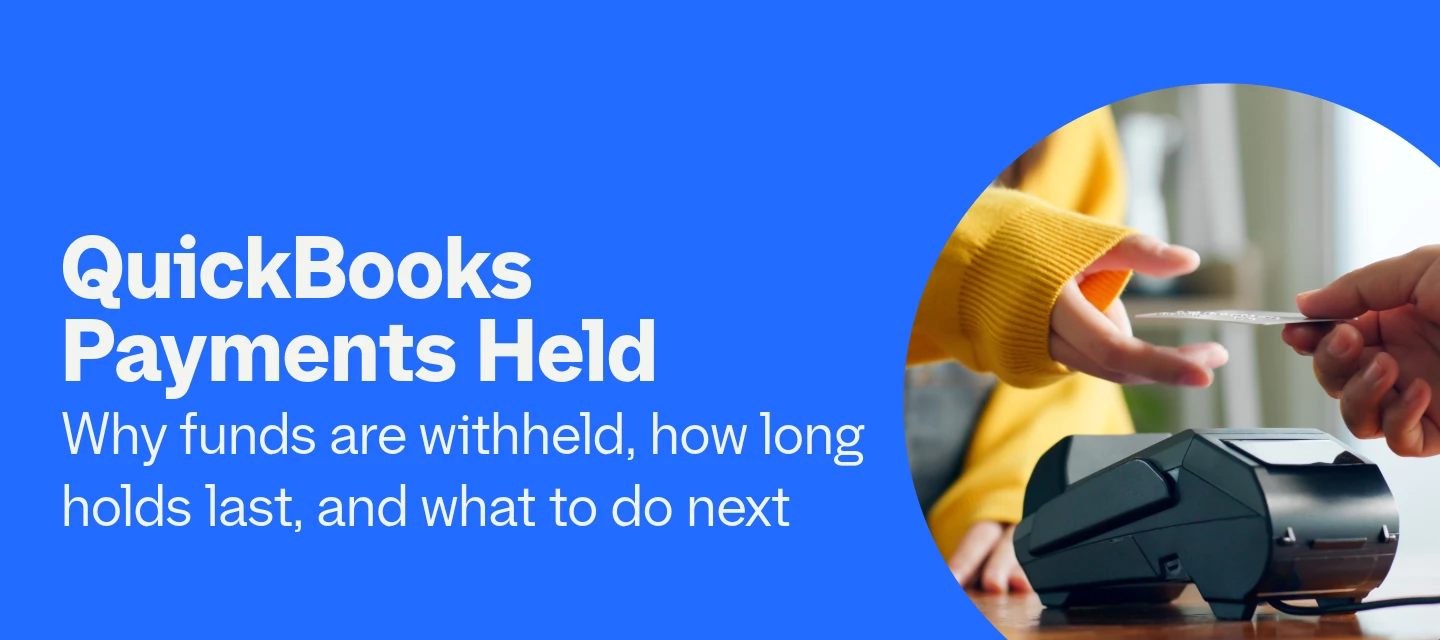
When a payment shows "Withheld" it means QuickBooks Payments is reviewing that transaction before releasing the money to your bank account. This doesn't mean something's wrong. It's a routine check to protect you, your customer, and Intuit. Most reviews wrap up within 2 business days, and you'll get an email telling you exactly what to do if we need anything else from you. Why Are My QuickBooks Payments Held?QuickBooks Payments periodically reviews transactions before depositing them into your bank account. This is a safety measure built into your merchant service agreement, not a sign that you did anything wrong.Step-by-step: Checking if a payment is on holdSign in to the Merchant Service Center. Select Transactions. Look at the Method column. If it says Withheld, that payment is on hold and under review. If you process through QuickBooks Online, you can check the same thing without leaving QuickBooks: Go to All apps > Sales & Get Paid > QuickBooks payouts. Select the deposi
Our support team will never call about your Intuit or QuickBooks account to request a one-time verification code, demand payment via gift cards or wire transfers, or ask you to install remote-access software. If an unexpected caller asks for any of these, hang up immediately. To stay safe, always contact us directly using a phone number from official websites like quickbooks.intuit.com or inside your account product settings. From there, you can confirm whether the original call was real and report it to our security team if it wasn't. This guide explains how to verify callers, understand official communication practices, and report suspicious activity to our security team. How Do You Know If a QuickBooks Support Call Is Legit?The fastest way to check is to stop the call and initiate your own, through a number or channel you found yourself, not one the caller supplied. We call this kind of scam vishing: a phone-based con that tricks you into handing over sensitive information by voice
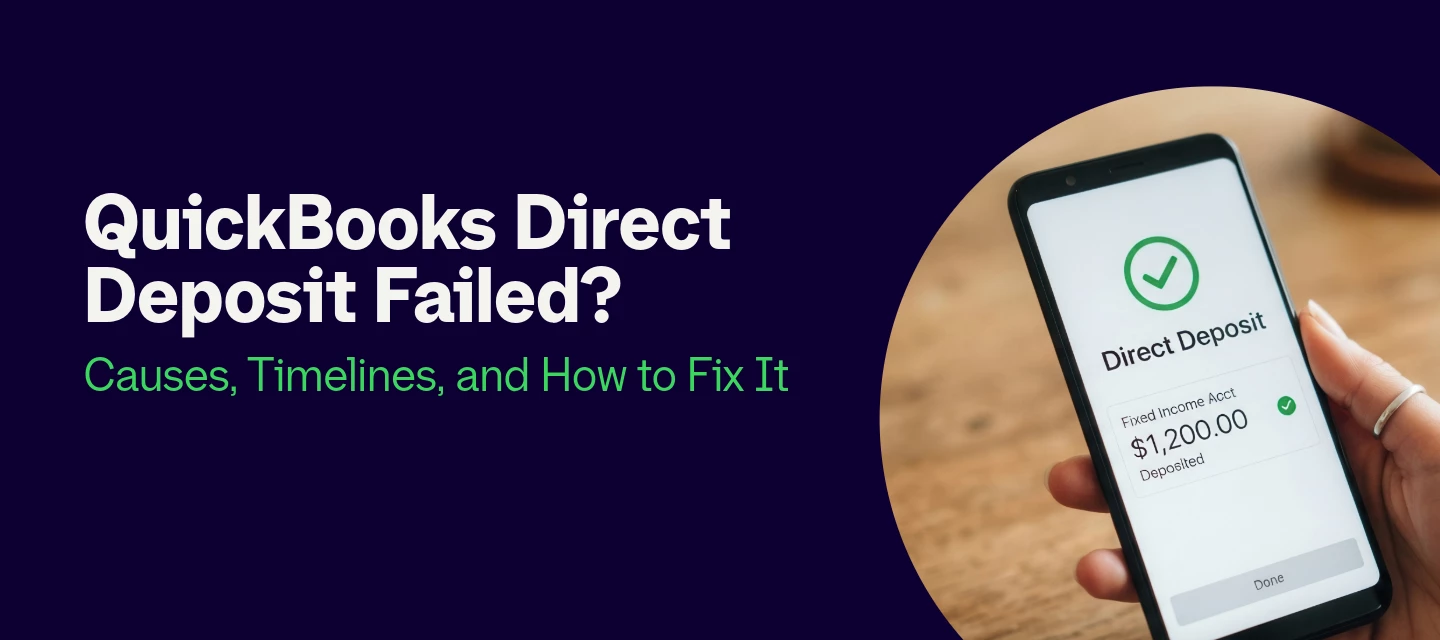
When payday arrives and the money doesn't show up, you're not just dealing with a software error, you're dealing with an employee who expected to be paid.QuickBooks direct deposit fails when there's a mismatch in the employee's bank details, a missed submission deadline, a bank-side ACH rejection, or a compliance hold placed by Intuit. Each failure type has a distinct cause and a specific fix. The fastest path to resolution is identifying which one you're dealing with. Resolving the issue and reissuing payment correctly protects your employees from a missed payday and keeps your payroll records clean. What Are the Most Common Reasons QuickBooks Direct Deposit Fails?What Are the Most Common Reasons QuickBooks Direct Deposit Fails? What Are the QuickBooks Direct Deposit Submission Deadlines? What Is an ACH Return, and What Do the Codes Mean? Why Is QuickBooks Holding My Direct Deposit Funds? How Do I Fix a Failed Direct Deposit in QuickBooks? How Do I Prevent Direct Deposit Failures in Q
Duplicate transactions in QuickBooks Online usually come down to a few common causes, like a double bank connection, a connected app such as Venmo or Square recording the same sale your bank feed also downloaded, or a transaction that got added instead of matched. Where you fix it depends on where it's showing up, so here's how to find it and remove it. Step 1: Confirm the duplicate is in QuickBooks, not the bank Log in to your bank's website and check your statement for the transaction. If it shows up once on your statement but twice in QuickBooks, it's a duplicate inside QuickBooks. If it's doubled on the statement too, the charge was actually processed twice, so check with your bank directly. Step 2: Check for a double bank connectionGo to All apps, then Accounting, then Bank transactions. Confirm the affected account appears only once. If it's connected twice, disconnect the extra connection and make that account inactive in the chart of accounts.Note: avoid disconnecting and recon
Customizing your invoices in QuickBooks Online is easily one of the most talked-about topics in our community, especially with the updated layout. When settings don't quite line up with what you expect, getting clear, quick answers makes all the difference. We've gathered practical solutions for the top five invoice customization questions below to help you navigate template styles, company-wide settings, field visibility, access permissions, and custom fields with confidence. 1. How do I customize my invoice template now that the old layout is gone?Shaping your invoices to match your brand's unique look is super simple with the new layout settings.Here are two easy ways to tailor your design:Right from inside an invoice:Open up any new or existing invoice. Choose Edit company whenever you need to update your business name, address, or logo. Click the Manage icon (that handy gear icon on the right side of your screen). Head to Design to pick a template style, font, and color scheme th
Where did Classic View Reports Go? A Mini Guide to What Changed & How to Navigate QuickBooks Modern View Hello QuickBooks users, and thanks for joining us! These mini guides are designed to help you feel confident navigating your QuickBooks account so you can spend less time troubleshooting and more time running your business. This month we're tackling one of the biggest sources of confusion we're seeing: the move from Classic Reports to Modern View. If you've searched "Why did my QuickBooks reports change" or "How do I get Classic View back," you're in good company. Let's walk through exactly what changed and what stayed the same. Quick AnswerClassic View for reports has moved to Modern View. Your data, filters, and saved reports carried over automatically, nothing was lost, and no action was needed on your end. Most of what you relied on daily (reporting periods, filters, accounting methods, display options, comparisons, and the ability to show/hide active or non-zero rows and c
If you've ever spent a Friday afternoon recreating the same invoice or chasing down a late payment, this Answer Room session is for you. Automating your recurring invoices and payment reminders in QuickBooks Online means the software creates, sends, and follows up on invoices for you on a schedule you set, so you get paid on time with far less manual work. Tune in below for a walkthrough of the complete get-paid toolkit, from recurring invoice templates and Autopay to automatic reminders, late fees, workflows, and Intuit Intelligence. Watch the full session to see how each feature works on its own and how they come together into a get-paid engine that runs quietly in the background while you focus on your business.
Entering transactions is only half of bookkeeping. The other half is reading the results. QuickBooks Online turns everything you've recorded into financial reports from the Reports menu, with no spreadsheets required. The three commonly used reports are the Profit and Loss, the Balance Sheet, and the Accounts Receivable Aging Summary. Here's how to run each one and what it actually tells you.How Do You Run a Report in QuickBooks Online? What Is the Profit and Loss Report and When Should You Run It? What Is the Balance Sheet Report and When Should You Run It? What Is the Accounts Receivable Aging Report and When Should You Run It? How Do You Save and Share Reports in QuickBooks Online? FAQ Key Takeaways Still have questions about a specific report? Helpful ResourcesHow Do You Run a Report in QuickBooks Online?All reports live in the Reports menu. You can search by name or browse by category. Most reports run instantly and can be filtered by date range, account, or customer before you vi
Reconciling an account in QuickBooks Online means matching every transaction in your books to your bank or credit card statement, so you can confirm that both sides agree to the penny. You should reconcile every account once a month, after your statement closes. It's the only way to know your books actually reflect your real financial position.A connected bank feed pulls transactions into QBO automatically, but that doesn't mean your books are correct. Manually entered transactions, duplicate records, deleted entries, or timing differences can all create gaps between QBO and your actual bank balance. Reconciliation is the monthly proof that everything lines up. Here's how to do it.What Do You Need Before You Start Reconciling?Have your bank or credit card statement ready before you open the reconciliation screen. You'll need two things from it: the statement ending date and the ending balance (sometimes called the closing balance or new balance). These are the two numbers you enter int
Recording a bill in QuickBooks Online means logging what you owe a vendor before you pay it, so your accounts payable balance stays accurate and due dates don't slip. Paying the bill marks it as settled, records the outgoing payment against the correct bank account, and clears it from your accounts payable automatically. There's a difference between sending money and knowing you owe it. Bills in QuickBooks Online let you capture both. Enter the bill when it arrives, pay it when it's due, and keep a running view of what's outstanding at any point in the month. Here's the full process. What Is the Difference Between a Bill and an Expense in QuickBooks Online?Understanding this distinction prevents one of the most common bookkeeping errors in QBO. A bill is something you owe a vendor but haven't paid yet. It goes into accounts payable as a liability and stays there until you pay it. Use bills for any vendor invoice that comes with payment terms (Net 30, Net 15, due on receipt, etc.). An
QuickBooks Online automates sales tax by calculating the correct rate on every sale, tracking what you owe as you collect it, and reminding you when it's time to file. It works by combining your business's location and tax agencies, your customers' exemption status, and each product or service's assigned tax category to apply the right rate automatically, whether you're switching from manual tracking or setting up sales tax for the first time. This guide covers exemptions, sales tax categories, the sales tax liability report, and the full filing and payment process, everything you need to configure automated sales tax once and let QuickBooks keep it accurate going forward. Tune in below.
Starting a small business means juggling a long list of priorities, and three of the most important ones tend to get overlooked until they cause a real problem. How customers pay you, whether your brand is actually protected, and whether your agreements hold up all shape whether your business runs smoothly or runs into trouble. Getting ahead of payments, intellectual property, and contracts from day one protects your revenue, your name, and your working relationships. Tip 1: Offer Various Payment OptionsCustomers today expect flexibility, and if paying you feels like a hassle, some of them will simply walk away. A checkout process that only accepts one payment type creates friction at the exact moment you want the transaction to feel effortless. Offering options like credit card, debit, ACH transfer, and digital wallets removes that friction and signals that your business is set up to serve modern customers.This doesn't mean you need to support every payment method under the sun. Star
When you click Send on an invoice, you expect to get paid. QuickBooks Online makes that loop tight: go to + Create > Invoice, add your customer and line items, and hit Review and send. If you have QuickBooks Payments enabled, the invoice lands in your customer's inbox with a Pay Now button so they can pay by card, ACH, PayPal, or Venmo, and QuickBooks Online records it automatically. How Do You Create an Invoice in QuickBooks Online?You create invoices from the + Create button in the top-left corner of QuickBooks Online. The invoice form pulls in your saved customer information and product or service items, so the more you've set up in advance, the faster the process gets.Step-by-step: Creating and sending an invoiceSelect + Create, then select Invoice. Alternatively, go to All apps > Sales & Get Paid > Invoices and select Create invoice. Select a customer from the Add customer dropdown. Use + Add New to add a new customer on the spot. Confirm the customer's email address
Connecting your bank account and categorizing transactions function as a single, unified workflow: after linking your bank, transactions are downloaded automatically, allowing you to review and confirm QuickBooks Online's recommendations. Without the connection, every transaction is manual entry. Without the review step, automated suggestions go unchecked and your reports end up wrong. Get both right and your bookkeeping shrinks to a quick weekly check-in. How Do You Connect a Bank Account to QuickBooks Online?You connect your bank through the Banking menu using your standard online banking login. QuickBooks Online uses a secure, read-only connection to pull transactions from your financial institution. It can see your transactions but can't move money.Step-by-step: Linking your bank or credit cardGo to All apps > Accounting > Bank transactions. Select Connect account for your first connection. For additional accounts, select Link account instead. Search for your bank or credit c
How to Schedule and Manage Federal and State Tax Payments in QuickBooks Online QuickBooks Online manages two distinct types of tax payments: payroll tax deposits for business owners with employees, and quarterly estimated taxes for self-employed individuals and sole proprietors. Payroll taxes are calculated and submitted electronically through QuickBooks Online Payroll on your IRS-assigned deposit schedule; estimated taxes are calculated by QuickBooks Online's tax estimate feature and paid directly to the IRS via IRS Direct Pay or EFTPS. Which category applies to you determines exactly where to go in QuickBooks and what steps to follow. This guide covers both tracks, including where they overlap.What's the difference between payroll tax deposits and estimated taxes in QuickBooks Online? How do payroll tax deposits work in QuickBooks Online? How do quarterly estimated taxes work in QuickBooks Online? What happens if I miss or underpay a tax deadline? Frequently Asked Questions Key Takea
QuickBooks uses three bank connection methods: Direct Connect and Express Web Connect (QuickBooks Desktop), Online Banking bank feeds (QuickBooks Online), and WebConnect (both products). The right method depends on which QuickBooks product you use and what your bank supports. This guide explains how each works, when to use it, and how to resolve common issues. Whether your feed stopped syncing, prompts external authentication, or fails to connect, the fix depends on your specific connection method.The Three Bank Connection Methods at a Glance Section 1: QuickBooks Desktop Bank Feeds Common QuickBooks Desktop bank feed errors Section 2: QuickBooks Online Bank Feeds and Open Banking Section 3: WebConnect — The Manual Import Option Which Connection Method Is Right for Your Situation? Frequently Asked Questions Key Takeaways Still Having Trouble?The Three Bank Connection Methods at a GlanceQuickBooks connects to banks through three methods. Use the table below to find which applies to your
Renamed your business, moved offices, or got a new Employer Identification Number (EIN) from the IRS? You can update all of that in QuickBooks Online in just a few clicks. Quick definition: an EIN is the nine-digit number the IRS uses to identify your business for tax purposes, kind of like a Social Security number, but for a business.This guide outlines where to perform these updates, details what updates automatically in QuickBooks Online, and highlights the steps you must complete manually. Why your business info in QuickBooks Online mattersYour business name, address, and EIN show up in more places than just the settings screen. QuickBooks Online pulls your customer-facing info, such as your business name and address, onto your invoices, sales receipts, and other sales forms. Your EIN is primarily used for tax reporting (such as W-2s and 1099s) and isn't typically displayed on customer-facing invoices unless added manually.It's also the info Intuit keeps on file for your account, a
Q3 estimated tax payments are due September 15, covering any income earned between June 1 and August 31. If you're required to pay estimated tax and you miss this deadline, or underpay, you can face a penalty even if you're due a refund when you file. This episode of The Answer Room breaks down exactly who owes a Q3 payment, how to calculate the amount using Form 1040-ES, and how to pay and record it correctly in QuickBooks, so nothing gets flagged as overdue and nothing slips past September 15. Tune in below.
Quick Answer: An ACH "Pay Now" payment usually declines because of a bank-side issue, including insufficient funds, a closed or invalid account, or an authorization problem. When this happens, QuickBooks sends you an email with a rejection code (R##) explaining why, and most fixes involve either checking your account details or updating the deposit bank account tied to your QuickBooks Payments account. When you click “Pay Now,” you expect to be able to… pay now. Fortunately, QuickBooks Payments sends an email each time an ACH payment is rejected, and that email includes a reference code, the reason for the decline, and the steps needed to fix it. This guide breaks down what those codes mean and how to get the issue resolved. Note: This article covers ACH-specific declines only. If a customer's credit card is being declined instead, see Fix customer's declined credit card payments. Why Did My ACH Payment Get Declined?As ACH payments run through the banking network, declines almost alway
Quick Answer: You may need to update the connection between your bank and QuickBooks to sync any missing transactions. The missing transactions may have gotten categorized incorrectly, or may not have gotten categorized at all. Check the For review, Categorized, and Excluded tabs in your Bank Transactions, your account history, and the Uncategorized Income or Uncategorized Expense account to locate missing transactions. This is one of the most common things we see after a connection expires, a consent lapses, or a bank feed is migrated. The good news is that in most cases the transactions are recoverable, and often they're already in QuickBooks, just not where you expected them.Note: QuickBooks does not download pending transactions. Only transactions that have already been posted to your bank are downloaded. How Do I Recover Missing Transactions?We’ll begin by updating the connection between your bank and QuickBooks to sync any missing transactions. The connection may need to be updat
Hello QuickBooks users, and thanks for joining us! These mini guides are designed to help you feel confident navigating your QuickBooks account so you can spend less time troubleshooting and more time running your business. This month we're tackling one of the most common frustrations we hear about: login issues. The good news? Many of the most frequent problems are fully self-resolvable with a few quick steps. Let's dive in!Blank Screen After LoginYou've entered your credentials, passed two-factor authentication, and then, nothing. Just a blank page where your dashboard should be.This almost always comes down to browser cache or extension conflicts. Here's what to try: Clear all cache and cookies for your browser, then attempt login again. Disable browser extensions one at a time. Ad blockers are a frequent culprit. Try a different browser entirely. If you have multiple QBO tabs open, close all but one and try again.If the blank screen persists across every browser, try connecting fro
Migrating from Desktop to Online just got smoother. Targeted bug fixes plus early groundwork to carry over your categorization history. For now, review your reports and bank rules after each move. What's New in QuickBooks Online: QuickBooks Online Improvements
Already have an account? Login
No account yet? Create an account
Enter your E-mail address. We'll send you an e-mail with instructions to reset your password.